How to Automate SEO Audit Workflows with Embeddable AI Agents


Manual SEO audits are tedious. Logging into Google Search Console, exporting data, analyzing keyword movements, and writing up a summary every week is the kind of work that should have been automated years ago. With Embeddable's AI Agent Builder, it finally can be.
In this guide, you will create an AI agent that connects to your Google Search Console account, pulls your SEO data on a weekly schedule, and emails you a formatted audit report. The entire setup takes about 10 to 15 minutes, requires no coding, and runs on autopilot once configured.
If you want to skip ahead and start from a ready-made template, check out the free SEO agent templates — you can duplicate one and have it running in under five minutes.
What You Will Need
- An Embeddable account (free plan works)
- A Google Search Console account with at least one verified property
- An email address where you want to receive the weekly reports
Step 1: Create a New AI Agent
Open the AI Agent Builder in your Embeddable workspace. You will see the Build your next AI agent screen with a prompt box.
Clear any existing text and type your prompt. Something like:
Weekly Google Search Console Audit to Email — connect to my Search Console, analyze my top keywords, clicks, impressions, CTR, and position trends weekly, and send a formatted report to my email.
Click Send to start the setup.
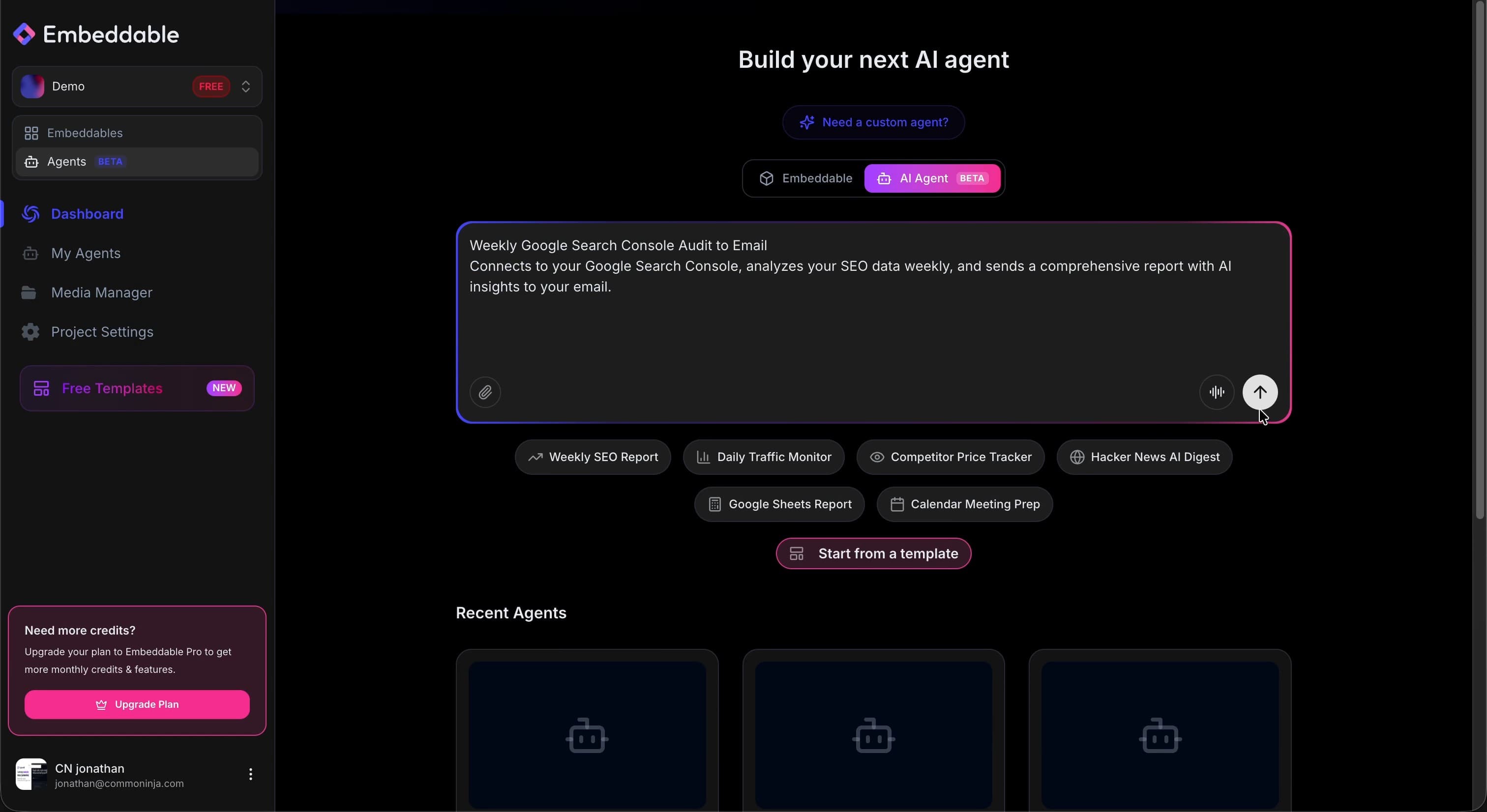
The AI will read your prompt and begin scaffolding the agent. It understands what you need and will guide you through the remaining configuration step by step.
Step 2: Provide Your Details
The AI agent builder will ask for two things:
- Your website URL — the Search Console property you want to audit (for example,
embeddable.co) - Your email address — where the weekly report should be sent
Type them directly in the chat. The AI confirms and moves on.
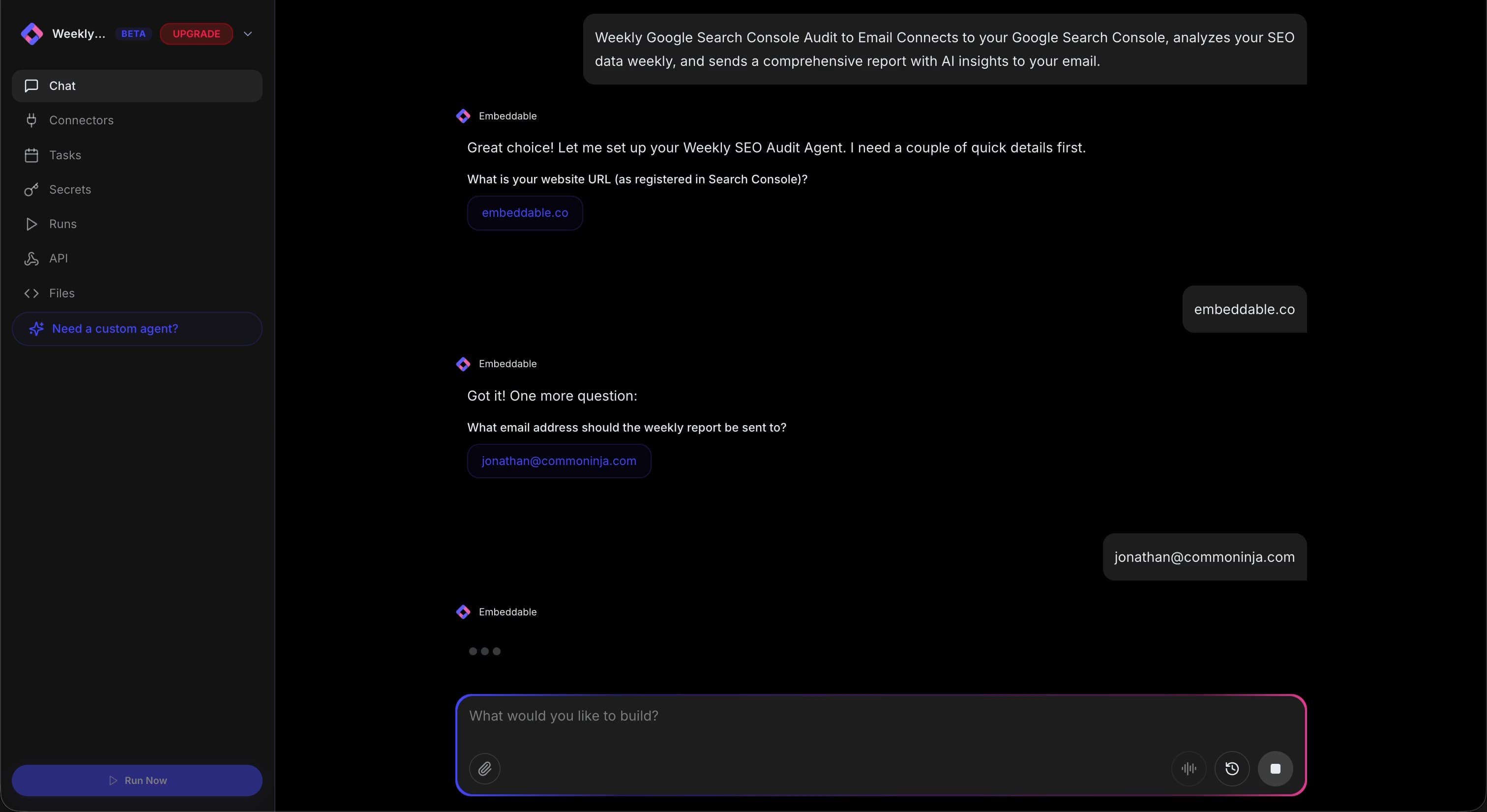
These values are stored as configurable secrets inside the agent, so you can change them later without rebuilding anything.
Step 3: Connect Google Search Console
The AI will prompt you to connect your Google Search Console account. You will see an inline Connect button right in the chat.
Click it. A Google OAuth popup opens. Select the Google account that has access to your Search Console property, authorize Embeddable, and the popup closes automatically.
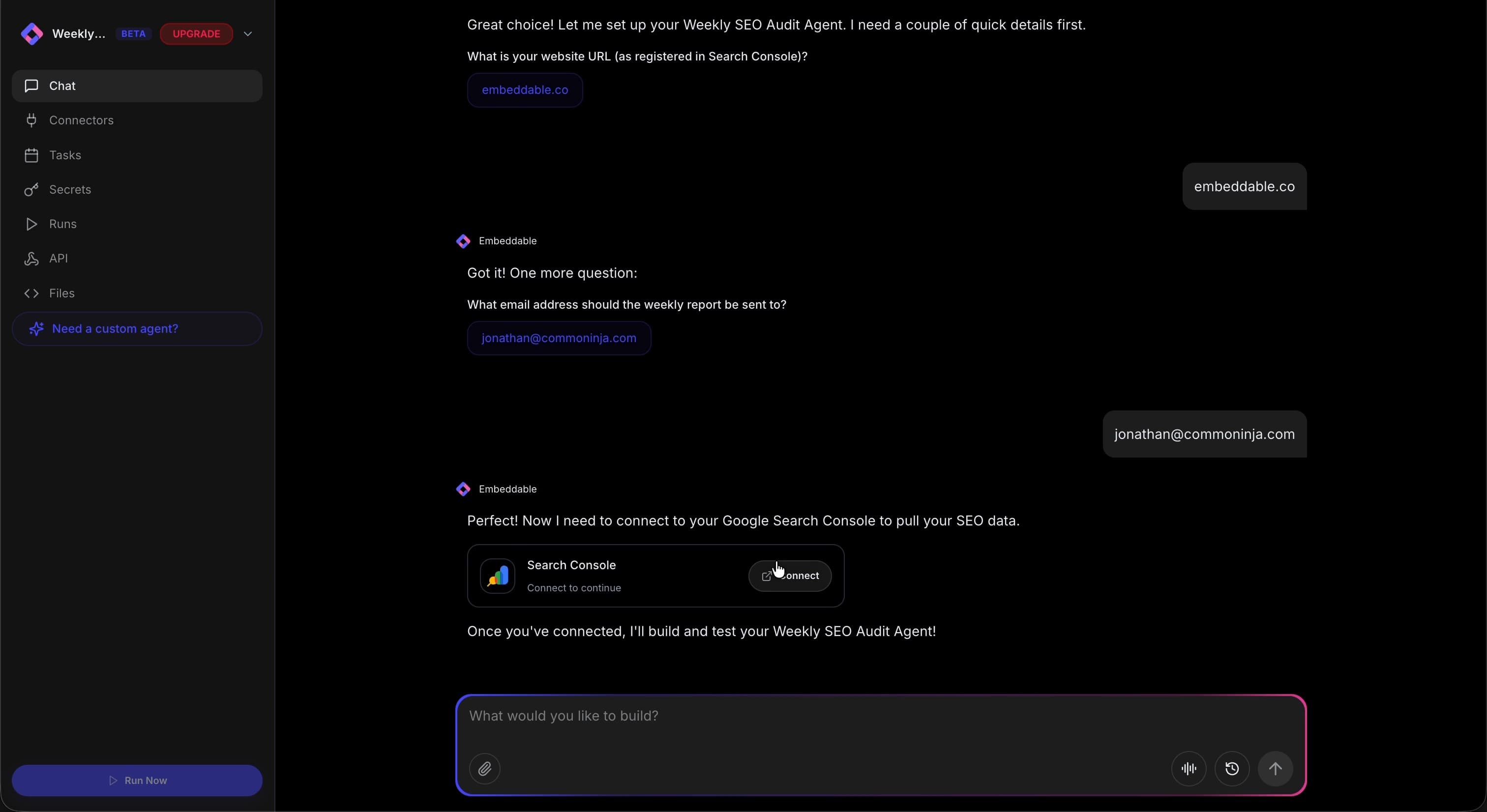
The agent now has read-only access to your Search Console data. It cannot modify anything in your Google account — it only reads keyword performance data.
Step 4: Finalize the Agent
Once connected, tell the AI to finalize the setup. It will generate the agent's code (a functions/main.ts file), the identity files, and run an initial test to make sure everything works.
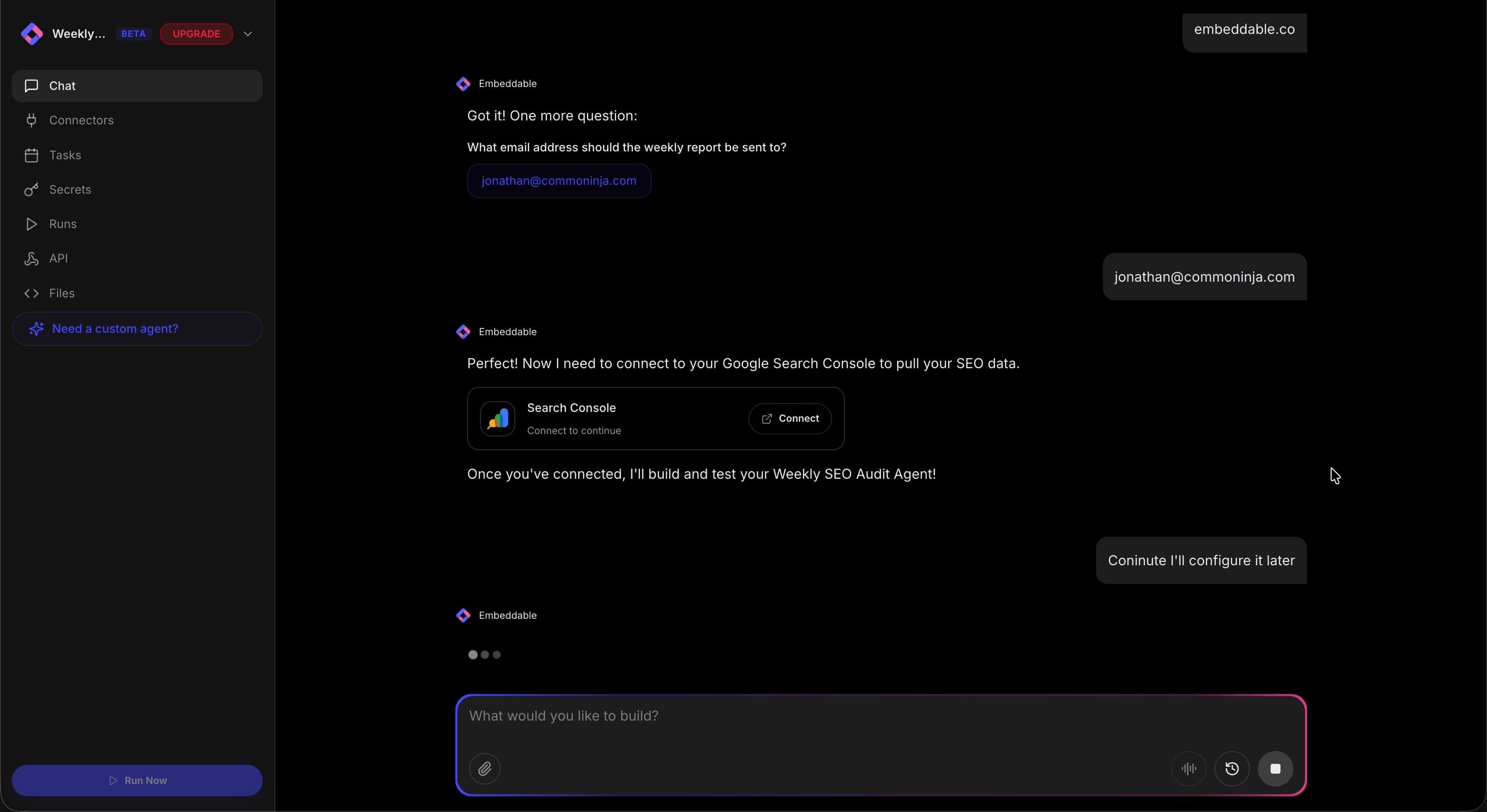
You will see the test results in the run trace — including the Search Console data it pulled and the email it sent. If everything looks good, your agent is ready.
Step 5: Schedule Weekly Audits
Navigate to the Schedule tab in the sidebar. Set the agent to run weekly — Monday mornings are popular for SEO digests, but pick whatever works for your team.
You can also click Run Now at any time to trigger a manual audit.
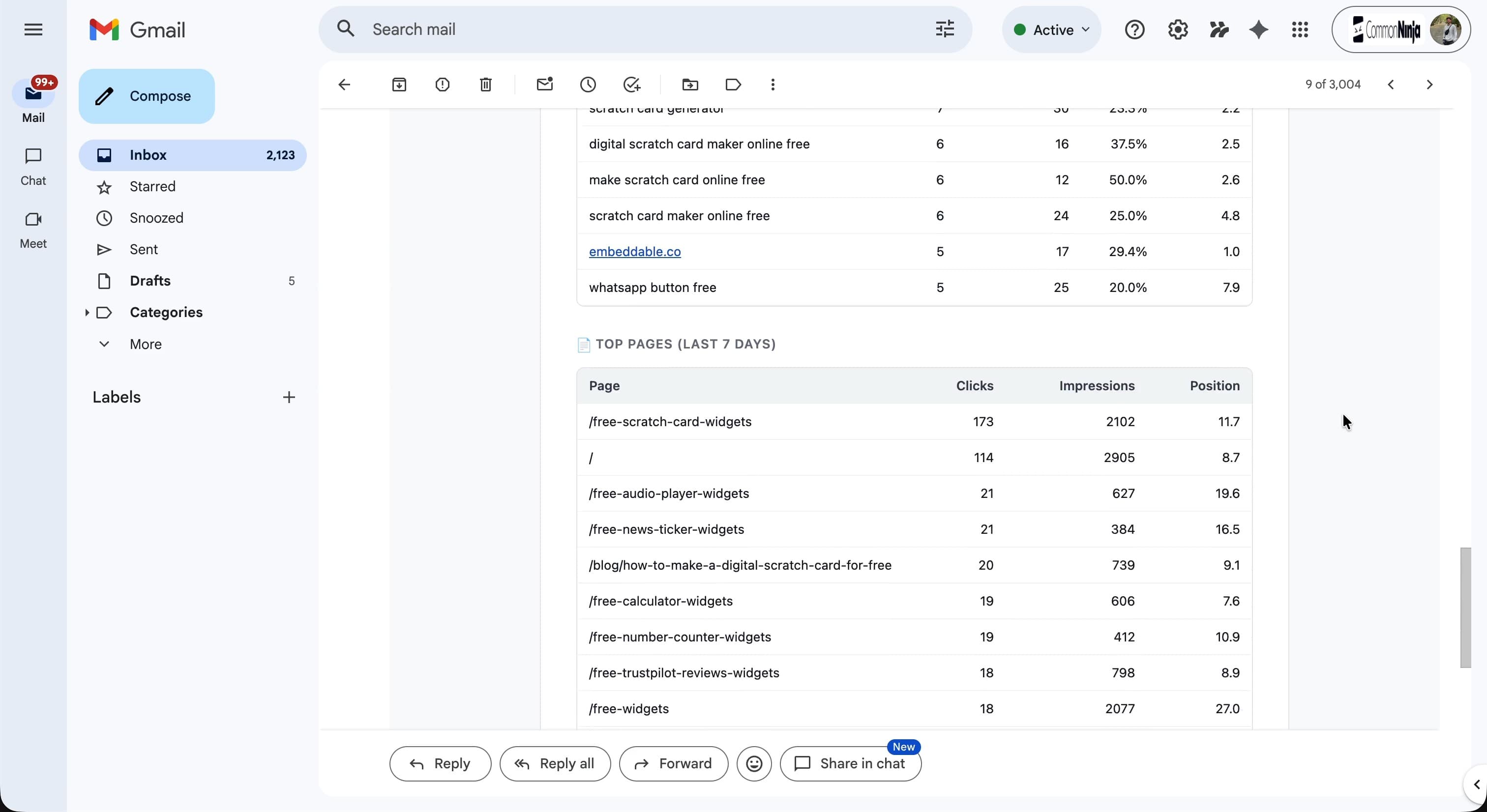
That is it. Your SEO audit workflow is now fully automated. Every week, the agent connects to Search Console, pulls your data, generates an AI-powered analysis with recommendations, and emails it to you.
What the Report Includes
A typical weekly SEO audit report from the agent covers:
- Top keywords by clicks and impressions
- Week-over-week and month-over-month trends for key metrics
- Average position changes for your most important queries
- CTR analysis — which keywords have high impressions but low clicks (optimization opportunities)
- AI-generated recommendations — specific suggestions based on what the data shows
The report is formatted as a clean HTML email, not a raw data dump. It is designed to be scannable and actionable.
Tips and Best Practices
- Schedule audits for Monday mornings so your team starts the week with fresh SEO data
- Review the recommendations — the AI highlights specific keywords and pages worth attention
- Iterate on the prompt — you can always go back to the agent chat and ask it to add more metrics, change the format, or focus on specific pages
- Create separate agents for separate properties — if you manage multiple domains, each one gets its own agent with its own schedule
Troubleshooting
Google Search Console is not connecting Make sure you are logged into the correct Google account — the one that has access to your Search Console property. If you manage multiple Google accounts, try an incognito window to avoid account conflicts.
The email report is not arriving
Check your spam or junk folder. The emails come from [email protected] via the built-in email integration. If you entered the wrong email address, update it in the agent's Secrets tab.
The data looks incomplete Google Search Console typically has a 2 to 3 day data delay. If you just set up the property, give it a few days to accumulate data before running the first audit.
Frequently Asked Questions
Can I change the report frequency later? Yes. Go to the Schedule tab and adjust the cron interval to daily, bi-weekly, or any custom schedule.
What if I need to monitor multiple domains? Create a separate agent for each domain. You can duplicate the SEO audit template and just swap the URL and email in the secrets.
How do I stop audits temporarily? Pause the schedule in the Schedule tab. The agent keeps its configuration — just resume when you are ready.
Can I add more recipients? Yes. Edit the agent's code or secrets to include multiple email addresses. The AI can help — just ask it in the chat: "Add another recipient: [email protected]"
What SEO metrics are included? Clicks, impressions, CTR, average position, top queries, top pages, and week-over-week trends. You can customize this by editing the agent's prompt.
Start Automating Your SEO Audits
If you are still running SEO audits manually, you are spending time on work that an AI agent can handle in seconds. The setup takes 10 minutes, and the payoff is a weekly audit delivered to your inbox without lifting a finger.
- Create your free AI agent and describe what you need
- Or start from a ready-made SEO agent template
- Browse all AI agent templates for more automation ideas
For more on what you can build with Embeddable's AI agents, see the AI Agents overview or explore templates for competitor monitoring, keyword research, and analytics alerts.
Build Any Widget with AI in Seconds
Forms, calculators, quizzes, popups & any custom widget — describe it and AI builds it.
Try It FreeFree tier · No credit card