How to Build a Waitlist Widget for Your Website in 2026 (No Code)

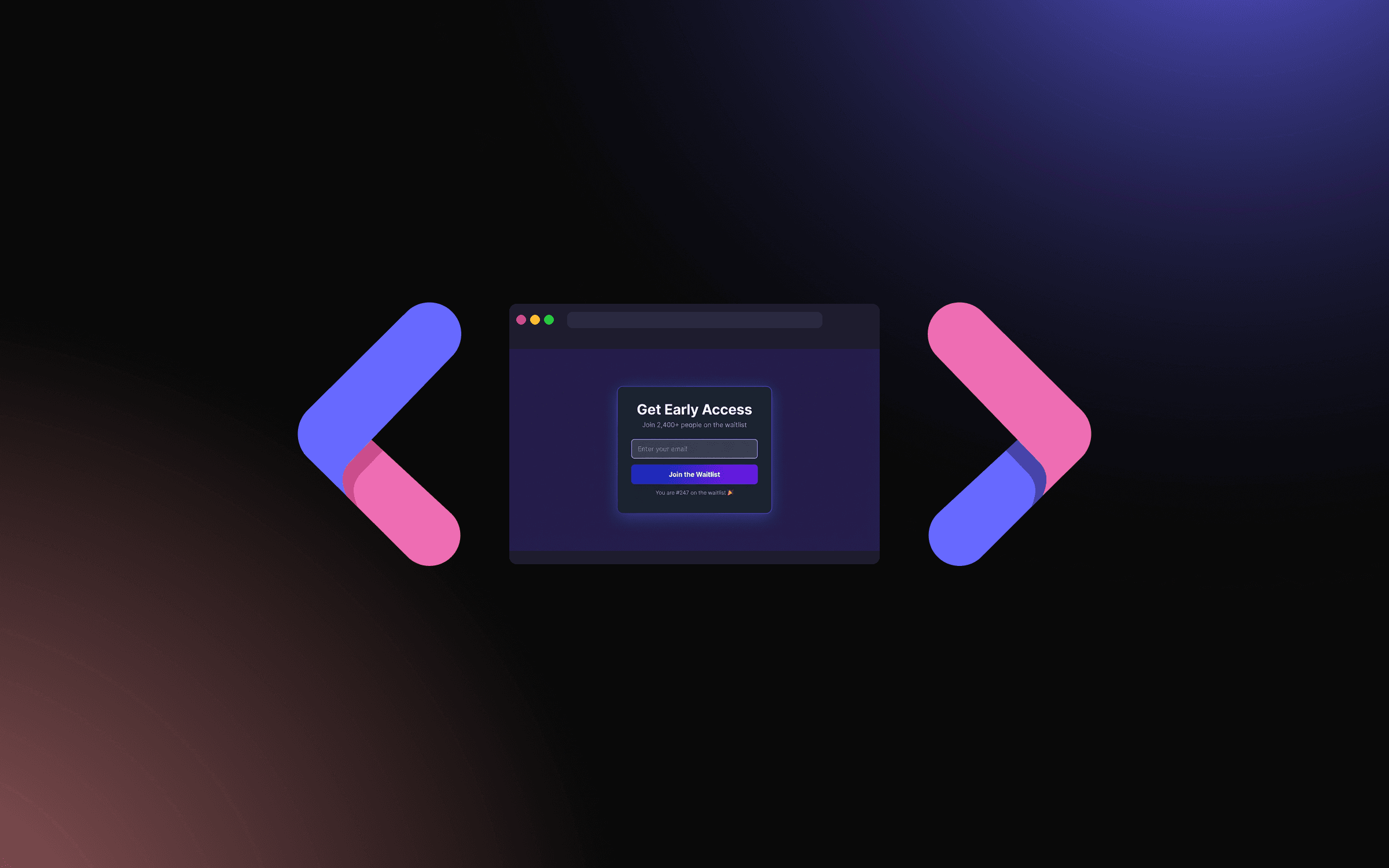
Before you launch anything — a product, an app, a course, a service — you should have a waitlist. Not a Mailchimp form. Not a Google Form linked from your bio. A real, embedded waitlist widget that lives on your website, collects emails beautifully, sends confirmation emails automatically, and tells you who your early audience is.
A well-built waitlist widget does three things that a bare form can't:
- Creates social proof — showing a spot counter or number of waitlist members makes late arrivals feel like they might miss out
- Delivers a great first impression — the design of your waitlist is often someone's first interaction with your brand
- Automates your follow-up — confirmation emails, welcome sequences, and admin notifications happen without you lifting a finger
In this tutorial, I'll show you how to build a fully functional waitlist widget for your website in 2026 — step by step, with no code required — using Embeddable, an AI-powered widget builder trusted by 5,000+ marketers.
Let's build.
What You'll Build
By the end of this tutorial, you'll have a waitlist widget that:
- Collects email addresses (plus any other fields you want: name, company, Twitter handle, etc.)
- Automatically sends a branded confirmation email to each person who signs up
- Notifies you (or your team) of each new submission
- Shows a position counter or queue number to increase FOMO
- Embeds cleanly on any website — WordPress, Webflow, Shopify, Squarespace, custom HTML, or anything else
Total time to build: 5–10 minutes. No developer needed.
Why Your Website Needs a Waitlist Widget (Not Just a Form)
Before we get into the how, let's talk about the why. You might be thinking: "I'll just use Typeform" or "I can throw together a Mailchimp signup form." Here's why those fall short for a launch waitlist:
Standard forms are static. They collect emails and stop there. A purpose-built waitlist widget can show a real-time spot counter, dynamically update the number of people in the queue, or unlock a "position" number after signup to drive referral sharing.
Confirmation emails from form tools are generic. When someone signs up for your waitlist, the email they receive is your first real conversation with them. A waitlist confirmation should feel like the start of something exciting — not an automated form receipt.
Standard forms don't match your brand. Embedding a Typeform or Google Form on your site usually means accepting their design system. With a custom waitlist widget, every pixel matches your brand.
You lose control of your data. With a purpose-built widget, your waitlist data lives in your hands — exportable at any time, connected to your CRM, not locked in a third-party platform.
The good news: building a custom waitlist widget is no longer a developer project. Let's do it.
Step 1: Go to Embeddable and Start Building
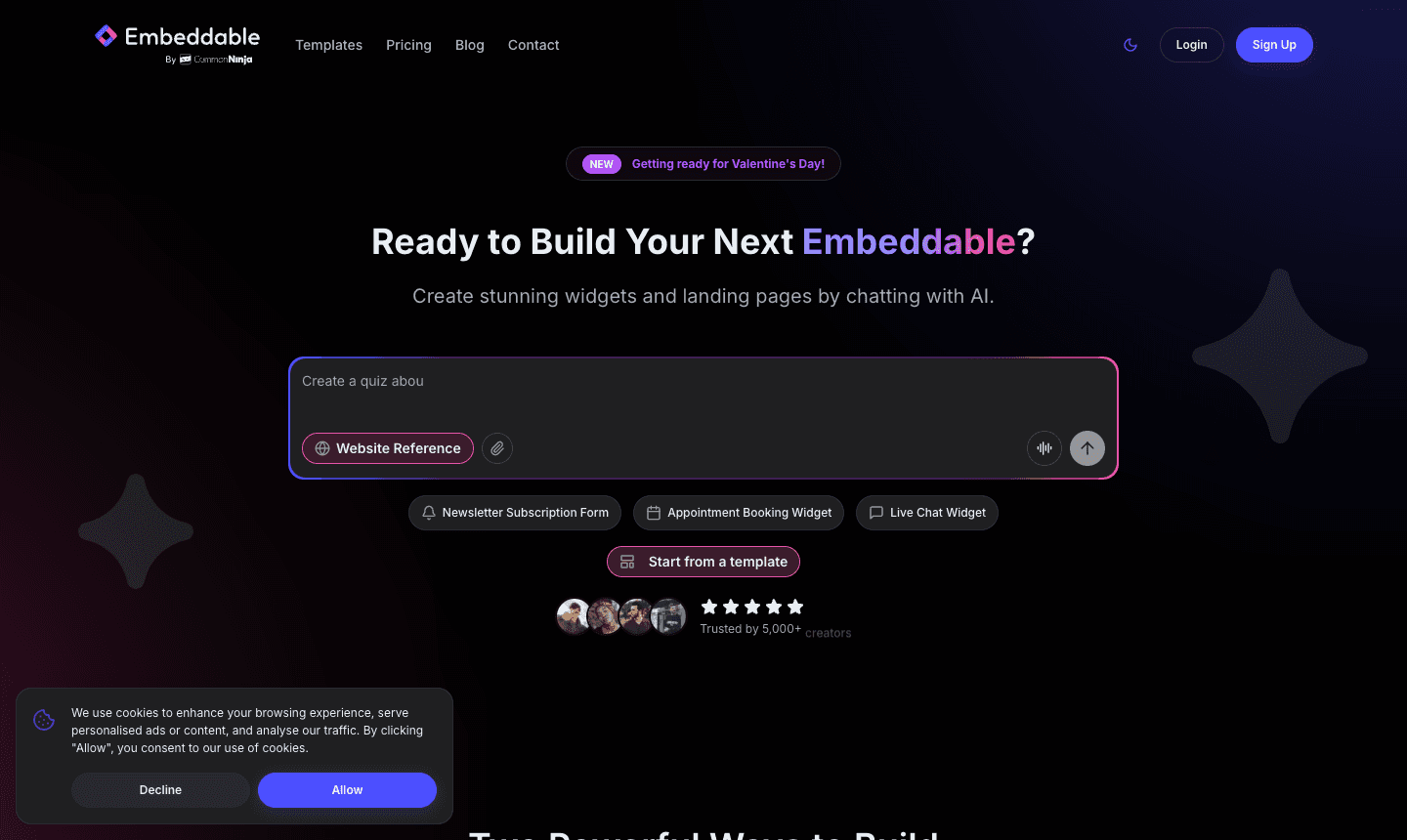
Head to embeddable.co and sign up for a free account. The homepage shows you exactly what the platform does: you describe what you want in plain English, and the AI builds a fully functional widget. You can also start from a template — which is the fastest path for a waitlist widget.
Once you're in the dashboard, click "New Widget" and either:
- Type a description like "Build me a waitlist widget with a name and email field, a position counter showing the user's spot in queue, and a blue gradient design"
- Or browse the free waitlist widget templates and pick one to customize
The AI approach is genuinely impressive. Within seconds you have a working widget — not a blank canvas or a form builder wizard, but an actual styled, functional waitlist form.
Step 2: Choose Your Waitlist Widget Template
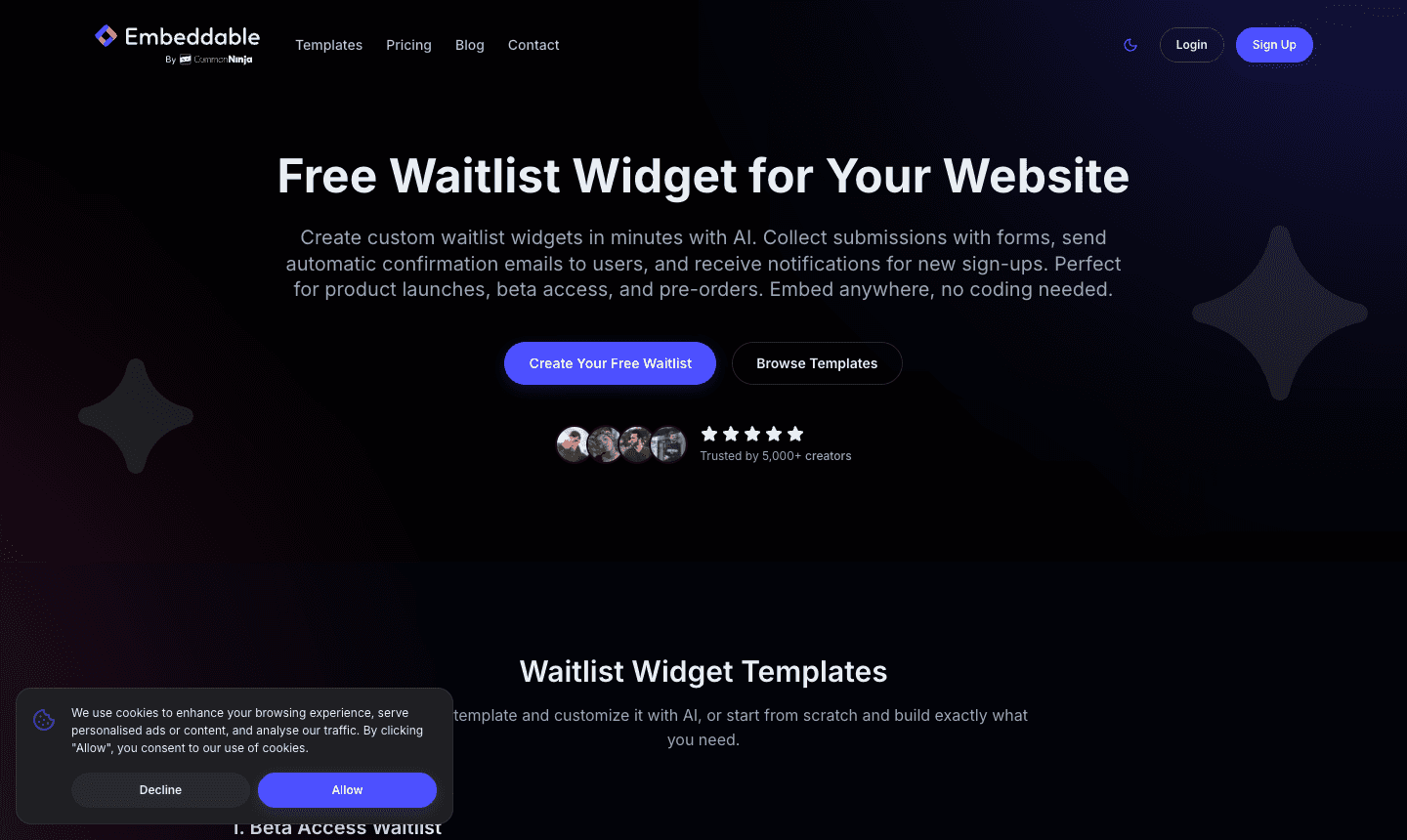
Embeddable offers 6 ready-to-use waitlist widget templates, each designed for a specific use case:
1. Beta Access Waitlist
The go-to for app and software products. Collects beta tester info with custom fields (email, use case, company size), sends branded welcome emails to users, and pings your team with a notification on each submission.
Best for: SaaS products, apps, developer tools
2. Minimal Waitlist
Clean, conversion-focused design with a single email input. No friction, maximum signups. Sends confirmation emails to users and admin notifications automatically.
Best for: When you want the highest conversion rate and don't need extra fields
3. Product Launch Waitlist
A more feature-rich template designed to build anticipation. Includes a countdown timer (great for showing "48 hours until launch" or a launch date), automatic email confirmations, and real submission alerts.
Best for: Physical products, digital products, apps with a defined launch date
4. Early Bird Waitlist
Shows each subscriber their position in the queue — "You're #247 on the waitlist!" This is powerful for FOMO and for motivating people to share your page to move up. Includes confirmation emails and admin notifications.
Best for: Products with limited spots, exclusive programs, courses
5. Popup Waitlist
An eye-catching modal/popup version of the waitlist form. Triggers based on time on page, scroll depth, or exit intent. Higher visibility means higher capture rates.
Best for: When you want to catch visitors who are about to leave without signing up
6. Premium Waitlist
The full-featured template: name, email, and company fields; branded confirmation emails; detailed submission notifications. For when you're collecting serious early-adopter data.
Best for: B2B products, high-touch SaaS, premium services
Pick the template that fits your use case. You can customize everything — design, copy, fields, colors, fonts — after you select it.
Step 3: Customize Your Waitlist Widget
Once you're in the editor, customizing is intuitive. Here's what to configure:
Design & Branding
- Change the background color or gradient to match your brand palette
- Update the button color and text ("Join the Waitlist," "Get Early Access," "Save My Spot")
- Add your logo or a relevant illustration/image
- Adjust the font to match your website's typography
- Set the border-radius for rounded vs sharp corners
Form Fields
By default you'll have an email field. Add or remove fields based on what data you actually need:
- Name (first name only vs. full name)
- Company (useful for B2B)
- Role/Title (helps with segmentation)
- Use case (why do you want access?)
- Twitter/X handle (for referral programs)
Pro tip: every field you add reduces conversions slightly. Only ask for what you'll actually use.
Confirmation Email
Configure the automatic email your subscribers receive after signing up. This is gold — it's the first touchpoint after someone raises their hand to say "I want this."
Write a genuine, personal confirmation email:
- Thank them by name
- Tell them what to expect next (when you'll launch, what early access looks like)
- Include a link to share the waitlist (if you have a referral mechanic)
- Make it feel like the start of a relationship, not a transaction
Admin Notifications
Set up your own notification email so you see every new signup as it happens. There's nothing quite like the validation of real-time signups rolling in during a launch.
Step 4: Set Up Integrations
One of the advantages of building with Embeddable is the integration layer. You can connect your waitlist to:
- Email marketing tools (Mailchimp, ConvertKit, ActiveCampaign): automatically add new signups to a list or sequence
- CRMs (HubSpot, Salesforce): create contact records immediately on signup
- Slack or Discord: get real-time notifications in your team channel when someone joins
- Webhooks: send submission data to any custom endpoint
- Zapier: connect to 7,000+ apps without writing code
For most early-stage products, connecting to your email tool so signups flow directly into a nurture sequence is the highest-value integration. You can set this up from the Integrations tab in the widget editor.
Step 5: Embed Your Waitlist Widget on Your Website
When you're happy with your widget design, click Publish. Embeddable generates an embed code — a short snippet of JavaScript — that you paste into your website.
WordPress
Add the Embeddable embed code to any page or post using a Custom HTML block in the Gutenberg editor. Or paste it directly into your theme's template file if you need it in the header, sidebar, or footer.
Webflow
In Webflow, drag an Embed element onto your page, click the code icon, and paste the Embeddable snippet. The widget renders live in your Webflow preview.
Shopify
Go to Online Store → Themes → Edit Code and paste the code in the section where you want the widget to appear. Or use a Liquid template variable to place it dynamically.
Squarespace
In the Squarespace editor, add a Code Block to any page section and paste the embed code inside it.
Any Other Platform
If your platform supports custom HTML, you can embed it. Raw HTML sites, Notion, Carrd, Framer, Ghost — if there's a spot to paste code, your waitlist widget goes there.
The embed is lightweight (a few kilobytes), loads asynchronously so it doesn't slow your page, and is fully mobile-responsive out of the box.
Step 6: Test Your Waitlist Widget
Before you start driving traffic, run through the full flow yourself:
- Submit a test entry with a real email address
- Check that you receive the confirmation email (check spam if not)
- Check that the admin notification arrives
- Verify the data shows up in your Embeddable dashboard under Submissions
- If you set up integrations, confirm the data flowed through (check your CRM/email tool)
- Test on mobile — does the widget render well on a phone screen?
- Test on multiple browsers (Chrome, Safari, Firefox)
Once everything works, you're ready to go live.
Step 7: Promote Your Waitlist
Building the widget is the easy part. Getting people to sign up is the ongoing work. Here are the highest-leverage channels for a waitlist launch:
Your existing audience: Email your current list. Tweet/post about it. Share in communities you're already part of.
Product Hunt Upcoming: List your upcoming product on Product Hunt's "Upcoming" page to generate interest before launch.
Reddit: Find the subreddits where your target audience hangs out and share genuinely useful content with your waitlist link.
LinkedIn: For B2B products, LinkedIn organic reach is still underrated. A personal post from the founder often outperforms paid ads.
Twitter/X: Build in public. Share your progress, your learnings, your metrics. "We just hit 500 waitlist signups" is the kind of post that gets reshared.
Friends, colleagues, advisors: The first 50 signups usually come from people who already
Build Any Widget with AI in Seconds
Forms, calculators, quizzes, popups & any custom widget — describe it and AI builds it.
Try It FreeFree tier · No credit card