How to Create Custom Skills in Embeddable — Train the AI on Your Brand

A custom skill in Embeddable is a small markdown document you can attach to any AI prompt. Once attached, the AI treats it as a hard requirement for that build. Use custom skills to capture brand voice, design system rules, compliance requirements, or anything else specific to your team that the built-in skills do not cover.
This is a short walk-through for creating your first custom skill. It takes about three minutes end to end.
If you have not read the announcement yet, start with the Skills overview for the bigger picture. This post focuses on the custom skills workflow.
Before You Start
You need an Embeddable account with at least one organization. Custom skills are scoped to the organization — anyone on your team with editor or admin access can use them.
A few skill ideas to seed your thinking:
- Brand voice — your tone, words you favor, words you avoid, casing rules
- Color palette — hex values for primary, accent, neutral, and surface colors
- Form patterns — how your forms should look, validate, and confirm submissions
- Accessibility additions — anything beyond the built-in WCAG AA skill (for example, AAA contrast)
- Industry terminology — words your audience expects (regulated finance, healthcare, education)
Pick one to start. You can always add more later.
Step 1: Open the Skills Picker
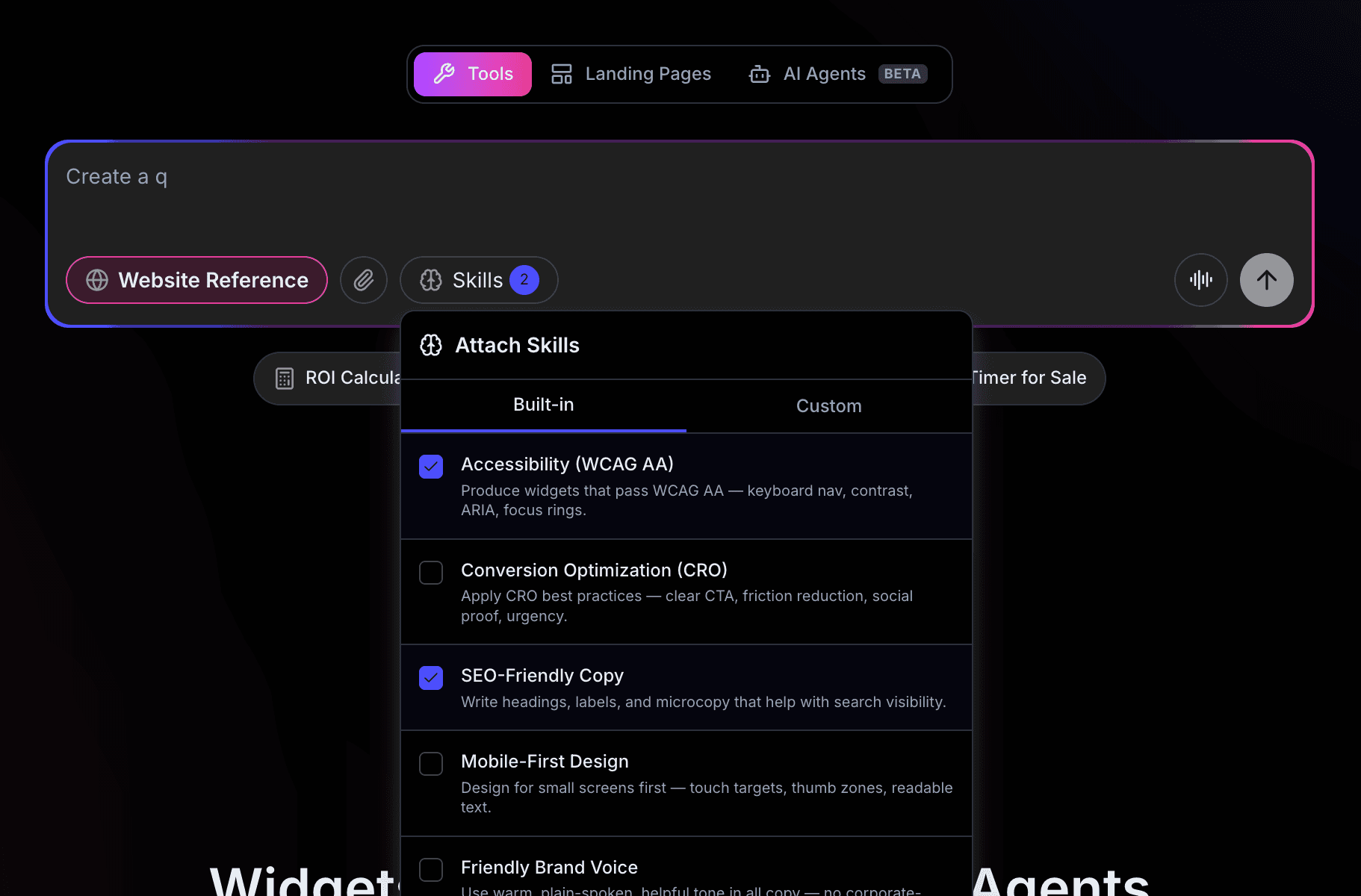
Open any widget in the editor, or start a new build from the dashboard. Find the Skills button next to the Style and Upload buttons in the prompt textarea.
Click it to open the skill picker. You will see two tabs at the top — Built-in and Custom.
Step 2: Click Create New Skill
Switch to the Custom tab. At the top of the list you will see a Create new skill option with a plus icon. Click it.
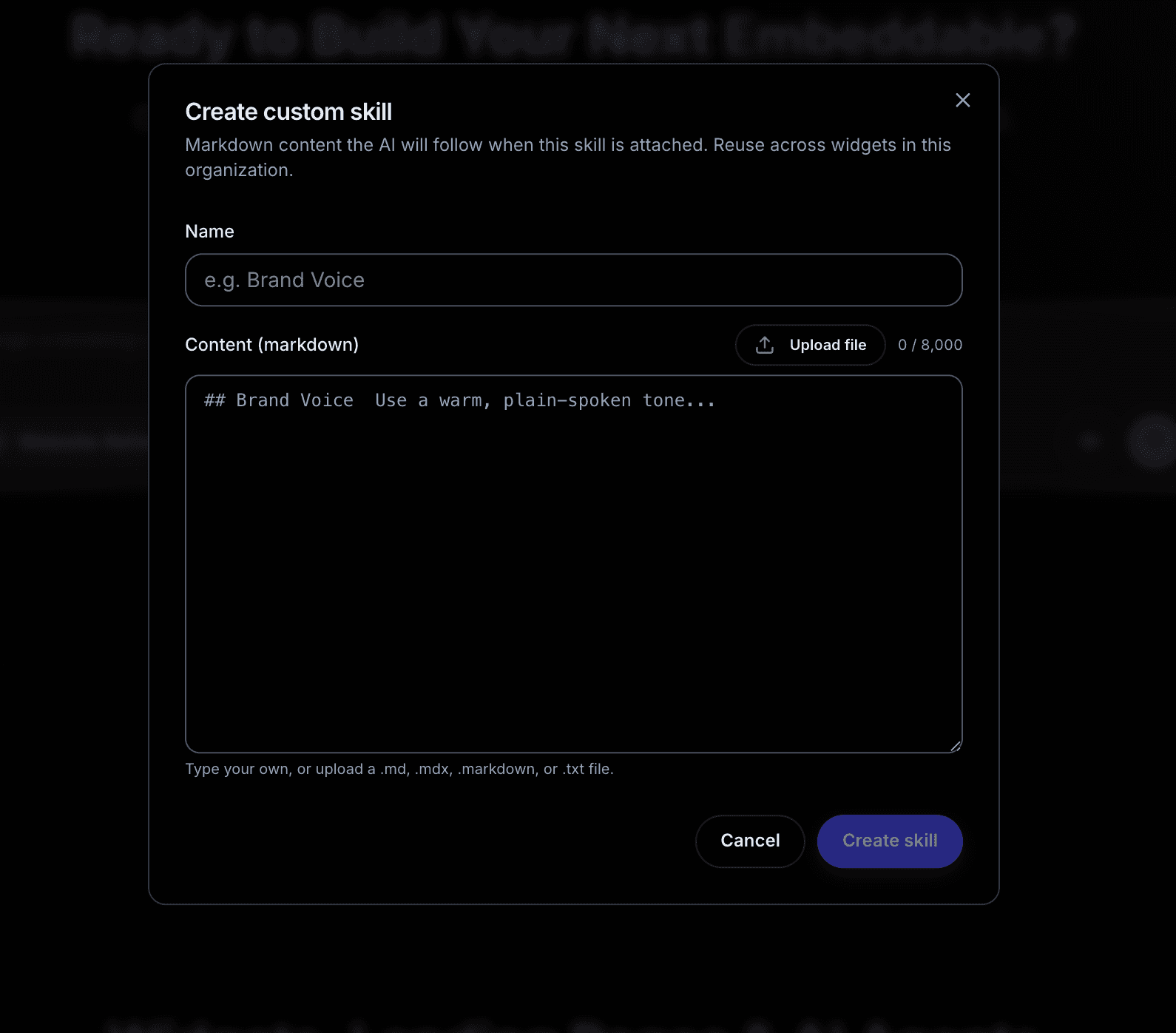
A dialog opens with two fields:
- Name — what your team will see in the picker (for example, "Acme Brand Voice")
- Content — your skill written in markdown
The name is purely for the picker — keep it short and recognizable.
Step 3: Write Your Skill in Markdown
The content field accepts markdown up to 8,000 characters (about 2,000 words). That is intentionally enough room for a real style guide but tight enough that the AI does not lose focus.
A good skill is:
- Structured — use headings (
##) and bullets so the AI can find the rule it needs - Specific — "use sentence case for body copy, title case for buttons" beats "use good casing"
- Action-oriented — write rules as instructions, not aspirations ("never use exclamation points", not "avoid being overly enthusiastic")
- Honest about exceptions — if a rule has carve-outs, name them
If you do not want to write from scratch, you can upload a markdown file. Click Upload file in the editor — .md, .mdx, .markdown, and .txt files are accepted, up to 100 KB. The file content fills the textarea, and you can edit it inline before saving.
Step 4: Save and Attach
Click Create skill. The dialog closes and your skill appears in the Custom tab, marked with an amber sparkle icon so you can distinguish it from the built-in indigo set.
Check the box next to your skill. Close the picker. The skill is now attached — the next prompt you send will include it in the AI's context.
When you send the message, your custom skill appears as a chip in the message bubble alongside any built-in skills, with the same amber styling. That way you can scroll back through the conversation later and see exactly which guidance was applied on each turn.
Step 5: Iterate
Custom skills are easy to edit. Open the picker, find your skill in the Custom tab, and click the pencil icon. Make changes, save, and the next prompt picks up the updated version.
The character counter at the top of the content field turns amber at 90 percent and red over the limit. If you paste a 12 KB markdown file, the counter goes red — trim it back down before saving.
If a skill is not getting the results you want, the most common fix is to add a concrete example. AI follows specific patterns better than abstract principles.
For example, instead of:
Use a friendly tone.
Try:
Use a friendly tone. Example: "Thanks for signing up — we will be in touch by Friday." Not: "We have received your submission and will respond in due course."
The example anchors the AI on exactly the kind of output you want.
Step 6: Reuse Across Widgets
Once a custom skill exists, it is available on every widget and landing page in your organization. Attach the same brand voice skill to a contact form, a quiz, and a landing page hero — they will all sound like the same brand.
This is the main reason to use custom skills. The cost of writing a good skill is paid once. The benefit accrues across every widget anyone on your team builds.
A Real Example
Here is a starter brand voice skill you can adapt. Save it as a custom skill named "Brand Voice" or similar:
## Brand Voice

Write in second person ("you", "your"). Use "we" sparingly, only for social proof. Never "I".

**Tone**
- Plain spoken, warm, confident. Not cute, not corporate.
- Short sentences. One idea each.
- Contractions are fine: "you'll", "we're", "don't".

**Casing**
- Sentence case for body copy.
- Title Case for buttons and section headings.
- Never ALL CAPS.

**Words we use**
- "Build", "start", "try" — concrete verbs.
- "Free" when it is genuinely free, never as a hook for paywalls.

**Words we avoid**
- "Unleash", "supercharge", "transform", "revolutionary".
- "Just" as a softener ("just click here").
- Exclamation points. Use a period instead.

**Microcopy patterns**
- Error: take responsibility, suggest a fix. "Looks like that email is already taken — try logging in instead?"
- Empty state: encouraging, with a next step. "Nothing here yet. Create your first one to get started."
- Confirmation: brief, warm. "Got it — you will hear from us by Friday."
Paste it as a starting point, replace the specifics with your own, and you have a working brand voice skill in five minutes.
What Custom Skills Cannot Do
A few things to keep in mind:
- Skills do not modify your widget files directly. They influence how the AI generates output. They do not run linters or auto-fix existing code.
- Skills do not persist across conversations. Attach them per build. The picker remembers your last selection within a session, but a new chat starts fresh.
- Skills do not override explicit prompt instructions. If you tell the AI "use red text" and your brand skill says "never use red", the prompt wins. Skills are defaults, not locks.
Wrapping Up
Custom skills are the quickest way to encode taste, standards, and brand into Embeddable's build process. Write your most-repeated piece of guidance as a skill once, attach it whenever it applies, and stop typing the same instructions over and over.
If you build a skill you think other teams could use, drop us a note — we are collecting candidates for the next round of built-in skills based on what works in the wild.
Build Any Widget with AI in Seconds
Forms, calculators, quizzes, popups & any custom widget — describe it and AI builds it.
Try It FreeFree tier · No credit card