Introducing Skills — Reusable AI Guidance for Every Widget You Build

If you build a lot of widgets in Embeddable, you have probably found yourself typing the same instructions over and over. "Make sure the form is accessible." "Keep the CTA above the fold." "Use a friendly tone." Useful guidance, but tedious to repeat for every prompt.
Today we are rolling out Skills — reusable chunks of AI guidance you can attach to any prompt with one click. Pick a skill once, and the AI follows it for that conversation. No more retyping the same rules every time you build a new widget or landing page.
This update covers the basics: what skills do, how to attach them, and how to create your own custom skills for brand voice, design systems, or anything else specific to your team.
What a Skill Actually Is
A skill is a small markdown document that gets attached to your prompt. When the AI builds your widget, it treats the skill as a hard requirement alongside whatever you typed.
Think of it like a checklist the AI runs against every change. If you attach the Accessibility (WCAG AA) skill, the AI will:
- Add ARIA labels to interactive elements
- Make sure every form field has an associated label
- Use proper HTML elements (buttons for actions, links for navigation, not divs with onClick)
- Maintain a visible focus ring on focusable elements
- Hit WCAG AA contrast ratios for text and UI elements
You did not have to spell any of that out. The skill did it for you. And you can stack multiple skills on the same prompt — accessibility plus mobile-first plus SEO copy — and the AI applies all of them.
The Built-In Skills
Five skills ship with Embeddable today, available on every plan:
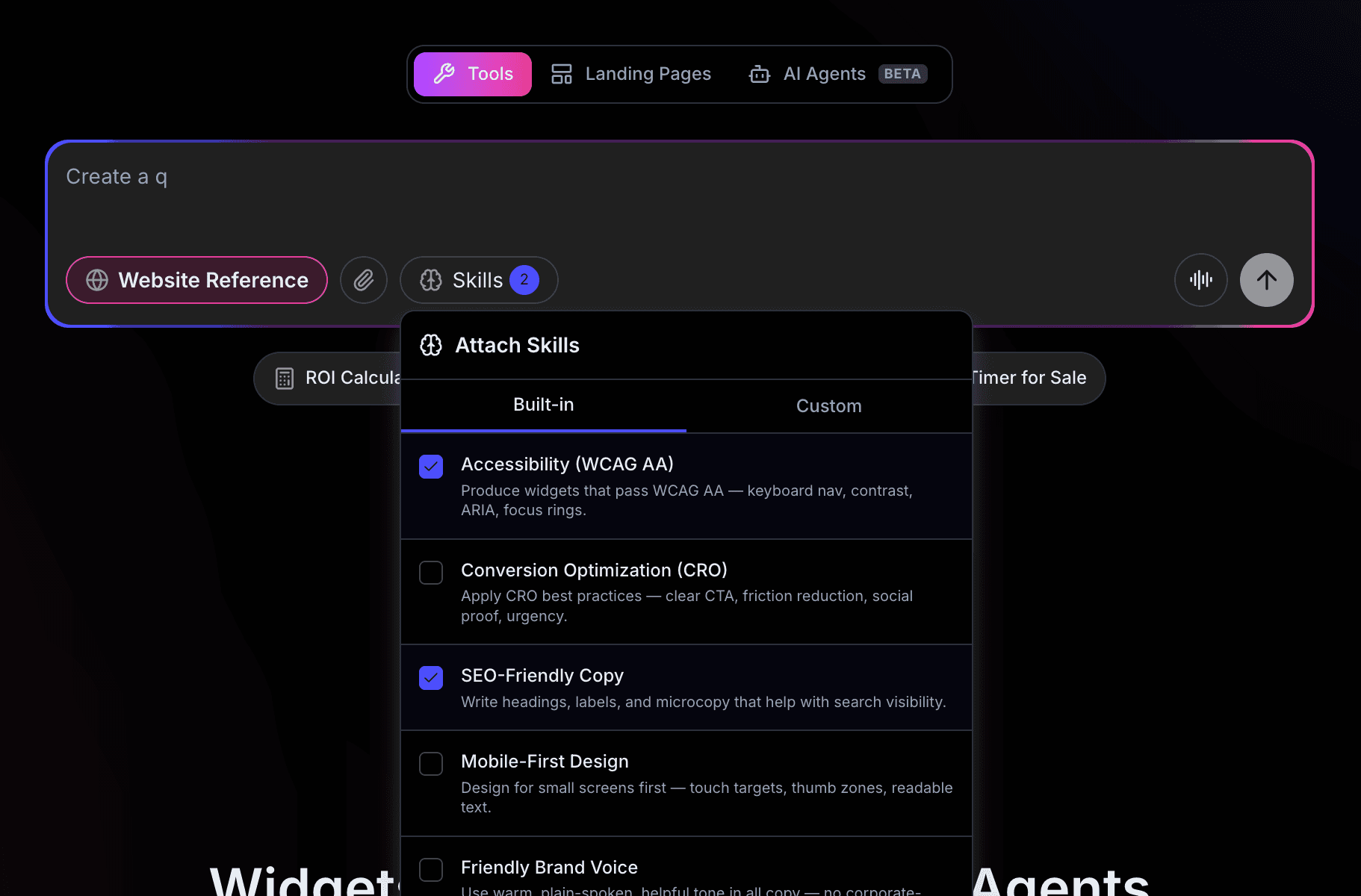
- Accessibility (WCAG AA) — keyboard navigation, semantic HTML, ARIA, color contrast, motion preferences
- Conversion Optimization (CRO) — single clear CTA, friction reduction, social proof, honest urgency
- SEO-Friendly Copy — proper heading hierarchy, keyword placement, link anchor text, metadata signals
- Mobile-First Design — touch target sizing, thumb-zone CTA placement, responsive layout defaults
- Friendly Brand Voice — plain-spoken tone, second-person voice, no marketing jargon
Each skill is roughly 500 to 800 words of carefully written guidance. We tuned them based on real widgets and landing pages built on Embeddable over the last year — the patterns that actually matter, not generic best-practice templates.
How to Attach a Skill
In the prompt textarea (homepage, dashboard, or in the editor on an existing widget), you will see a new Skills button next to the Style and Upload buttons.
Click it. A picker opens with two tabs — Built-in and Custom. Check the skills you want, close the popover, and type your prompt as usual.
When you send the message, the attached skills show up as small chips inside your message bubble so you always know what guidance was applied. The chips persist in the conversation history, so if you scroll back later you can see exactly which skills the AI followed on each turn.
Per-Tab Skill Filtering
Embeddable now has three builder tabs: Tools, Landing Pages, and AI Agents. The Skills picker filters automatically based on the active tab. On the AI Agents tab you see agent-specific skills (output formatting, error handling, data privacy) instead of the widget-and-landing-page set. Skills that apply everywhere — like Friendly Brand Voice — show on every tab.
That means the picker is never cluttered with options that do not fit your current job.
Custom Skills
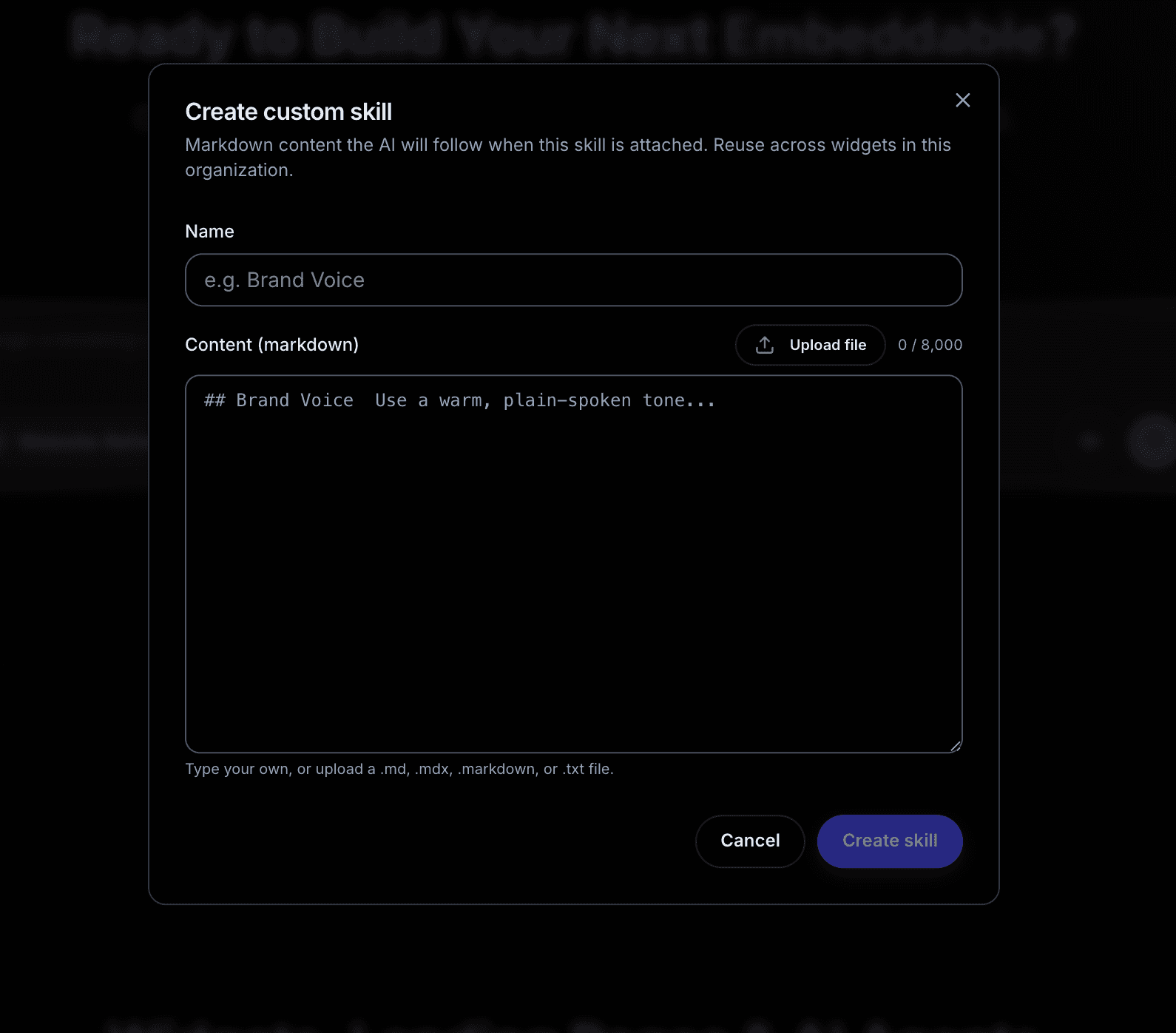
The built-in skills cover the cross-cutting basics. For anything specific to your business, you can create your own custom skills.
Common cases:
- Brand guidelines — your color palette, typography rules, voice, words to avoid
- Design system — component patterns your widgets should match
- Industry compliance — HIPAA, GDPR, accessibility requirements beyond WCAG AA
- Customer language — terminology your audience expects (regulated finance, healthcare, B2B SaaS)
Custom skills are scoped to your organization. Everyone on your team can attach them. You can edit and delete them anytime.
Read the custom skills how-to for a walk-through of creating, editing, and reusing your own skills.
What Happens Under the Hood
When you attach a skill, the content gets injected into the AI's system context for that conversation turn. It sits alongside the rest of the context Embeddable assembles — the widget file tree, your prompt, any reference images or URLs — and the AI treats all of it as authoritative guidance for that build.
Skills do not modify your widget files directly. They influence how the AI reads your request and generates the output. Detach a skill and the next message goes out without it. Attach a different one and the AI follows the new guidance instead.
The mechanism is the same whether the skill is built-in or custom. Built-in skills live in code and apply to every account. Custom skills live in your organization's database and apply only to you.
Why This Matters
Two reasons.
First, repetition is friction. If you have to type "and make it accessible" at the end of every prompt, you will eventually stop bothering. Skills let you set a standard once and have it applied automatically.
Second, consistency. If multiple people on your team build widgets, you want them to ship widgets that look and behave consistently. A shared skill that encodes your brand voice or design system gives everyone the same starting point without anyone having to memorize a style guide.
This is the lowest-friction way we could think of to encode taste and standards into the build process. The AI was already capable of following good practices when you described them. Skills just remove the part where you have to describe them every time.
Try It Now
Open any widget or landing page in your editor, click Skills in the prompt textarea, and pick one. Send any prompt. Check the result against the skill's rules — you should see clear differences in how the AI shapes the output.
If you build something with skills attached and you want to talk about how it changed your workflow, we would love to hear from you. Reply to the launch announcement or drop us a note.
More skills are on the way. If you want a specific one — domain compliance, a particular design system, an industry style guide — let us know what would be useful.
Build Any Widget with AI in Seconds
Forms, calculators, quizzes, popups & any custom widget — describe it and AI builds it.
Try It FreeFree tier · No credit card