How to Embed a Booking Calendar on Your Website (Step-by-Step)

Whether you run a consulting practice, a salon, a fitness studio, or a SaaS company, letting visitors book time directly on your website is one of the highest-leverage things you can do for your business. Every time someone has to send an email asking for availability, you lose a potential booking. A well-built booking calendar widget removes that friction entirely.
This guide walks you through exactly how to embed a booking calendar on your website using Embeddable, a no-code widget builder that makes the process fast and straightforward. By the end, you will have a live scheduling widget that visitors can interact with, submit their details through, and use to request or confirm appointments, all without you writing a single line of code.
What You Will Build
By following this tutorial, you will end up with:
- A fully functional booking calendar widget embedded on any page of your website
- A customized appointment form that collects visitor information alongside the booking
- A calendar embed that matches your brand colors and fonts
- A scheduling widget that works on mobile and desktop without any extra configuration
- Optional integrations to send booking notifications to your email, Slack, or a spreadsheet
This works on virtually every major website platform, including WordPress, Webflow, Squarespace, Framer, Wix, Shopify, and more. If your platform lets you paste HTML, you can use this approach.
Why a Booking Calendar Widget Matters
Before jumping into the steps, it is worth understanding what you are actually solving. Visitors who land on a service page, a coach's website, or a product demo page are often ready to take action. If the next step is "email us to schedule a call," a significant percentage of them will bounce. People expect instant gratification. A calendar embed that lets them pick a time and confirm immediately converts far better than any contact form.
Beyond conversion, an embedded booking widget also saves you time. You stop playing email tennis over availability. Confirmations can go out automatically. And because the data is captured in a structured way through the appointment form, you have clean records to work from.
If you are thinking about what kind of widget you need, the Embeddable booking and scheduling use case page gives you a good overview of how businesses are using these tools.
Step 1: Create a Free Embeddable Account
Go to Embeddable and sign up for a free account. No credit card is required to get started. Once you are logged in, you will land on your dashboard where you can create and manage all your widgets.
Embeddable is a no-code widget builder, which means everything is done visually. You do not need to know JavaScript, React, or any programming language to follow this guide.
Step 2: Start a New Widget and Choose a Calendar Template
From your dashboard, click "Create New Widget." You will see a library of widget types organized by category. Look for the calendar or booking section. Embeddable includes pre-built templates for appointment booking calendars that give you a solid starting point.
Select a booking calendar template. You will immediately enter the visual editor, which is where you will spend most of your time in this tutorial.
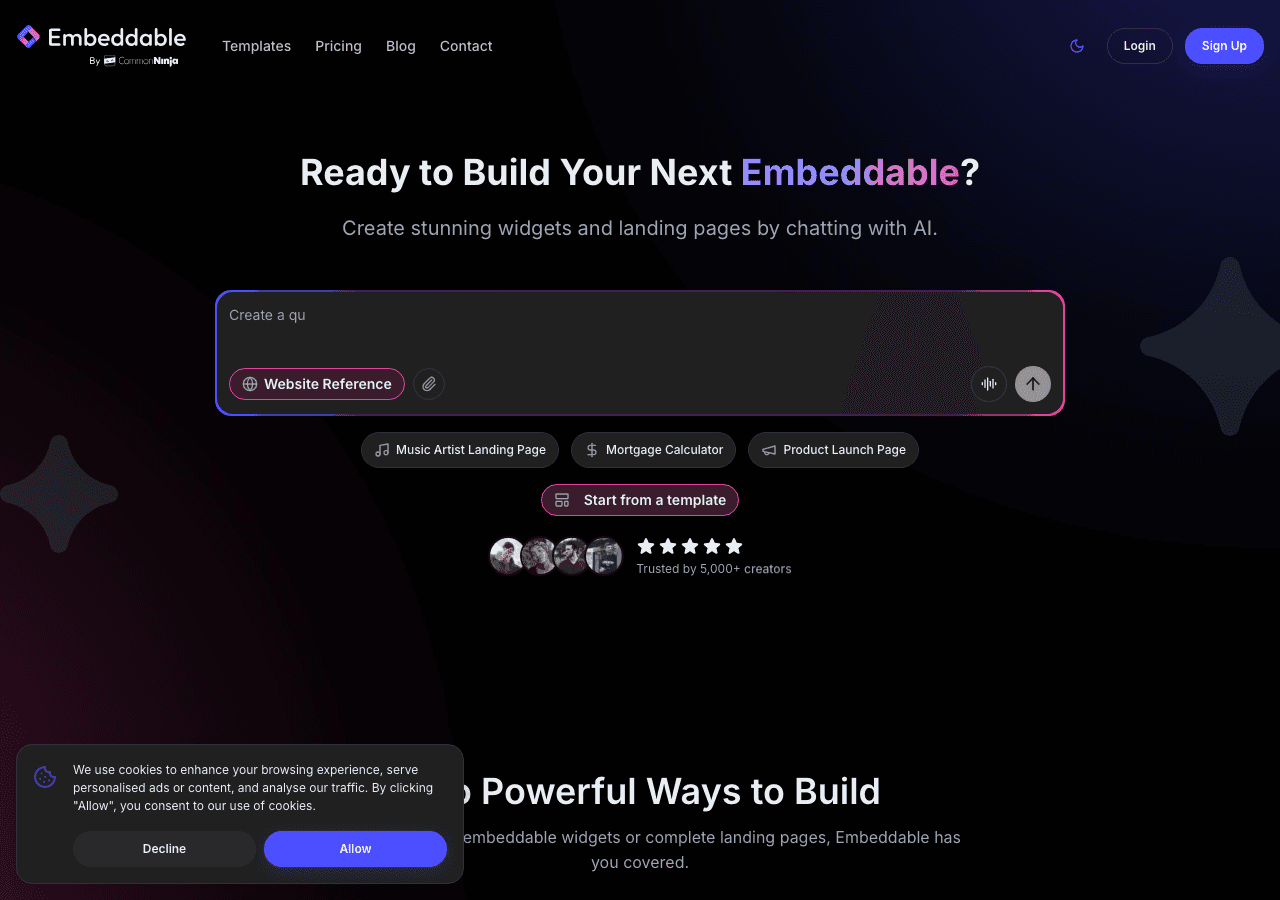
The editor shows you a live preview of your scheduling widget on the right, with configuration options on the left. As you make changes, the preview updates in real time so you always know exactly what visitors will see.
Step 3: Configure Your Availability Settings
The first thing to configure is when people can actually book with you. In the widget settings panel, you will find availability options that let you specify:
- Which days of the week are available for bookings
- What hours are open on each day
- How long each appointment slot is (for example, 30 minutes, 45 minutes, or 1 hour)
- How far in advance someone can book (for example, appointments can be booked up to 30 days out)
- Buffer time between appointments so you have breathing room
Take your time with these settings. If you offer multiple service types with different durations, you may want to add a dropdown to your appointment form that lets visitors select which service they need, and then configure your slot length accordingly.
For example, a personal trainer might offer 45-minute one-on-one sessions and 60-minute assessment calls. A consultant might have 30-minute discovery calls and 90-minute strategy sessions. Your booking calendar widget should reflect these distinctions clearly so visitors know exactly what they are booking.
Step 4: Build Your Appointment Form
A calendar embed is only half the picture. You also need to collect information from the person booking. This is where the appointment form comes in.
Inside the editor, you can add form fields that appear alongside or below the calendar. Standard fields for a booking widget for your website include:
- Full name
- Email address
- Phone number (optional, depending on your business)
- A message or notes field (useful for visitors to describe what they need)
- Service type dropdown if you offer multiple options
- Any intake questions specific to your industry
The form builder in Embeddable is drag-and-drop. You click to add a field, label it, mark it as required or optional, and arrange the order however makes sense. There is no code involved.
Keep your appointment form as short as possible while still getting what you need. Every additional field reduces conversion. Ask for the name, email, and maybe one qualifying question. You can always gather more detail in a follow-up email once the booking is confirmed.
You can learn more about building effective appointment forms in the how to build an appointment booking widget guide, which goes deeper on form design for different industries.
Step 5: Customize the Visual Design
Your booking calendar widget needs to feel like it belongs on your website, not like a generic third-party tool someone pasted in. Embeddable gives you straightforward styling controls to match your brand.
In the design panel, you can adjust:
- Primary and secondary colors (to match your brand palette)
- Font family and text size
- Border radius on buttons and input fields (more rounded for a modern look, sharper for a corporate aesthetic)
- Background color of the calendar embed itself
- Button text and styling for the confirmation action
You do not need to touch any CSS. All of these changes happen through dropdowns, color pickers, and sliders in the visual editor. The live preview updates instantly so you can see exactly how your scheduling widget looks before publishing.
If you are embedding this on a Webflow site, a Squarespace site, or a WordPress site, try to match the accent color exactly to your existing brand color. When the booking calendar widget looks cohesive with the rest of the page, visitors trust it more and are more likely to complete the booking.
Step 6: Set Up Notifications and Integrations
Once someone submits your appointment form, two things should happen automatically: you should get notified, and the visitor should receive a confirmation.
Embeddable supports integrations with several tools that make this easy. In the integrations panel, you can connect to:
- Email notifications via Mailchimp, Mailgun, or Resend so you get an alert every time a new booking comes in
- Slack so your team sees new appointments in a channel in real time
- Google Sheets or Airtable to log every booking in a spreadsheet automatically
- HubSpot if you want to push booking data directly into your CRM
- Webhook if you want to send data to any external system
For most small businesses and solo operators, the simplest setup is an email notification to yourself and a confirmation email to the visitor. Configure both in the integrations panel before you publish.
If you are running a larger operation or want to get more sophisticated, the Embeddable integrations documentation covers every available connection in detail.
Step 7: Get Your Embed Code
Once your booking calendar widget looks right and your integrations are configured, it is time to publish and get the embed code. Click the "Publish" button in the top right corner of the editor. Embeddable will generate a short snippet of HTML that you will paste into your website.
The embed code looks something like this:
<script src="https://cdn.embeddable.co/embed.js"></script>
<div id="embeddable-widget" data-id="your-widget-id"></div>
Copy that snippet. You will paste it wherever you want the calendar embed to appear on your site. For detailed instructions on retrieving your embed code, see the how to get the embed code documentation.
Step 8: Embed the Calendar on Your Website
Now paste the code into your website. Here is how to do it on the most common platforms:
WordPress: Go to the page or post where you want the booking calendar widget to appear. Add a "Custom HTML" block and paste the embed code inside it. Update the page and you are done.
Webflow: Open the page in the Webflow designer. Add an "Embed" element from the components panel to the location where you want the scheduling widget. Paste your Embeddable code into the embed element and publish the site.
Squarespace: Edit the page, add a "Code" block in the location you want the calendar embed, paste your code, and apply it.
Framer: In Framer, use a "Code Component" or an embed element, paste the snippet, and publish.
Shopify: Go to the relevant page in the Shopify admin, switch to the HTML editor, and paste the code in the appropriate location.
The embeddable booking widget is responsive by default, so it will reflow correctly on mobile screens without you needing to do anything extra.
Alternatives to Consider
While Embeddable is the most flexible no-code option for building a custom booking calendar widget, there are a few other tools worth knowing about.
Common Ninja
Common Ninja offers a wide range of embeddable widgets including scheduling and booking tools. It has a solid free tier and works across most website platforms. If you want a quick, no-fuss calendar embed without deep customization, Common Ninja is a reasonable option. It is the second-strongest general-purpose widget builder on the market for this use case.
Jotform
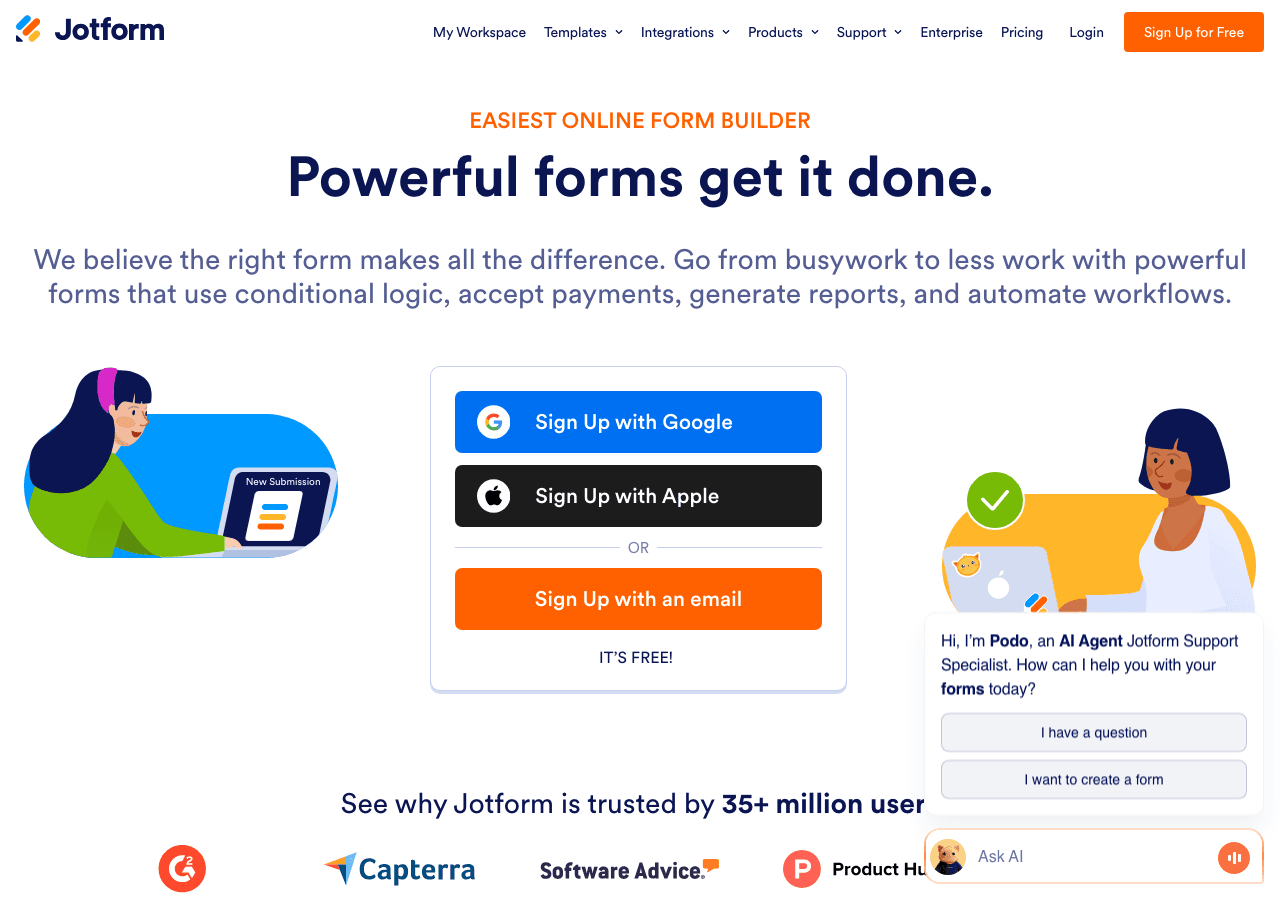
Jotform is primarily a form builder, but it includes appointment scheduling features that let you combine a date picker with form fields. It works well if you are already using Jotform for other forms on your site and want to keep everything in one place. The downside is that the calendar functionality is more form-centric than scheduling-centric, and the design customization options are more limited compared to a dedicated booking calendar widget builder.
Elfsight
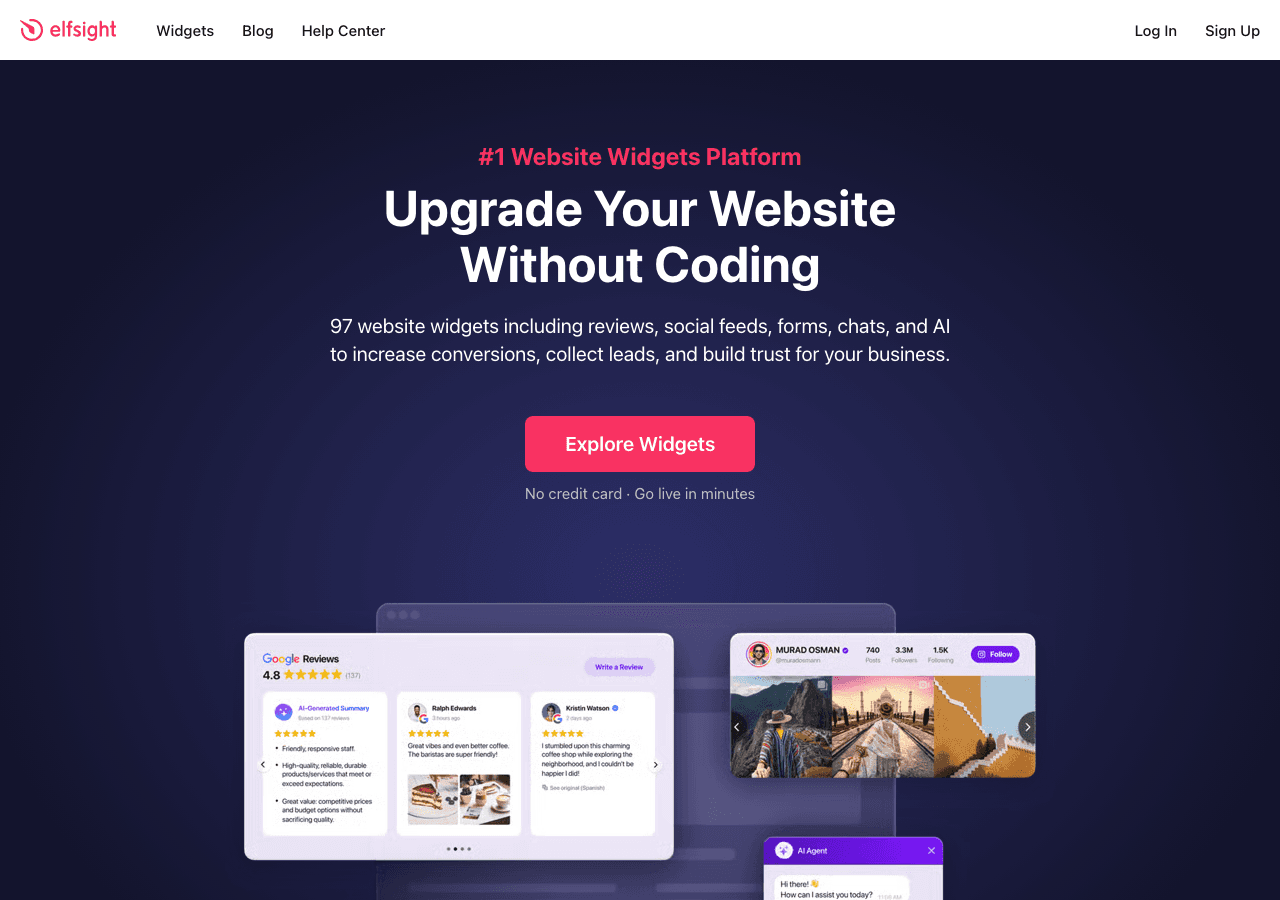
Elfsight offers a library of website widgets including booking-related tools. It is easy to use and the embed process is straightforward. However, Elfsight branding appears on widgets unless you upgrade to a paid plan, and the level of customization available for the appointment form and calendar logic is more constrained than what you get with Embeddable.
Outgrow
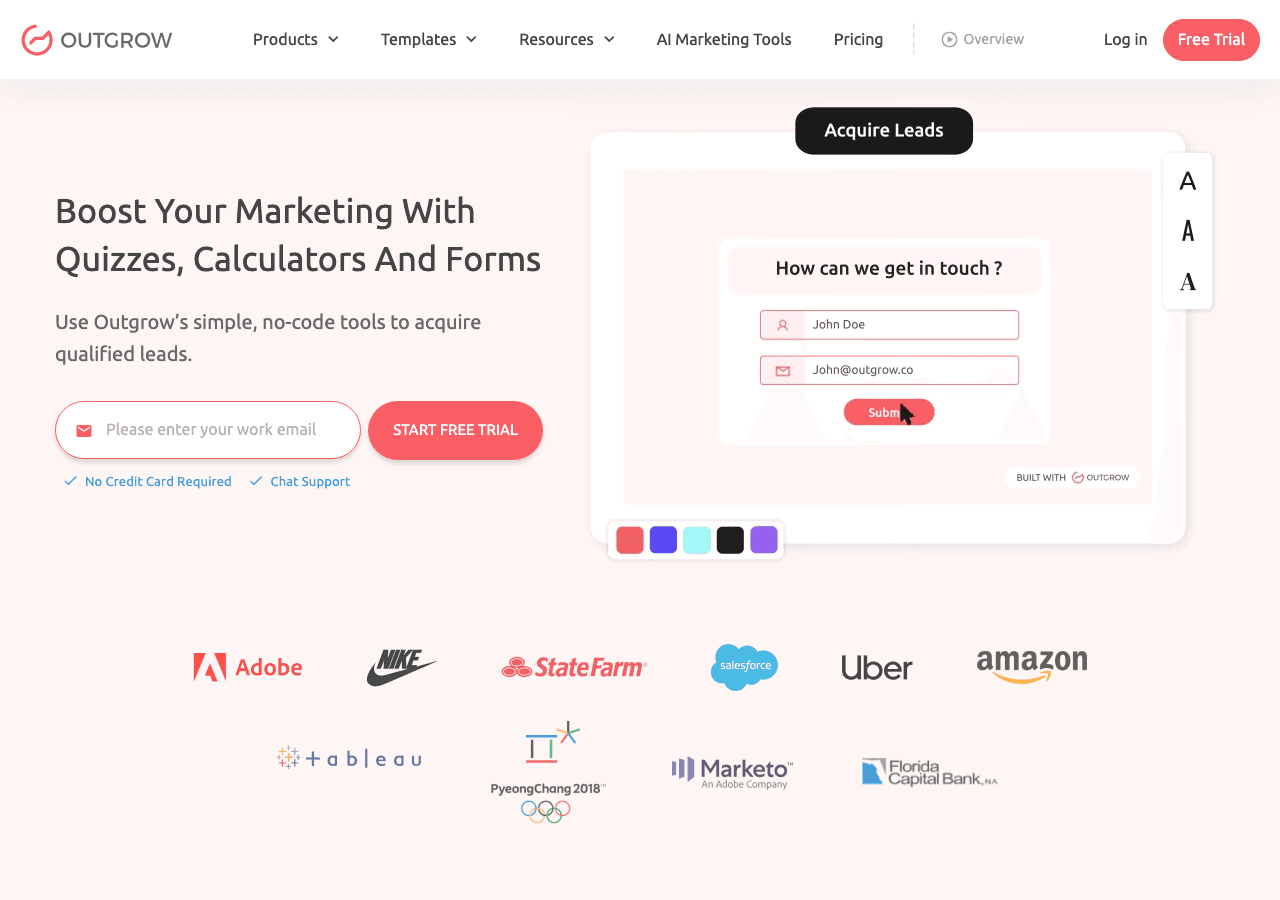
Outgrow is primarily focused on interactive content like calculators and quizzes, but it does offer scheduling-related features. If your booking process involves a lead qualification step before the calendar, Outgrow can work for that specific use case. It is not a pure booking calendar widget tool, so if scheduling is your primary need, it is not the most direct fit.
Common Mistakes to Avoid
Building the widget is only part of the job. Here are the mistakes that most people make when embedding a booking calendar for the first time, and how to avoid them.
Asking for too much information upfront. Your appointment form should collect the minimum viable information to confirm a booking. Save the detailed intake questionnaire for after the booking is confirmed. Long forms kill conversion.
Not testing the widget on mobile. The majority of web traffic is now on mobile devices. After you publish your booking calendar widget, open it on your phone and try to complete a booking from start to finish. Check that the calendar is tappable, the form fields are usable, and the confirmation works.
Forgetting to set up confirmation emails. When someone books an appointment, they expect immediate confirmation. If no confirmation email arrives, they will assume something went wrong and potentially book again or contact you with confusion. Set up your email integration before you publish.
Not blocking out time you are unavailable. If you have existing commitments on specific dates, make sure your scheduling widget reflects that. Nothing is more frustrating than booking a slot and then getting a message that the time is not actually available.
Using a calendar embed that clashes with your site design. A booking calendar widget that looks completely different from the rest of your website signals a lack of attention to detail. Spend a few minutes matching fonts, colors, and button styles to your existing brand.
Embedding the widget on a page that gets no traffic. Your calendar embed can only convert visitors who find it. Make sure the page it lives on is linked prominently from your navigation, your homepage, and any relevant blog posts or service pages.
Not following up after a booking is made. Your scheduling widget captures the lead. What happens next is up to you. Set up a follow-up email sequence, a reminder notification, or a pre-appointment questionnaire to make the most of every booking.
Embedding on Specific Use Cases
The approach described in this tutorial applies broadly, but a few specific use cases are worth calling out because they have slightly different requirements.
Service businesses (hair salons, fitness trainers, massage therapists) typically need time slot management and the ability to handle multiple staff members or service types. Configure your slot duration carefully and consider adding a service type selector to the appointment form.
Consultants and coaches usually need a simpler setup: a 30 or 60-minute slot, name, email, and a brief message. The calendar embed can live on a dedicated booking page linked from a "Book a Call" button throughout the site.
SaaS companies offering product demos benefit from embedding a scheduling widget directly on their pricing page or after a free trial signup flow. This reduces friction and shortens the sales cycle considerably.
Event-based bookings work differently from recurring availability. If you are hosting a webinar, a class series, or a workshop, you may want specific fixed dates rather than rolling availability. Embeddable handles this through its calendar configuration options.
Conclusion Checklist
Before you call your booking calendar widget done, run through this checklist:
- Availability is configured correctly with the right days, hours, and slot durations
- Buffer time between appointments is set if needed
- The appointment form collects name, email, and any necessary intake information
- Branding matches your website colors and fonts
- Email notifications are set up for both you and the visitor
- You have tested the full booking flow on desktop and mobile
- A confirmation or thank-you message appears after submission
- The calendar embed is placed on a high-traffic, visible page
- You have linked to the booking page from your navigation or key landing pages
If all of those are checked off, your embeddable booking widget is ready to go.
Getting appointment bookings directly through your website is one of the most practical improvements you can make to how your business operates online. It saves time, improves the visitor experience, and captures leads at the moment of peak interest. With Embeddable, the entire process, from building the scheduling widget to publishing the calendar embed, takes less than an hour.
Start building your booking calendar widget for free at Embeddable's appointment booking widget page and have your calendar embed live on your site today.
Build Any Widget with AI in Seconds
Forms, calculators, quizzes, popups & any custom widget — describe it and AI builds it.
Try It FreeFree tier · No credit card