How to Build an Appointment Booking Widget for Your Website in 2026

Want to let visitors book appointments directly from your website? Whether it's consultations, services, or meetings, I'll show you how to build a custom appointment booking widget in minutes - no coding required.
Appointment booking widgets eliminate back-and-forth emails and let customers schedule at their convenience - 24/7.
In this guide, I'll walk you through creating custom booking widgets using AI. If you're new to building custom widgets, check out our complete guide on how to build custom widgets first.
Why Add Booking Widgets to Your Website?
Appointment booking widgets serve powerful purposes:
- Available 24/7: Visitors book when convenient for them
- Reduce No-Shows: Automated reminders decrease missed appointments
- Save Time: No email ping-pong scheduling
- Look Professional: Modern, expected experience
- Increase Bookings: Lower friction means more appointments
Consultants use booking widgets, salons schedule appointments, coaches book sessions. If you take appointments, a booking widget is essential.
Building Your Custom Booking Widget with Embeddable AI
Creating a booking widget with Embeddable's AI is incredibly straightforward. No coding, no complex calendar integrations - just describe what you want and the AI builds it.
Step 1: Start with Your Booking Concept
Before you begin, think about what your booking widget needs:
- Services: What can people book?
- Duration: How long are appointments?
- Availability: What hours are you available?
- Information: What do you need from bookers?
- Confirmation: Email notification? Calendar invite?
For our example, we're building a consultation booking widget with a calendar, time slots, and contact form.
Step 2: Describe Your Booking Widget to the AI
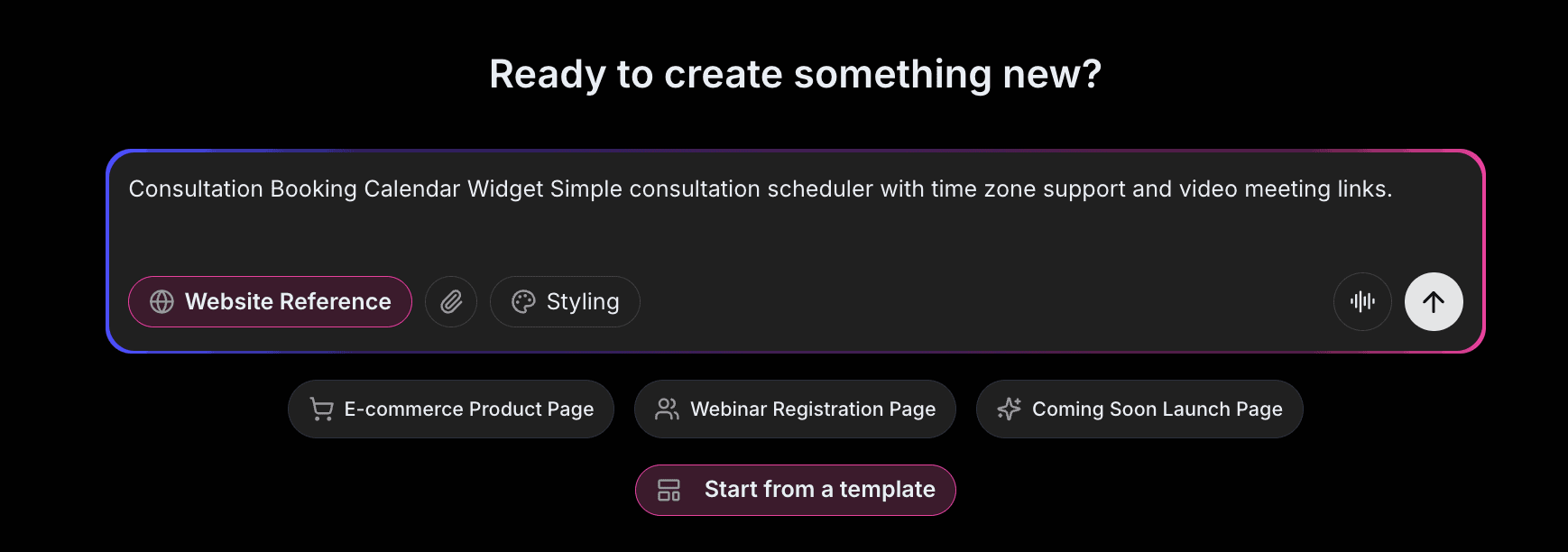
Open Embeddable and describe your booking widget in natural language. Here's the exact prompt we'll use:
Build an appointment booking widget for a consulting business. Show a monthly calendar where visitors select a date, then choose from available 30-minute time slots. Collect name, email, phone, and a brief description of what they want to discuss. Show confirmation message after booking.
That's it! The AI understands what you want and builds the complete booking widget with:
- Interactive calendar for date selection
- Available time slot display
- Contact information form
- Service/topic selection
- Confirmation display
Step 3: Provide Your Website URL for Design Analysis
Here's where the magic happens. Give Embeddable your website URL, and the AI will:
- Analyze your brand colors and apply them to the calendar
- Match your website's fonts and typography
- Style the form and buttons to feel native
- Ensure the booking widget integrates seamlessly
The result? A booking widget that looks like it was built by your design team, not a third-party widget.
Step 4: Refine Your Booking Widget
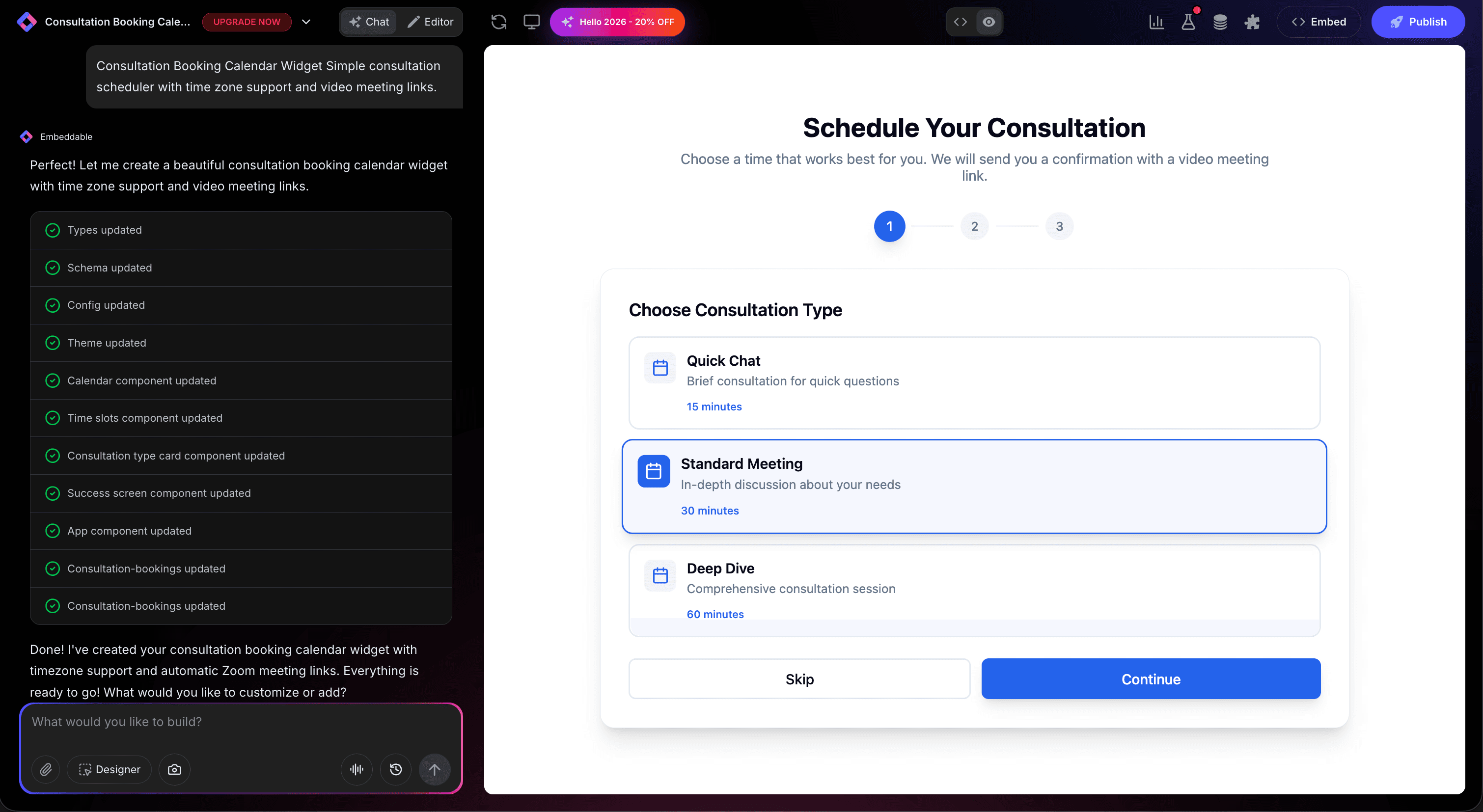
Once the AI generates your widget, you can refine it through conversation:
- "Add different appointment types: 15-min intro call, 30-min consultation, 60-min strategy session"
- "Show my unavailable times as grayed out"
- "Add timezone selection for international clients"
- "Include payment collection for paid consultations"
- "Add a Zoom link field for virtual meetings"
Each change happens instantly. The preview updates in real-time so you can see exactly how your booking widget will look and work.
You can also use Embeddable's visual editor to make adjustments yourself - change colors, adjust spacing, modify text, or tweak the layout.
Step 5: Test Your Booking Widget
Before embedding, thoroughly test your widget:
- Test Calendar: Navigate months, select dates
- Check Time Slots: Verify available times display correctly
- Test Form: Submit test bookings
- Verify Confirmation: Ensure confirmation appears
- Check Responsiveness: View on desktop, tablet, and mobile
The preview environment shows exactly how your booking widget will appear on your website, so you can catch any issues before going live.
Embedding Your Booking Widget on Any Website
Your custom booking widget works everywhere. Once you're happy with it, you'll get a simple embed code that works on:
- WordPress: Paste into any page or post
- Shopify: Add to service or contact pages
- Wix / Squarespace: Embed in any section
- Custom websites: Add to any HTML page
The process is the same everywhere:
- Get Your Embed Code: Click "Publish" and copy the code snippet
- Paste Into Your Website: Add where you want the booking to appear
- Publish Your Page: The booking widget goes live immediately
Your booking widget automatically:
- Shows real-time availability
- Validates form submissions
- Sends confirmation notifications
- Adapts to different screen sizes (mobile, tablet, desktop)
- Updates instantly if you change availability
Types of Booking Widgets You Can Build
The same process works for any scheduling need:
Service Appointments
Salon bookings, spa treatments, consultations.
Meeting Scheduling
Sales calls, demos, interviews.
Class Bookings
Fitness classes, workshops, training sessions.
Event Registration
Webinars, workshops, open houses.
Resource Booking
Room reservations, equipment rentals.
Start with a Template or Build from Scratch
Not sure where to start? Embeddable offers free appointment booking templates you can customize:
- Calendar Booking - Date and time slot selection
- Service Booking - Multiple service options
- Meeting Scheduler - Simple meeting booking
- Class Registration - Group class signup
- Multi-Step Booking - Guided booking flow
Choose a template that's close to what you need, then customize it with AI to match your exact requirements. It's the fastest way to get a professional booking widget on your site.
Why Booking Widgets Increase Appointments
Booking widgets are conversion machines for several reasons:
They're Always Available: Visitors can book at 2am if that's when they're browsing.
They Reduce Friction: No waiting for email replies or phone callbacks.
They Show Availability: Real-time slots remove guesswork.
They're Professional: Modern booking experience builds trust.
They Send Reminders: Automated follow-ups reduce no-shows.
Making Your Booking Widget More Powerful
Take your booking to the next level with these additions:
Calendar Sync
Connect to Google Calendar or Outlook for real-time availability.
Payment Collection
Collect deposits or full payment at booking.
Reminder Emails
Automated reminders 24 hours and 1 hour before.
Cancellation Policy
Display and enforce your cancellation terms.
Multiple Staff
Let visitors choose which team member to book with.
Embeddable supports integrations with Google Calendar, Zoom, Stripe, and email services.
Reducing No-Shows
Combat missed appointments with these features:
- Confirmation emails immediately after booking
- Reminder emails 24 hours before
- SMS reminders 2 hours before
- Calendar invites with meeting details
- Cancellation policy displayed at booking
- Prepayment for high-value appointments
Ready to Build Your Booking Widget?
That's it! No developers, no complex calendar coding, no design skills needed. Just describe what you want and AI builds your custom booking widget in minutes.
Your booking widget will:
- Match your website's design perfectly
- Let visitors book appointments easily
- Work on every platform and device
- Reduce no-shows with confirmations
- Update easily when availability changes
Ready to get started?
Option 1: Start with a Template Browse free appointment booking templates and customize one to your needs.
Option 2: Build Custom with AI Head to Embeddable and describe your booking widget - the AI will build it in minutes.
Need More Widget Ideas?
More Tutorials:
- How to Build Custom Widgets for Your Website
- How to Build Custom Form Widgets for Your Website
- How to Build a Countdown Timer for Your Website
Start booking appointments with custom booking widgets now!
Build Any Widget with AI in Seconds
Forms, calculators, quizzes, popups & any custom widget — describe it and AI builds it.
Try It FreeFree tier · No credit card