How to Build a Comparison Table for Your Website in 2026


Want to help visitors compare options on your website? Whether it's product features, pricing plans, or service packages, I'll show you how to build custom comparison tables in minutes - no coding required.
Comparison tables present information side-by-side, making decisions easier for your visitors and increasing conversions.
In this guide, I'll walk you through creating custom comparison table widgets using AI. If you're new to building custom widgets, check out our complete guide on how to build custom widgets first.
Why Add Comparison Tables to Your Website?
Comparison table widgets serve powerful purposes:
- Simplify Decisions: Side-by-side views reveal differences clearly
- Save Time: No hunting through separate pages for information
- Build Confidence: Informed decisions feel better
- Increase Conversions: Easier comparison = faster decisions
- Boost SEO: Comparison content ranks for decision-stage searches
SaaS companies compare pricing plans, e-commerce sites compare products, review sites compare competitors. Comparison tables are essential for decision-stage content.
Building Your Custom Comparison Table with Embeddable AI
Creating a comparison table with Embeddable's AI is incredibly straightforward. No coding, no complex spreadsheet formatting - just describe what you want and the AI builds it.
Step 1: Start with Your Comparison Concept
Before you begin, think about what your table needs to compare:
- Items: What products, plans, or options are you comparing?
- Criteria: What features or attributes to compare?
- Display: Checkmarks, text, numbers, or mixed?
- Highlight: Is there a recommended option?
For our example, we're building a SaaS pricing comparison with three plans and feature checkmarks.
Step 2: Describe Your Comparison Table to the AI
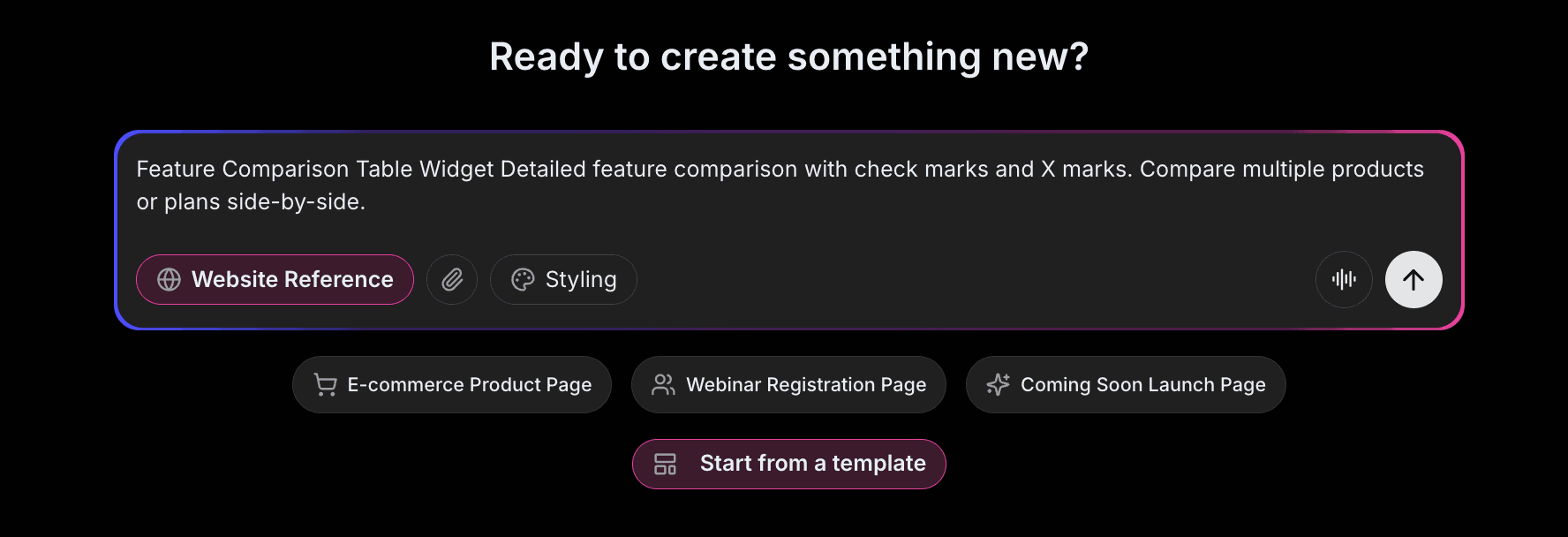
Open Embeddable and describe your comparison table in natural language. Here's the exact prompt we'll use:
Build a comparison table comparing our three software plans: Starter, Pro, and Enterprise. Compare features like users, storage, support level, integrations, and analytics. Use checkmarks for included features and X marks for not included. Highlight the "Pro" plan as recommended. Include prices at the top of each column.
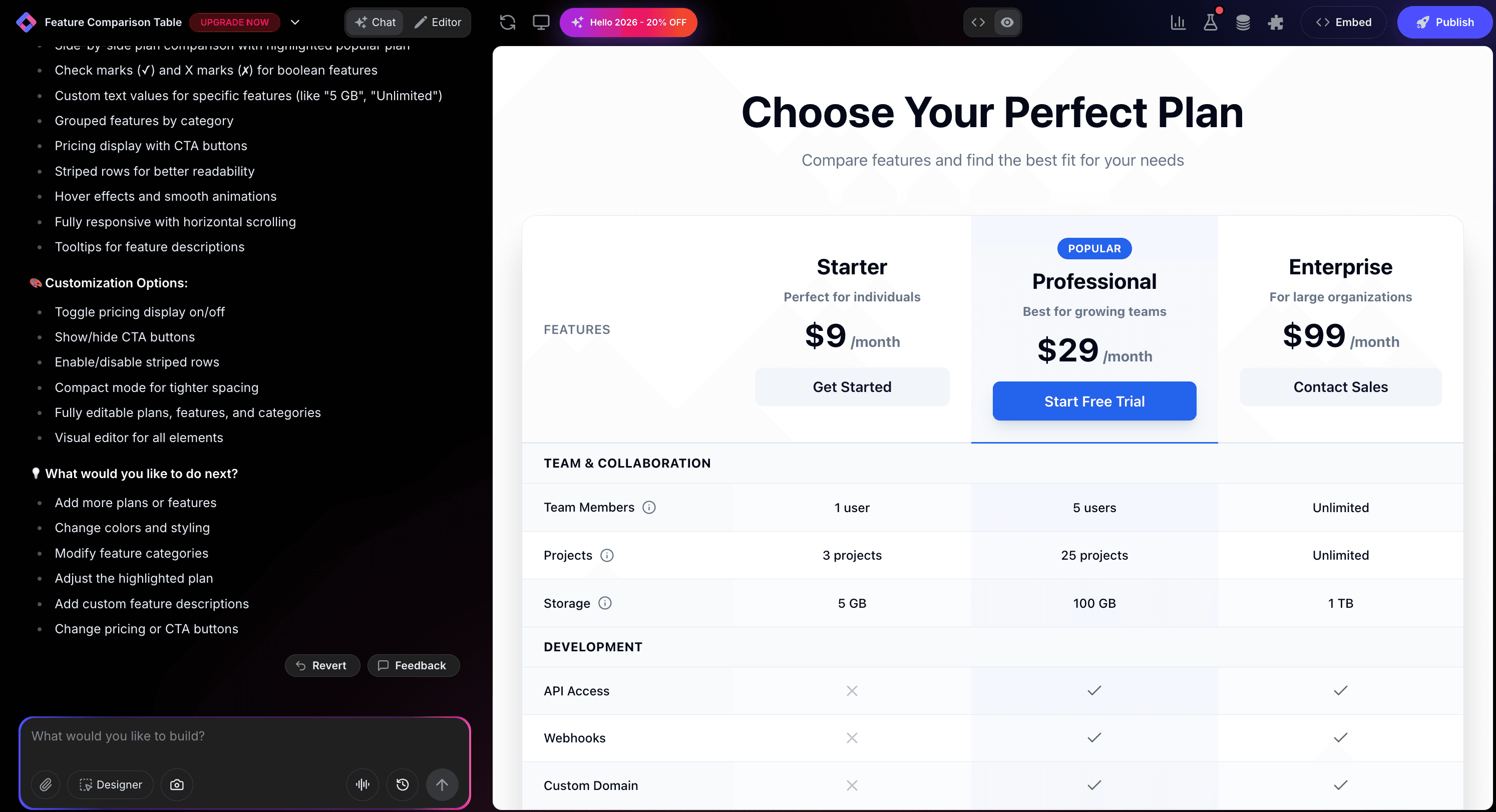
That's it! The AI understands what you want and builds the complete comparison table with:
- Three-column layout for plans
- Feature rows with checkmarks/X marks
- "Recommended" badge on Pro plan
- Prices prominently displayed
- Professional styling
Step 3: Provide Your Website URL for Design Analysis
Here's where the magic happens. Give Embeddable your website URL, and the AI will:
- Analyze your brand colors and apply them to the table
- Match your website's fonts and typography
- Style the highlighted plan to feel native
- Ensure the table integrates seamlessly
The result? A comparison table that looks like it was built by your design team, not a third-party widget.
Step 4: Refine Your Comparison Table
Once the AI generates your table, you can refine it through conversation:
- "Add tooltips explaining each feature on hover"
- "Make the table sticky header for scrolling"
- "Add 'Choose Plan' buttons at the bottom of each column"
- "Highlight differences between plans with color"
- "Add a toggle between monthly and annual pricing"
Each change happens instantly. The preview updates in real-time so you can see exactly how your table will look and work.
You can also use Embeddable's visual editor to make adjustments yourself - change colors, adjust spacing, modify text, or tweak the layout.
Step 5: Test Your Comparison Table
Before embedding, thoroughly test your table:
- Verify Content: Ensure all features and prices are correct
- Test Interactions: Click buttons, hover tooltips
- Check Responsiveness: View on desktop, tablet, and mobile
- Validate Highlighting: Ensure recommended plan stands out
- Test Links: Verify CTA buttons work correctly
The preview environment shows exactly how your table will appear on your website, so you can catch any issues before going live.
Embedding Your Comparison Table on Any Website
Your custom comparison table works everywhere. Once you're happy with it, you'll get a simple embed code that works on:
- WordPress: Paste into any page or post
- Shopify: Add to product or pricing pages
- Wix / Squarespace: Embed in any section
- Custom websites: Add to any HTML page
The process is the same everywhere:
- Get Your Embed Code: Click "Publish" and copy the code snippet
- Paste Into Your Website: Add where you want the table to appear
- Publish Your Page: The comparison table goes live immediately
Your comparison table automatically:
- Displays data in aligned columns
- Adapts to different screen sizes (mobile, tablet, desktop)
- Handles scrolling for mobile gracefully
- Works with all major browsers
- Updates instantly if you make changes
Types of Comparison Tables You Can Build
The same process works for any comparison:
Pricing Plan Comparisons
Compare subscription tiers with features and prices.
Product Comparisons
Feature-by-feature comparison of product models.
Competitor Comparisons
Your product vs competitors (use fairly!).
Service Package Comparisons
Different service levels or packages.
Specification Comparisons
Technical specs for products.
Start with a Template or Build from Scratch
Not sure where to start? Embeddable offers free comparison table templates and free chart templates you can customize:
- Pricing Comparison - SaaS plan comparison table
- Product Features - Feature matrix with checkmarks
- Competitor Analysis - You vs competitors table
- Service Packages - Service tier comparison
- Specification Table - Technical spec comparison
Choose a template that's close to what you need, then customize it with AI to match your exact requirements. It's the fastest way to get a professional comparison table on your site.
Why Comparison Tables Drive Decisions
Comparison tables are decision machines for several reasons:
They Reduce Cognitive Load: Side-by-side comparison is easier than remembering details.
They Surface Differences: Key differentiators become immediately obvious.
They Guide Choices: Highlighted recommendations direct visitors to preferred options.
They Build Trust: Transparent comparison shows you're not hiding anything.
They Save Time: Visitors get answers quickly without searching.
Making Your Comparison Table More Powerful
Take your table to the next level with these additions:
Interactive Filters
Let users select which features to compare.
Pricing Toggle
Switch between monthly and annual pricing.
Feature Tooltips
Explain complex features on hover.
CTA Buttons
Add "Choose Plan" or "Buy Now" buttons.
Sticky Headers
Keep column headers visible while scrolling.
Embeddable supports integrations to connect your table with payment systems and analytics.
Best Practices for Comparison Tables
For maximum effectiveness:
- Limit Columns: 3-4 options maximum to avoid overwhelm
- Prioritize Rows: Most important features at top
- Clear Symbols: Use obvious ✓/✗ indicators
- Highlight Recommended: Make your preferred option stand out
- Mobile-Friendly: Test horizontal scroll or card layout on phones
Ready to Build Your Comparison Table?
That's it! No developers, no spreadsheet wrestling, no design skills needed. Just describe what you want and AI builds your custom comparison table in minutes.
Your comparison table will:
- Match your website's design perfectly
- Display comparisons clearly and professionally
- Work on every platform and device
- Help visitors make confident decisions
- Update easily when plans or features change
Ready to get started?
Option 1: Start with a Template Browse free comparison table templates and customize to your needs.
Option 2: Build Custom with AI Head to Embeddable and describe your comparison table - the AI will build it in minutes.
Need More Widget Ideas?
More Tutorials:
- How to Build Custom Widgets for Your Website
- How to Build a Pricing Table for Your Website
- How to Build a Custom Calculator for Your Website
Start helping visitors decide with custom comparison tables now!
Build Any Widget with AI in Seconds
Forms, calculators, quizzes, popups & any custom widget — describe it and AI builds it.
Try It FreeFree tier · No credit card