How to Build a Pricing Table for Your Website in 2026


Your pricing page is where decisions happen. Whether you're selling SaaS subscriptions, services, or products, I'll show you how to build a custom pricing table that converts - in minutes, no coding required.
A well-designed pricing table can significantly increase conversions - while a confusing one loses customers.
In this guide, I'll walk you through creating custom pricing table widgets using AI. If you're new to building custom widgets, check out our complete guide on how to build custom widgets first.
Why Pricing Tables Matter
Pricing table widgets serve critical purposes:
- Drive Decisions: This is where visitors become customers
- Clarify Options: Clear pricing reduces objections
- Guide Choices: Help visitors choose the right plan
- Build Trust: Transparent pricing builds confidence
- Increase Conversions: Good design directly impacts revenue
Studies show pricing page design can impact conversions by 20-30%. Your pricing table is worth getting right.
Building Your Custom Pricing Table with Embeddable AI
Creating a pricing table with Embeddable's AI is incredibly straightforward. No coding, no complex layouts - just describe what you want and the AI builds it.
Step 1: Start with Your Pricing Concept
Before you begin, think about what your pricing table needs:
- Plans: How many options? (3-4 is ideal)
- Prices: Monthly, annual, or both?
- Features: What's included at each level?
- Highlight: Which plan to recommend?
- CTA: What action should visitors take?
For our example, we're building a three-tier SaaS pricing table with monthly/annual toggle and highlighted middle plan.
Step 2: Describe Your Pricing Table to the AI
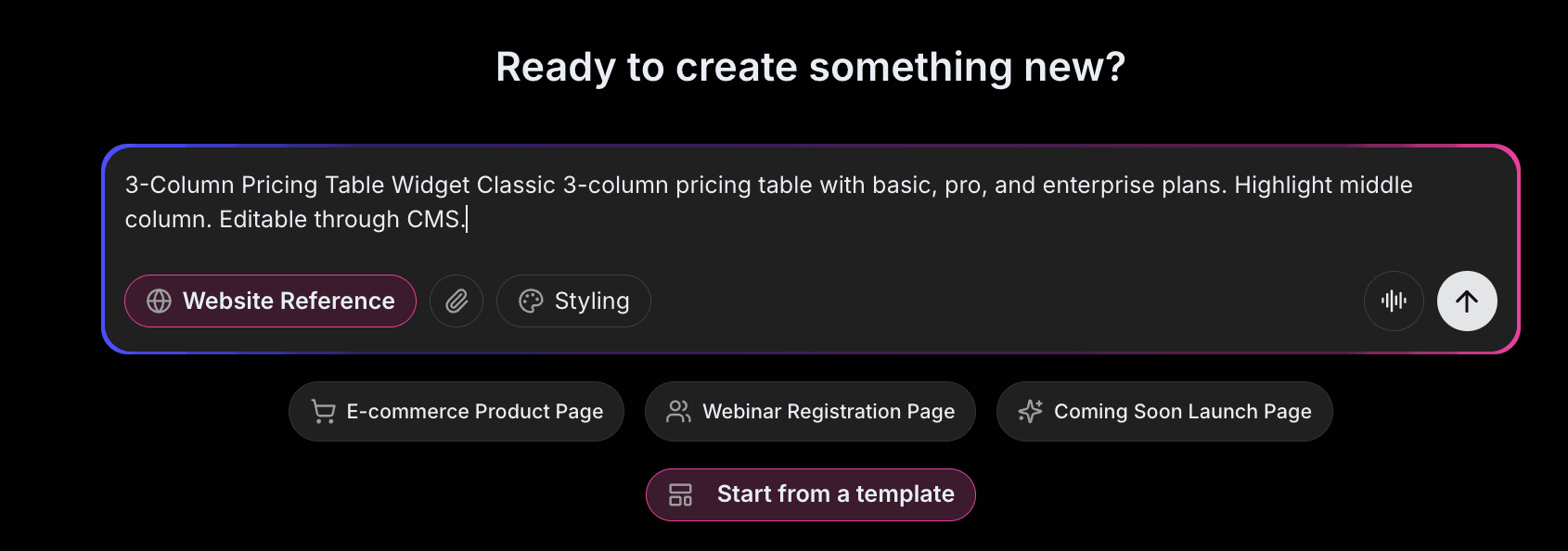
Open Embeddable and describe your pricing table in natural language. Here's the exact prompt we'll use:
Build a pricing table with three plans: Starter ($19/month), Professional ($49/month), and Enterprise ($99/month). The Professional plan should be highlighted as "Most Popular" and slightly larger. Include monthly/annual toggle with 20% discount for annual. Show 5-6 features per plan with checkmarks. Add "Start Free Trial" buttons for each plan.
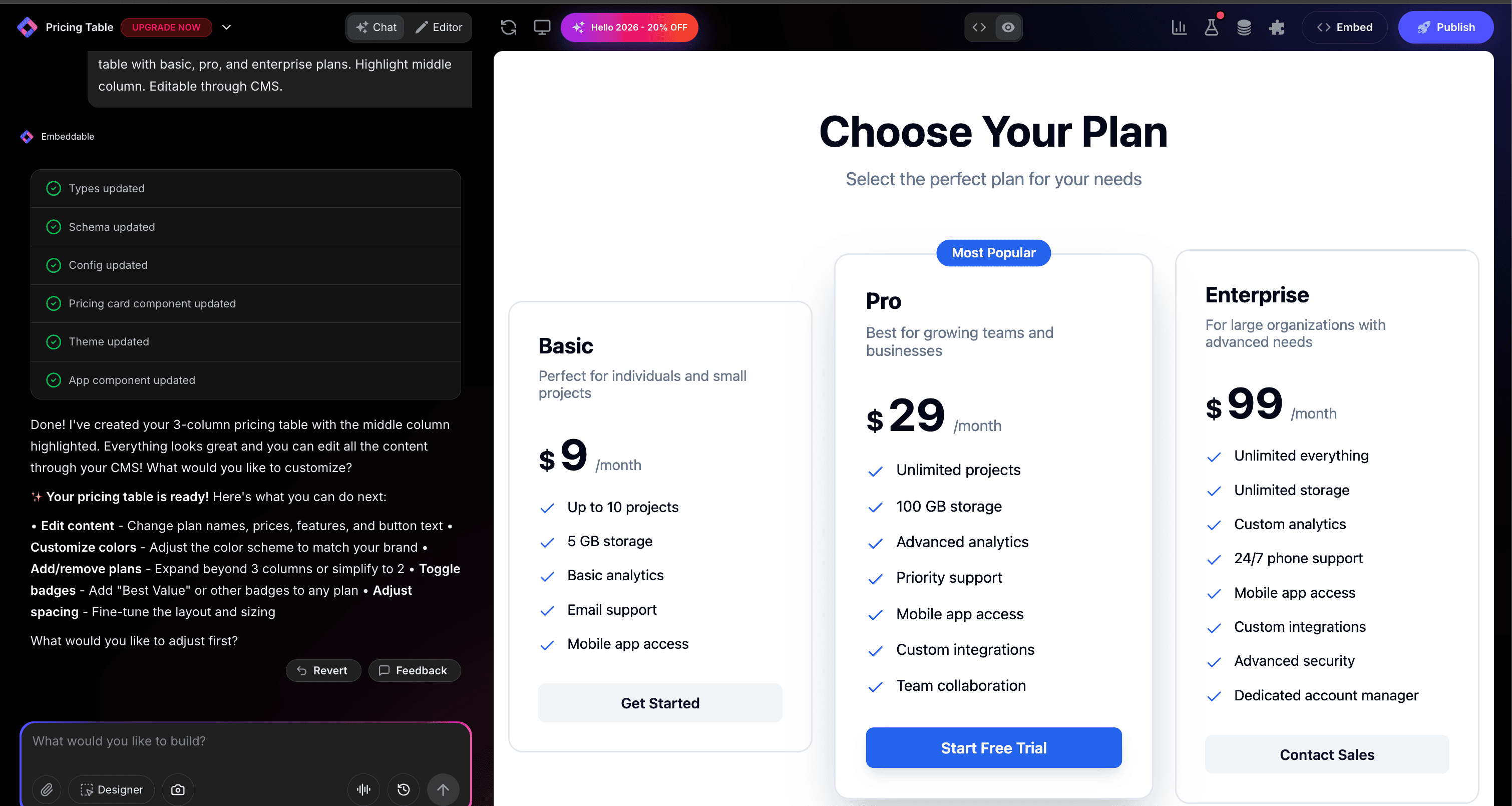
That's it! The AI understands what you want and builds the complete pricing table with:
- Three-column pricing layout
- Monthly/annual toggle with discount display
- "Most Popular" badge and highlighting
- Feature lists with checkmarks
- CTA buttons for each plan
Step 3: Provide Your Website URL for Design Analysis
Here's where the magic happens. Give Embeddable your website URL, and the AI will:
- Analyze your brand colors and apply them to the pricing cards
- Match your website's fonts and typography
- Style the highlighted plan to stand out appropriately
- Ensure the pricing table integrates seamlessly
The result? A pricing table that looks like it was built by your design team, not a third-party widget.
Step 4: Refine Your Pricing Table
Once the AI generates your table, you can refine it through conversation:
- "Add a 'Contact Sales' button for Enterprise instead of pricing"
- "Show savings amount for annual billing"
- "Add tooltip explanations for each feature"
- "Include money-back guarantee badge"
- "Add FAQ accordion below the pricing table"
Each change happens instantly. The preview updates in real-time so you can see exactly how your pricing table will look and work.
You can also use Embeddable's visual editor to make adjustments yourself - change colors, adjust spacing, modify text, or tweak the layout.
Step 5: Test Your Pricing Table
Before embedding, thoroughly test your pricing table:
- Verify Prices: Ensure all amounts are correct
- Test Toggle: Verify monthly/annual switching works
- Check Buttons: Test all CTA buttons link correctly
- Check Responsiveness: View on desktop, tablet, and mobile
- Validate Calculations: Confirm savings math is right
The preview environment shows exactly how your pricing table will appear on your website, so you can catch any issues before going live.
Embedding Your Pricing Table on Any Website
Your custom pricing table works everywhere. Once you're happy with it, you'll get a simple embed code that works on:
- WordPress: Paste into any page or post
- Shopify: Add to pricing or landing pages
- Wix / Squarespace: Embed in any section
- Custom websites: Add to any HTML page
The process is the same everywhere:
- Get Your Embed Code: Click "Publish" and copy the code snippet
- Paste Into Your Website: Add where you want the pricing to appear
- Publish Your Page: The pricing table goes live immediately
Your pricing table automatically:
- Handles billing toggle logic
- Adapts to different screen sizes (mobile, tablet, desktop)
- Loads fast without slowing down your page
- Works with all major browsers
- Updates instantly if you change pricing
Types of Pricing Tables You Can Build
The same process works for any pricing display:
SaaS Subscription Pricing
Tiered plans with feature comparisons.
Service Pricing
Hourly, project-based, or retainer packages.
Product Pricing
Product tiers or bundles with options.
Event/Course Pricing
Ticket types or course packages.
Membership Pricing
Community or membership levels.
Start with a Template or Build from Scratch
Not sure where to start? Embeddable offers free comparison table templates you can customize for pricing tables:
- Three-Tier Pricing - Classic SaaS pricing table
- Feature Comparison Pricing - Detailed feature matrix
- Toggle Pricing - Monthly/annual switch
- Contact Sales Pricing - Enterprise-focused layout
- Simple Pricing Cards - Minimal pricing display
Choose a template that's close to what you need, then customize it with AI to match your exact requirements. It's the fastest way to get a professional pricing table on your site.
Why Pricing Table Design Matters
Pricing tables are conversion machines for several reasons:
They're Decision Points: This is where "interested" becomes "customer."
They Frame Value: How you present pricing affects perceived value.
They Guide Choices: Strategic highlighting directs visitors to optimal plans.
They Reduce Friction: Clear pricing removes uncertainty that blocks purchases.
They Build Trust: Transparent, professional pricing builds confidence.
Making Your Pricing Table More Powerful
Take your pricing to the next level with these additions:
Social Proof
Add "10,000+ customers" or customer logos near pricing.
Money-Back Guarantee
Display guarantee badge to reduce risk.
Feature Tooltips
Explain what each feature means on hover.
Testimonials
Include brief customer quotes near pricing.
FAQ Section
Answer common pricing questions below the table.
Live Chat
Add chat button for pricing questions.
Embeddable supports integrations to connect pricing with payment systems and analytics.
Pricing Psychology Tips
Maximize conversions with these principles:
- Three Options: The "rule of three" helps decisions
- Highlight the Middle: Most visitors choose the highlighted option
- Show Savings: Display annual savings prominently
- Anchor High: Put expensive option first to make others seem reasonable
- Clear CTAs: Make button text action-oriented
Ready to Build Your Pricing Table?
That's it! No developers, no complex layouts, no design skills needed. Just describe what you want and AI builds your custom pricing table in minutes.
Your pricing table will:
- Match your website's design perfectly
- Display pricing clearly and professionally
- Work on every platform and device
- Convert visitors into customers
- Update easily when pricing changes
Ready to get started?
Option 1: Start with a Template Browse free comparison table templates and customize one for your pricing table.
Option 2: Build Custom with AI Head to Embeddable and describe your pricing table - the AI will build it in minutes.
Need More Widget Ideas?
More Tutorials:
- How to Build Custom Widgets for Your Website
- How to Build a Comparison Table for Your Website
- How to Build a Custom Calculator for Your Website
Start converting visitors with custom pricing tables now!
Build Any Widget with AI in Seconds
Forms, calculators, quizzes, popups & any custom widget — describe it and AI builds it.
Try It FreeFree tier · No credit card