How to Build a WhatsApp Chat Button for Your Website in 2026

Want to let visitors message you directly from your website? Whether it's WhatsApp, Telegram, Messenger, or any chat platform, I'll show you how to build a custom chat button in minutes - no coding required.
Chat buttons make it easy for customers to reach you on their preferred messaging app - increasing engagement and conversions.
In this guide, I'll walk you through creating custom chat button widgets using AI. If you're new to building custom widgets, check out our complete guide on how to build custom widgets first.
Why Add Chat Buttons to Your Website?
Chat button widgets serve powerful purposes:
- Meet Customers Where They Are: WhatsApp has 2 billion users
- Lower Friction: Easier than email or contact forms
- Personal Connection: Direct messaging feels more human
- Faster Response: Real-time conversations beat email threads
- Higher Conversion: Quick answers prevent lost sales
E-commerce sites use WhatsApp for sales questions, service businesses use Messenger for bookings, tech companies use Telegram for support. Chat buttons are expected on modern websites.
Building Your Custom Chat Button with Embeddable AI
Creating a chat button with Embeddable's AI is incredibly straightforward. No coding, no complex integrations - just describe what you want and the AI builds it.
Step 1: Start with Your Chat Button Concept
Before you begin, think about what your chat button needs:
- Platform: WhatsApp, Telegram, Messenger, or multiple?
- Position: Bottom-right corner? Fixed floating?
- Message: Pre-filled greeting? Custom text?
- Timing: Show immediately? After delay?
- Hours: Display business hours?
For our example, we're building a WhatsApp chat button with a welcome greeting and business hours display.
Step 2: Describe Your Chat Button to the AI
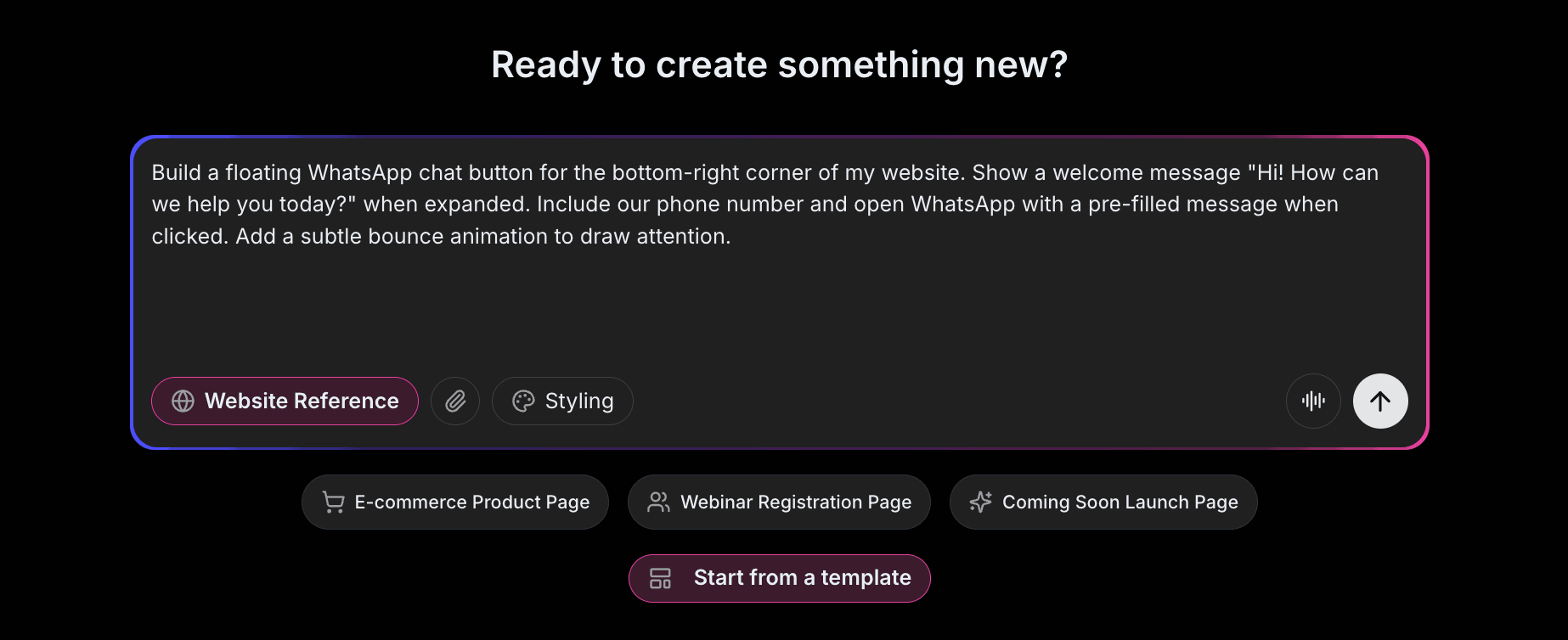
Open Embeddable and describe your chat button in natural language. Here's the exact prompt we'll use:
Build a floating WhatsApp chat button for the bottom-right corner of my website. Show a welcome message "Hi! How can we help you today?" when expanded. Include our phone number and open WhatsApp with a pre-filled message when clicked. Add a subtle bounce animation to draw attention.
That's it! The AI understands what you want and builds the complete chat button with:
- Floating button with WhatsApp icon
- Expandable welcome message
- Pre-filled message on click
- WhatsApp deep link integration
- Attention-grabbing animation
Step 3: Provide Your Website URL for Design Analysis
Here's where the magic happens. Give Embeddable your website URL, and the AI will:
- Analyze your brand colors and apply them to the chat button
- Match your website's fonts for the welcome message
- Style the button to feel native to your site
- Ensure the chat widget integrates seamlessly
The result? A chat button that looks like it was built by your design team, not a third-party widget.
Step 4: Refine Your Chat Button
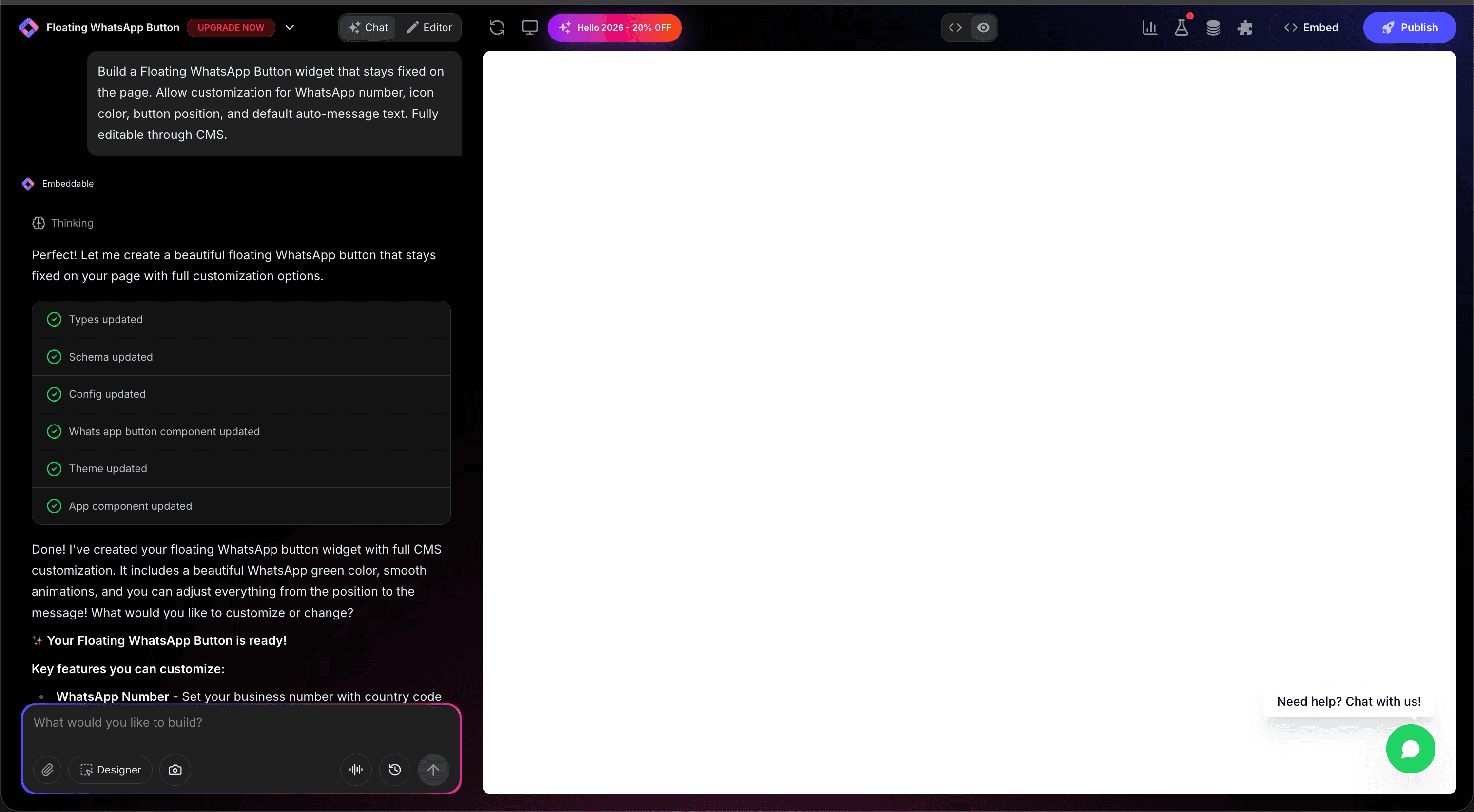
Once the AI generates your chat button, you can refine it through conversation:
- "Add business hours display showing we're online 9-5"
- "Include agent photo and name in the expanded view"
- "Create a multi-option widget with WhatsApp and Telegram"
- "Add a greeting popup that appears after 5 seconds"
- "Show 'typically replies in 5 minutes' text"
Each change happens instantly. The preview updates in real-time so you can see exactly how your chat button will look and work.
You can also use Embeddable's visual editor to make adjustments yourself - change colors, adjust spacing, modify text, or tweak the layout.
Step 5: Test Your Chat Button
Before embedding, thoroughly test your chat button:
- Test Click: Verify it opens the correct chat platform
- Check Pre-fill: Ensure pre-filled message appears
- Test Mobile: Verify it opens WhatsApp/Telegram apps
- Check Position: Ensure it doesn't cover important content
- Validate Animation: Confirm animations work smoothly
The preview environment shows exactly how your chat button will appear on your website, so you can catch any issues before going live.
Embedding Your Chat Button on Any Website
Your custom chat button works everywhere. Once you're happy with it, you'll get a simple embed code that works on:
- WordPress: Paste into any page or theme
- Shopify: Add to theme or landing pages
- Wix / Squarespace: Embed in any section
- Custom websites: Add to any HTML page
The process is the same everywhere:
- Get Your Embed Code: Click "Publish" and copy the code snippet
- Paste Into Your Website: Add to your site footer or theme
- Publish Your Page: The chat button goes live immediately
Your chat button automatically:
- Floats in the correct position on all pages
- Opens the right messaging app on click
- Works on both desktop and mobile devices
- Adapts to different screen sizes
- Updates instantly if you make changes
Types of Chat Buttons You Can Build
The same process works for any messaging platform:
WhatsApp Chat
Most popular globally. Business accounts available.
Telegram Chat
Privacy-focused users. Great for tech audiences.
Facebook Messenger
Large user base. Integrates with Facebook pages.
Multi-Chat Widget
Dropdown showing multiple platform options.
SMS/Text
Direct text messaging for users without apps.
Start with a Template or Build from Scratch
Not sure where to start? Embeddable offers free WhatsApp button templates and free Telegram button templates you can customize:
- WhatsApp Button - Classic floating WhatsApp chat
- Multi-Chat Widget - Multiple platform options
- Chat with Agent - Shows agent name and photo
- Business Hours Chat - Displays availability
- Greeting Popup - Proactive chat invitation
Choose a template that's close to what you need, then customize it with AI to match your exact requirements. It's the fastest way to get a professional chat button on your site.
Why Chat Buttons Increase Conversions
Chat buttons are conversion machines for several reasons:
They're Immediate: No waiting for email replies - instant conversation.
They're Personal: Direct messaging feels more human than forms.
They're Convenient: Visitors use apps they already have.
They Reduce Friction: Lower barrier to contact than email.
They Build Trust: Available support shows you care about customers.
Making Your Chat Button More Powerful
Take your chat button to the next level with these additions:
Business Hours
Show "We're online" or "Leave a message" based on time.
Agent Profiles
Display agent name and photo for personal touch.
Department Routing
Different numbers for Sales vs Support.
Proactive Messages
Popup greeting after visitors spend time on site.
Analytics
Track chat button clicks and conversations started.
Embeddable supports integrations to connect your chat button with CRM and analytics tools.
Best Practices for Chat Buttons
For maximum effectiveness:
- Correct Phone Format: WhatsApp needs international format (e.g., 14155551234)
- Pre-filled Messages: Reduce friction with suggested text
- Don't Be Intrusive: Subtle presence, not aggressive popups
- Mobile-Friendly: Large enough button for thumb taps
- Response Expectations: Set realistic response time expectations
Ready to Build Your Chat Button?
That's it! No developers, no complex integrations, no design skills needed. Just describe what you want and AI builds your custom chat button in minutes.
Your chat button will:
- Match your website's design perfectly
- Connect visitors to your preferred platform
- Work on every platform and device
- Make customer contact effortless
- Update easily when you need changes
Ready to get started?
Option 1: Start with a Template Browse free WhatsApp button templates or free Telegram button templates and customize one to your needs.
Option 2: Build Custom with AI Head to Embeddable and describe your chat button - the AI will build it in minutes.
Need More Widget Ideas?
More Tutorials:
- How to Build Custom Widgets for Your Website
- How to Build a Custom AI Chatbot for Your Website
- How to Build a Custom FAQ Widget for Your Website
Start connecting with visitors through custom chat buttons now!
Build Any Widget with AI in Seconds
Forms, calculators, quizzes, popups & any custom widget — describe it and AI builds it.
Try It FreeFree tier · No credit card