How to Make a Digital Scratch Card Online for Free in 2026 (Step-by-Step)

4/12/2026
Digital scratch cards have become one of the most effective interactive elements you can add to a website. They tap into the same psychology as physical lottery tickets: the anticipation, the reveal, the reward. Whether you are running a promotional campaign, collecting leads, rewarding loyal customers, or just trying to make your site more engaging, a scratch card widget delivers a memorable experience that static banners and popups simply cannot match.
This guide walks you through exactly how to build a digital scratch card for free, without writing a single line of code. You will use Embeddable's free scratch card generator to create and embed the widget, and by the end you will have a fully functional scratch card running on your website.
Want to skip ahead? Browse our free scratch card templates and customize one instantly.
What You Will Build
By the end of this tutorial, you will have:
- A fully interactive digital scratch card that visitors can scratch on desktop and mobile
- A customized overlay image that matches your brand
- A hidden reward or message revealed after scratching
- A widget embedded on any website, from WordPress to Shopify to Webflow
- An optional email capture or lead generation step attached to the scratch card experience
- A widget you can duplicate and modify for seasonal promotions, giveaways, or recurring campaigns
This is not a toy demo. The scratch card you build here is production-ready and can be deployed to real traffic today.
Why Digital Scratch Cards Work
Before jumping into the steps, it is worth understanding why these widgets perform so well. The scratch mechanic creates a micro-commitment. The act of physically interacting with your screen, swiping your finger or dragging your cursor, generates a sense of personal investment in the outcome. Studies on gamification consistently show that interactive reward mechanics increase time-on-site, email opt-in rates, and repeat visits.
If you are running holiday promotions, a scratch card widget can outperform a standard discount banner by a wide margin. The perceived value of a reward feels higher when the user has to "work" for it, even slightly. You can read more about this in the context of holiday promotions and contest and giveaway campaigns.
Now, let us build one.
Step 1: Create a Free Embeddable Account
Go to Embeddable and sign up for a free account. No credit card is required. The free plan gives you access to the scratch card widget builder along with a library of other interactive widget types.
Once you are logged in, you will land on the dashboard. This is where all your widgets live. You can create as many as you need, preview them, and manage embed codes from one place.
Step 2: Start a New Scratch Card Widget
From your dashboard, click the button to create a new widget. You will be presented with a template library. Search for "scratch card" or browse the free scratch card widgets category.
Select the scratch card template that best fits your use case. Embeddable offers several starting points:
- A basic single-panel scratch card for simple reveals
- A multi-panel scratch card where users scratch to reveal a code or prize
- A scratch card connected to a lead capture form
For this tutorial, select the basic scratch card template. You can always upgrade the structure later.
Step 3: Configure the Reveal Content
The scratch card has two layers: the top layer (the scratching surface) and the bottom layer (the revealed content). You configure both inside the Embeddable visual editor.
Setting up the bottom layer (the reward)
Click on the bottom layer panel. Here you define what the user sees after scratching. Your options include:
- A discount code (e.g., "Use code SAVE20 for 20% off")
- A prize announcement ("You won a free shipping upgrade!")
- A message directing them to a next step ("Show this screen at checkout")
- An image, logo, or custom graphic
Type in your reward message or upload an image. Keep the text concise. The reveal should feel like a punch line, not a paragraph. If you are attaching a promo code, make sure the code is visually distinct, using a larger font size or a contrasting color.
Setting up the top layer (the scratch surface)
Click on the top layer. This is the gray or metallic-looking surface that appears to be "scratched off." You can:
- Use the default silver scratch texture
- Upload a custom image as the overlay (useful for branding, holiday themes, or seasonal promotions)
- Adjust the color to match your brand palette
For a holiday campaign, you might upload a festive pattern. For a SaaS product, a clean dark overlay with your logo watermark works well. The editor lets you preview exactly how it will look before publishing.
Step 4: Add a Scratch Threshold
One of the most important UX settings is the scratch threshold, which is the percentage of the overlay that must be removed before the reward is automatically fully revealed.
In the Embeddable editor, look for the scratch settings panel. Set the threshold to somewhere between 40 and 60 percent. This means once the user has scratched away roughly half the card, the rest of the overlay automatically disappears and the reward is fully shown.
If you set the threshold too low, users barely need to interact. If you set it too high, users get frustrated and abandon the card before the reveal. A threshold around 50 percent hits the sweet spot for most campaigns.
Step 5: Configure the Scratch Card Dimensions and Appearance
Click into the layout settings. Here you can set:
- Width and height: For most websites, a width of 320 to 480 pixels works well. Make it large enough to scratch comfortably on mobile.
- Border radius: Add a slight border radius (8 to 12 pixels) for a card-like appearance.
- Shadow: A subtle drop shadow adds depth and makes the card feel physical.
- Background: Set the widget background to match your site or leave it transparent for seamless embedding.
The Embeddable editor updates the preview in real time as you make these changes, so you can iterate quickly without guessing.
Step 6: Add an Optional Email Capture Step
This step is optional but highly recommended if you are using the scratch card for lead generation. Embeddable allows you to add a gate before or after the scratch interaction.
Pre-scratch gate: The user must enter their email before they can scratch. This maximizes lead capture but adds friction.
Post-scratch gate: The user scratches first, sees that they have won something, and then must enter their email to claim the reward. This approach tends to convert better because the user is already emotionally invested in the reward.
To add the email capture step, click "Add Step" in the widget builder. Select the form step type and drag it into the correct position in the flow. Add an email field, a name field if needed, and a submit button. Connect the form to your preferred integration, such as Mailchimp, HubSpot, Klaviyo, or a webhook to your CRM.
Once the form is connected, every email captured through the scratch card will flow automatically into your marketing list. This turns a fun widget into a real lead generation machine. If lead generation is your primary goal, also read the guide on lead generation widgets for more context on how to structure your campaign.
Step 7: Set Up Win Logic and Prize Distribution
If you are running a promotional campaign where not every user wins the same prize (or wins at all), you need to configure win logic.
In the Embeddable editor, look for the "Outcomes" or "Variants" section. Here you can set up multiple possible reveals with assigned probabilities. For example:
- 10% chance of revealing "You won a $50 gift card"
- 30% chance of revealing "You won free shipping"
- 60% chance of revealing "Better luck next time, here is 10% off"
This creates a tiered prize structure that feels fair while controlling your promotion budget. The probabilities are set as percentages that must total 100.
Make sure that even the "losing" outcome still delivers value. A consolation discount code keeps the user engaged and often drives a purchase even when they did not win the top prize.
Step 8: Preview and Test on Mobile
Before embedding, always preview your scratch card on mobile. The vast majority of promotional traffic comes through mobile devices, and the scratch interaction relies on touch events. Embeddable handles the touch-to-scratch mapping automatically, but you should verify it works correctly on your specific layout.
Use the device preview toggle in the editor to switch between desktop and mobile views. Try scratching with your finger if you are on a mobile device. Check that:
- The card is large enough to scratch without accidentally tapping buttons nearby
- The reveal text is readable at mobile font sizes
- The email capture form (if included) is easy to fill out on a small screen
Step 9: Get Your Embed Code
Once you are satisfied with the widget, click the "Publish" button. Embeddable will generate an embed code, which is a short snippet of HTML. Copy this code.
You can read the full walkthrough in the how to get the embed code documentation.
The embed code works on virtually any website platform. Here are the most common placements:
- WordPress: Paste the code into a Custom HTML block in the Gutenberg editor, or use the Classic Editor's Text view.
- Shopify: Add a Custom HTML section to any page or use a theme liquid file for sitewide placement.
- Webflow: Use an HTML Embed element in the designer.
- Squarespace: Use a Code Block on any page.
- Wix: Add an HTML iFrame element to your page.
For platform-specific instructions, Embeddable maintains detailed guides for WordPress, Shopify, Webflow, Squarespace, and many others.
Step 10: Place the Widget Strategically
Where you embed the scratch card matters as much as how it looks. Here are the highest-performing placements:
- Homepage hero section: Catches new visitors immediately, especially during a sale or campaign
- Checkout page: A scratch card offering a surprise discount can recover hesitant buyers
- Thank you page: Reward customers after a purchase with a scratch card for their next order
- Email campaign landing page: Link from an email to a dedicated landing page with the scratch card
- Pop-up on exit intent: Use an exit popup with a scratch card to retain leaving visitors
If you want to use a popup container for your scratch card, check out the guide on how to build a custom popup for your website.
Alternatives to Consider
Embeddable is the best free option for building a digital scratch card, but other tools exist. Here is a brief look at what they offer and where they fall short.
Common Ninja
Common Ninja offers a scratch card widget as part of its widget library. The interface is clean and the widget embeds easily on most platforms. Common Ninja's free plan has usage limits, and deeper customization (custom win logic, integrations with email platforms) tends to require a paid tier. It is a solid second choice if you want a simple scratch card without the broader widget ecosystem.
Elfsight
Elfsight has a scratch card widget available in its app store. It works via embed code and supports basic customization of the overlay and reveal content.
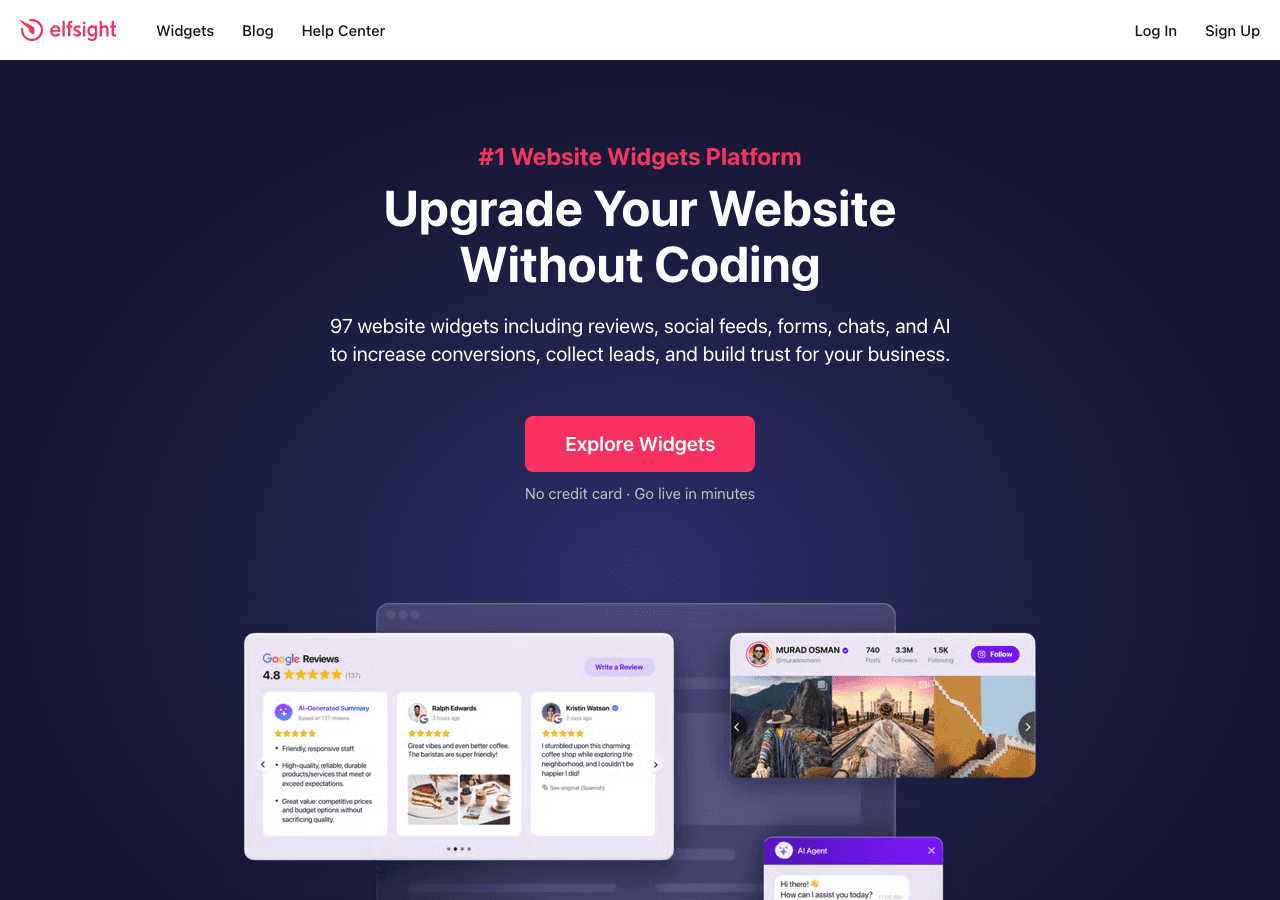
The free plan on Elfsight includes a views-per-month limit, which means a popular campaign can quickly hit the ceiling and stop showing the widget to new visitors. For high-traffic promotions, this is a significant drawback.
Outgrow
Outgrow is primarily a quiz and calculator builder, but it includes gamified content types that can approximate scratch card experiences.
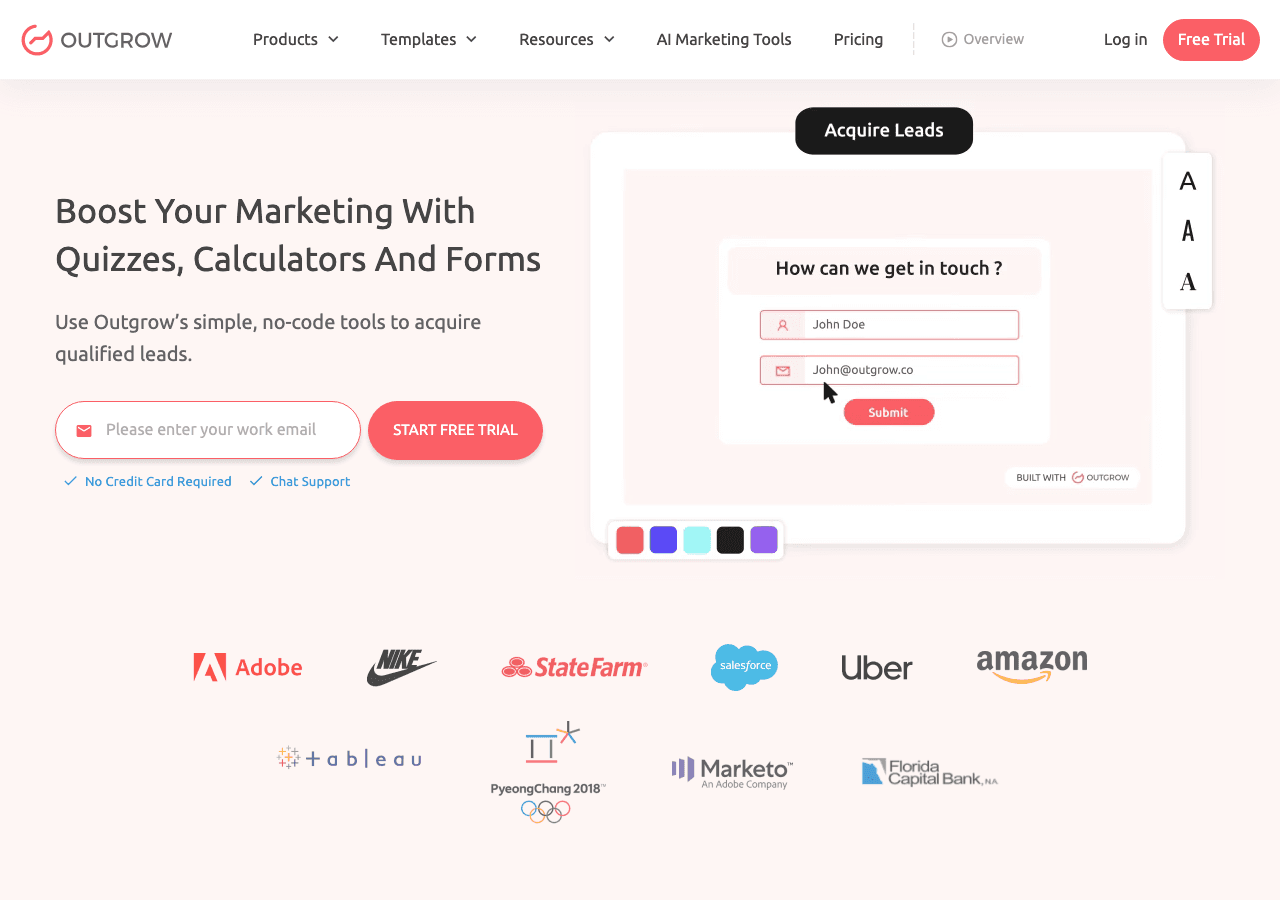
Outgrow is a much heavier tool than what most scratch card use cases require. The pricing is positioned for enterprise marketing teams, and the scratch card is not a primary feature. If you are already using Outgrow for other content types, it may be worth exploring, but it is not the right starting point if a scratch card is your only goal.
Involve.me
Involve.me allows you to build interactive content flows that include gamified elements.
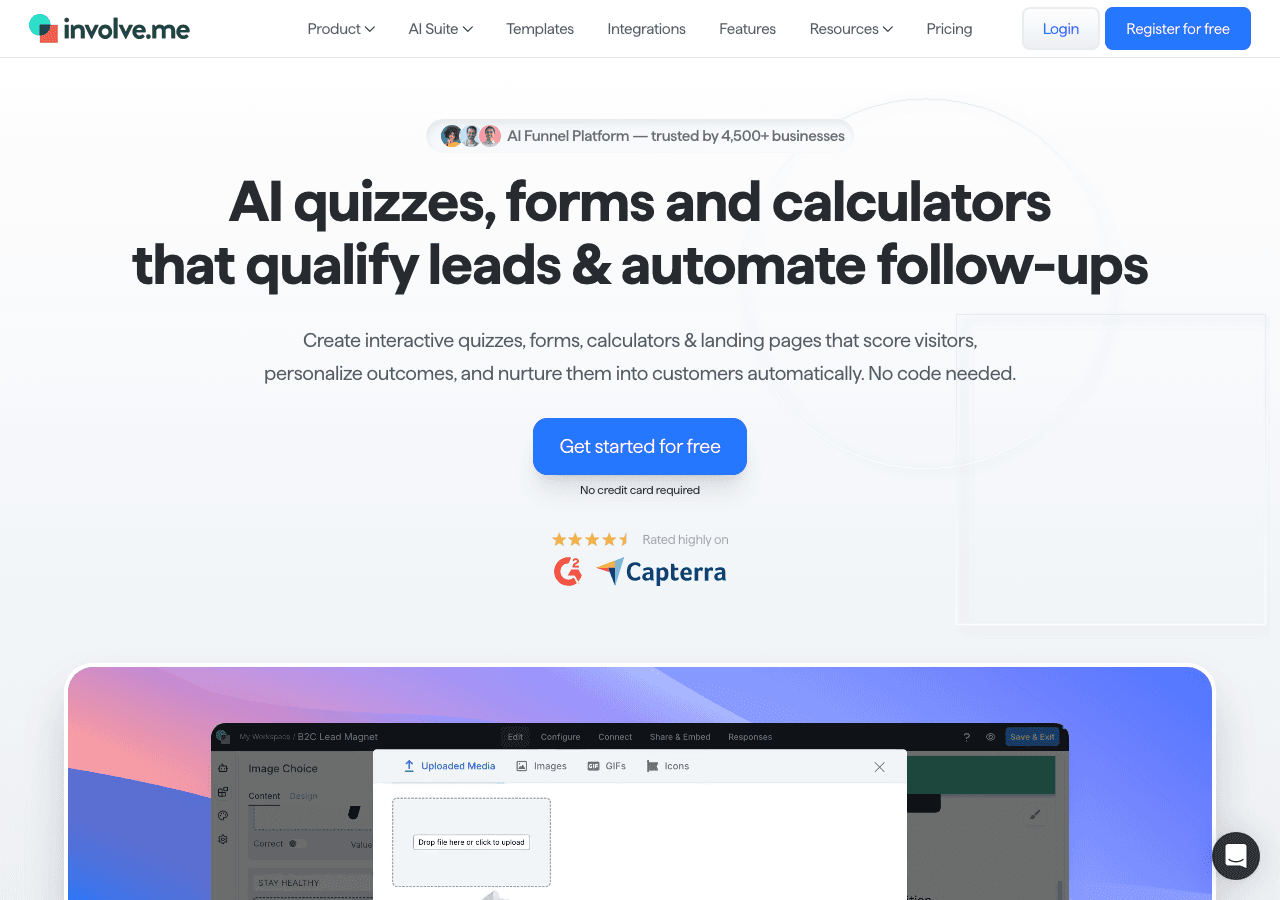
Like Outgrow, Involve.me is a broader interactive content platform rather than a scratch card specialist. It offers more flexibility in building multi-step flows, but the scratch interaction itself is less polished than what Embeddable provides. The free tier is limited, and getting a fully branded scratch card with lead capture working requires a paid plan.
Jotform
Jotform is a form builder that has added some game-like elements over time.
Jotform does not offer a native scratch card widget in the traditional sense. You can build forms that reveal content conditionally, but it is not the same tactile experience. If your primary goal is a scratch mechanic with a genuine scraping interaction, Jotform is not the right tool.
The conclusion here is straightforward: for a free, fully functional, customizable digital scratch card, Embeddable is the strongest option, with Common Ninja as a reasonable alternative for simpler needs.
Common Mistakes to Avoid
After seeing hundreds of scratch card deployments, a few mistakes come up repeatedly. Avoid these to get better results from day one.
Setting the prize value too high without budget controls
If you configure a scratch card where 100% of users win a $50 gift card, you will run into serious budget problems if the widget goes viral. Always set prize caps, either as hard limits on the number of prizes available or through probability-based win logic. Set a total number of times a high-value prize can be claimed and disable it automatically once that number is reached.
Making the card too small on mobile
A scratch card that is only 200 pixels wide is frustrating to use on a phone. Your finger covers the whole surface and it is hard to control the scratch. Aim for a minimum width of 300 pixels and test on actual mobile devices before launching.
Forgetting to connect the email capture to your marketing platform
If you add an email field but do not connect it to Mailchimp, HubSpot, or another platform, the leads sit inside Embeddable's database but never make it into your campaigns. Always test the integration before launch by submitting a test entry and confirming it appears in your marketing platform.
Using a reveal that is hard to read
Dark text on a dark background, or a small font on a complex image, makes the reward hard to read at the moment of reveal. That moment is the emotional peak of the interaction. If the user squints to read their prize, the experience deflates. Use high-contrast colors and large, bold text for the reveal content.
Not including a call to action after the reveal
The scratch card should not be the end of the journey. After the reveal, include a clear next step. A "Claim your prize" button, a "Shop now" link, or a countdown timer showing how long the code is valid all drive the user toward conversion. Without a next step, many users will enjoy the scratch experience and then navigate away without acting.
Launching without testing the win logic
If you have multiple prize tiers with different probabilities, test every outcome before going live. Click through the widget many times, or use the preview/test mode, to confirm that each variant appears at roughly the right frequency and that the email capture and CTA work correctly for each outcome.
Embedding on a page with no traffic
A scratch card only drives results if people see it. Embedding it on a buried subpage will not generate meaningful results. Plan your traffic strategy before launch. Pair the scratch card with an email campaign, a social media post, or a homepage feature to ensure visibility.
Conclusion Checklist
Before you publish your scratch card, run through this checklist:
- Scratch overlay image is on-brand and high quality
- Reveal content is high contrast, bold, and easy to read
- Scratch threshold is set between 40 and 60 percent
- Win logic and prize variants are configured and tested
- Email capture (if used) is connected to your marketing platform
- Mobile preview has been tested and the card is large enough to use comfortably
- A clear call to action follows the reveal
- Prize caps or budget controls are in place for high-value rewards
- Embed code has been placed on the correct page(s)
- You have a plan for driving traffic to the page
If every box is checked, you are ready to launch.
Digital scratch cards sit at the intersection of gamification, lead generation, and brand engagement. They are fast to build with the right tool and consistently outperform passive content in click-through and conversion metrics. The free scratch cards available through Embeddable give you everything you need to run a professional campaign without a development budget.
If you want to explore what else you can build alongside your scratch card, the free widgets for websites roundup covers a wide range of interactive tools that complement promotional campaigns well.
Ready to build yours? Start for free at Embeddable's scratch card widget page and have your first card live in under 30 minutes.
Build Any Widget with AI in Seconds
Forms, calculators, quizzes, popups & any custom widget — describe it and AI builds it.
Try It FreeFree tier · No credit card