How to Build a Before & After Slider for Your Website in 2026

Want to showcase transformations on your website? Whether it's home renovations, beauty results, photo editing, or product improvements, I'll show you how to build a custom before & after slider in minutes - no coding required.
Before & after sliders let visitors drag to compare two images - it's one of the most engaging ways to show results and transformations.
In this guide, I'll walk you through creating a custom before & after slider using AI. If you're new to building custom widgets, check out our complete guide on how to build custom widgets first.
Why Add Before & After Sliders to Your Website?
Before & after sliders serve powerful purposes:
- Show Real Results: Visual proof is more convincing than words
- Engage Visitors: Interactive sliding is addictive and fun
- Build Trust: Transparent before/after comparisons build credibility
- Drive Conversions: Results sell better than promises
- Stand Out: Memorable, shareable content that differentiates you
Home contractors show renovations, beauty brands show transformations, photographers show editing skills. Before & after sliders make your results undeniable.
Building Your Custom Before & After Slider with Embeddable AI
Creating a before & after slider with Embeddable's AI is incredibly straightforward. No coding, no complex image handling - just describe what you want and the AI builds it.
Step 1: Start with Your Slider Concept
Before you begin, think about what your slider needs:
- Images: Do you have matching before and after photos?
- Orientation: Horizontal (left/right) or vertical (top/bottom)?
- Labels: "Before" and "After" labels? Custom text?
- Interaction: Drag slider? Click to compare? Auto-animate?
For our example, we're building a horizontal before & after slider for a home renovation project.
Step 2: Describe Your Slider to the AI
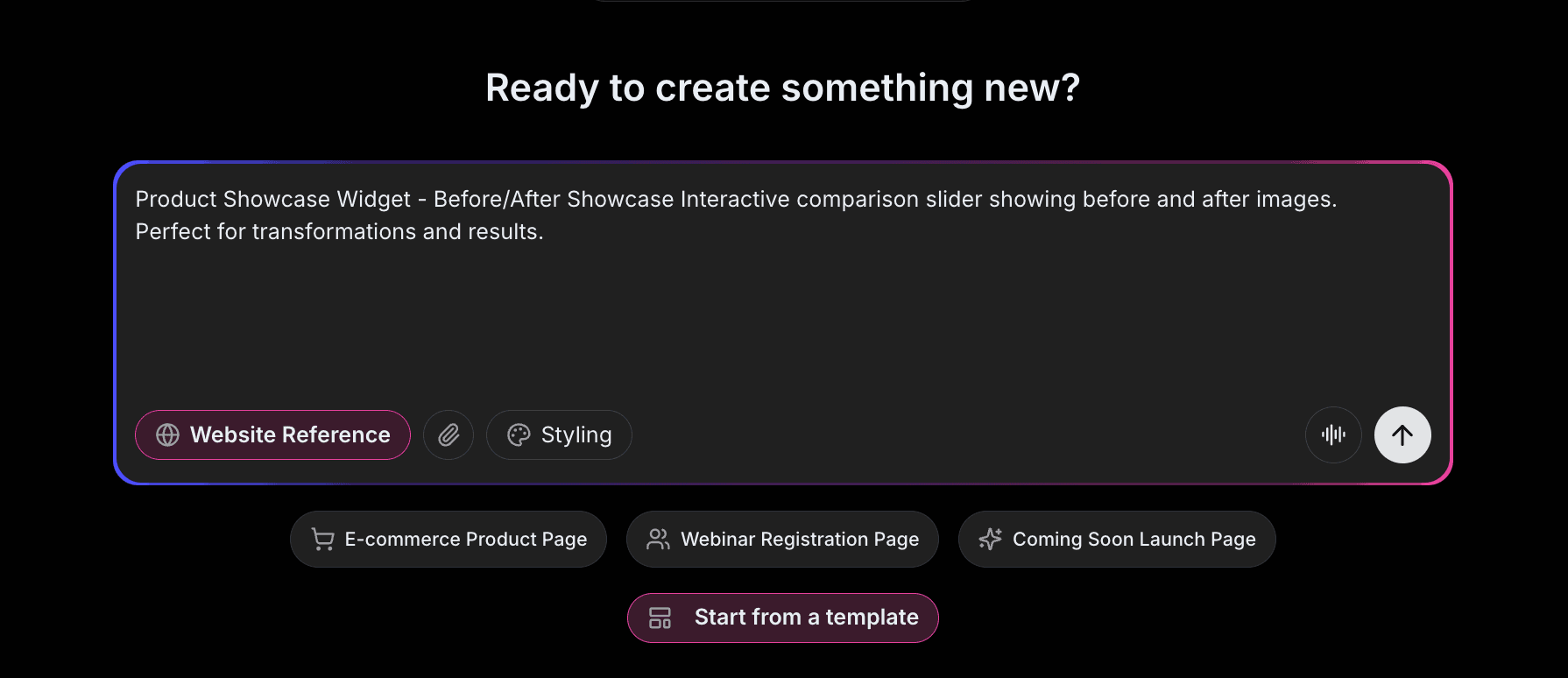
Open Embeddable and describe your slider in natural language. Here's the exact prompt we'll use:
Build a before and after image comparison slider for home renovation photos. The slider handle should be in the center by default. Add "Before" and "After" labels on each side. Include a subtle animation prompting visitors to drag the slider. Make it responsive for mobile with touch support.
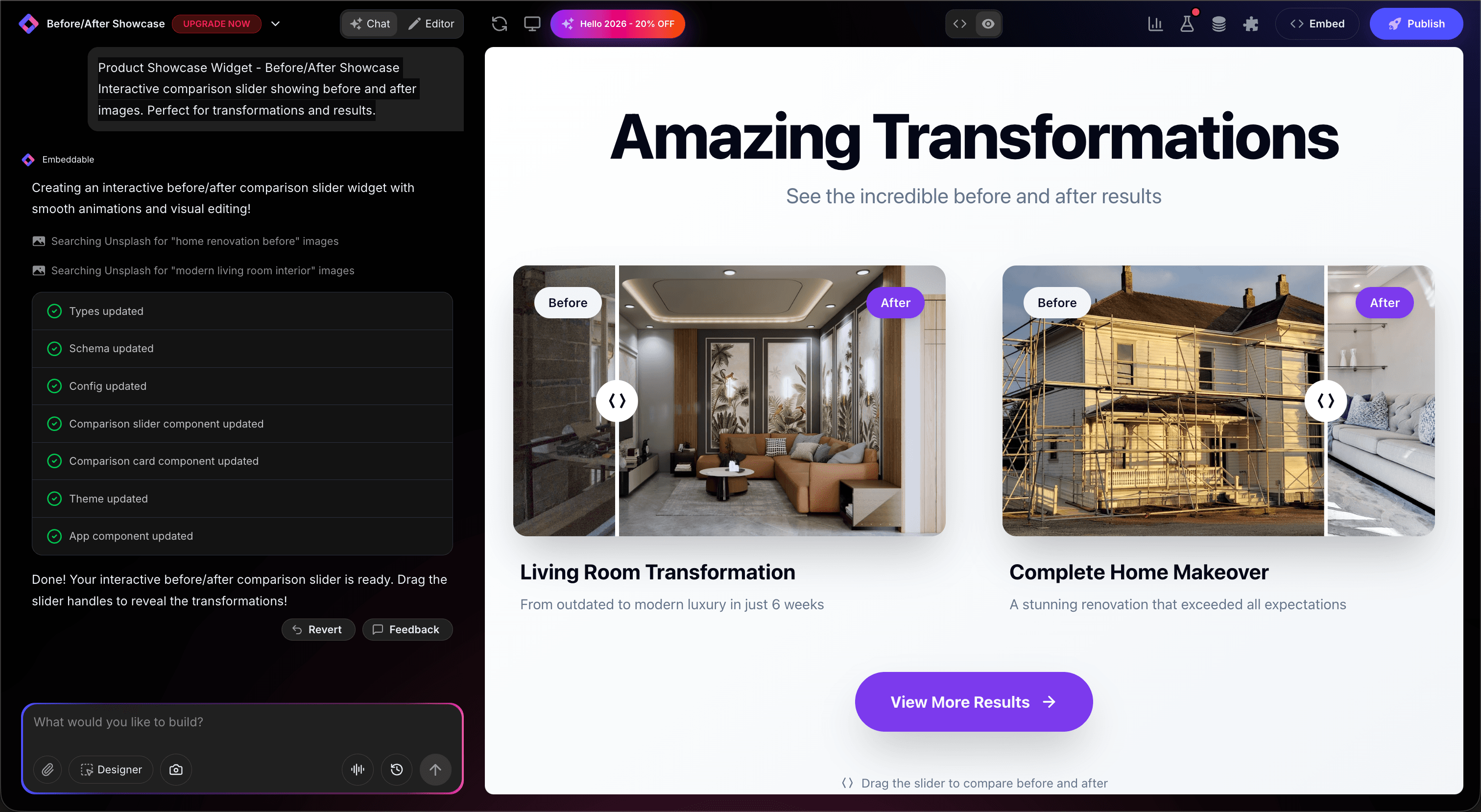
That's it! The AI understands what you want and builds the complete slider with:
- Smooth draggable slider handle
- Before and After labels
- Animated prompt to encourage interaction
- Touch-friendly mobile support
- Professional styling
Step 3: Provide Your Website URL for Design Analysis
Here's where the magic happens. Give Embeddable your website URL, and the AI will:
- Analyze your brand colors and apply them to the slider
- Match your website's fonts for labels
- Style the slider handle to feel native
- Ensure the comparison slider integrates seamlessly
The result? A before & after slider that looks like it was built by your design team, not a third-party widget.
Step 4: Refine Your Slider
Once the AI generates your slider, you can refine it through conversation:
- "Add a circular handle with left/right arrows"
- "Include a caption area below for context"
- "Make the slider vertical instead of horizontal"
- "Add multiple before/after pairs in a gallery"
- "Include a fullscreen button for detailed viewing"
Each change happens instantly. The preview updates in real-time so you can see exactly how your slider will look and work.
You can also use Embeddable's visual editor to make adjustments yourself - change colors, adjust spacing, modify text, or tweak the layout.
Step 5: Test Your Slider
Before embedding, thoroughly test your slider:
- Test Dragging: Ensure smooth slider movement
- Try Touch: Test on mobile with finger swipes
- Check Images: Verify both images load and align properly
- Test Responsiveness: View on desktop, tablet, and mobile
- Validate Labels: Ensure text is readable at all sizes
The preview environment shows exactly how your slider will appear on your website, so you can catch any issues before going live.
Embedding Your Slider on Any Website
Your custom before & after slider works everywhere. Once you're happy with it, you'll get a simple embed code that works on:
- WordPress: Paste into any page or post
- Shopify: Add to product pages or landing pages
- Wix / Squarespace: Embed in any section
- Custom websites: Add to any HTML page
The process is the same everywhere:
- Get Your Embed Code: Click "Publish" and copy the code snippet
- Paste Into Your Website: Add where you want the slider to appear
- Publish Your Page: The slider goes live immediately
Your slider automatically:
- Responds to drag and touch interactions
- Adapts to different screen sizes (mobile, tablet, desktop)
- Loads images efficiently
- Works with all major browsers
- Updates instantly if you make changes
Types of Before & After Sliders You Can Build
The same process works for any comparison:
Home & Renovation
- Room remodels
- Exterior transformations
- Landscaping projects
- Cleaning results
Beauty & Wellness
- Cosmetic procedures
- Fitness transformations
- Skincare results
- Hair styling
Photography & Design
- Photo editing
- Retouching work
- Design revisions
- Website redesigns
Automotive
- Car detailing
- Restoration projects
- Collision repair
- Custom modifications
Product Comparisons
- Product versions
- Feature updates
- Quality improvements
Start with a Template or Build from Scratch
Not sure where to start? Embeddable offers free before & after slider templates you can customize:
- Horizontal Slider - Classic left/right comparison
- Vertical Slider - Top/bottom reveal
- Circle Reveal - Expanding circle effect
- Gallery Slider - Multiple before/after pairs
- Hover Reveal - Mouse hover comparison
Choose a template that's close to what you need, then customize it with AI to match your exact requirements. It's the fastest way to get a professional comparison slider on your site.
Why Before & After Sliders Convert
Before & after sliders are conversion machines for several reasons:
They're Visual Proof: Seeing is believing - transformations speak louder than words.
They're Interactive: Visitors control the reveal, creating engagement and investment.
They're Memorable: Interactive comparison is more impactful than side-by-side photos.
They Build Trust: Transparent results show you deliver on promises.
They're Shareable: Impressive transformations get shared on social media.
Making Your Slider More Powerful
Take your slider to the next level with these additions:
Caption Details
Add context about what changed, how long it took, or what services were used.
Multiple Comparisons
Create a gallery of before/after pairs to showcase multiple projects.
Zoom Feature
Allow visitors to zoom in for detailed inspection.
CTA Integration
Add "Get Your Transformation" or "Contact Us" buttons below the slider.
Testimonials
Include client quotes alongside their transformation photos.
Embeddable supports integrations to connect your slider with galleries, forms, and analytics.
Image Tips for Best Results
For the most impactful sliders:
- Same Angle: Shoot before and after from the exact same position
- Same Lighting: Consistent lighting makes comparisons fair
- Same Dimensions: Images should be the same size and aspect ratio
- High Quality: Use high-resolution images for professional appearance
- Clear Difference: Choose examples with obvious, impressive changes
Ready to Build Your Before & After Slider?
That's it! No developers, no complex image handling, no design skills needed. Just describe what you want and AI builds your custom comparison slider in minutes.
Your slider will:
- Match your website's design perfectly
- Work smoothly on desktop and mobile
- Showcase your transformations impressively
- Engage visitors with interactive comparison
- Update easily when you add new examples
Ready to get started?
Option 1: Start with a Template Browse free before & after slider templates and customize one to your needs.
Option 2: Build Custom with AI Head to Embeddable and describe your slider - the AI will build it in minutes.
Need More Widget Ideas?
More Tutorials:
- How to Build Custom Widgets for Your Website
- How to Build an Image Carousel for Your Website
- How to Build a Custom Popup for Your Website
Start showcasing your transformations with custom before & after sliders now!
Build Any Widget with AI in Seconds
Forms, calculators, quizzes, popups & any custom widget — describe it and AI builds it.
Try It FreeFree tier · No credit card