How to Build a Custom Map Widget for Your Website

Want to display locations, create a store locator, or build an interactive travel guide on your website? Whether you need a simple office location map or a complex multi-location display with rich information, I'll show you how to create custom map widgets in minutes - no coding required.
Maps are essential for any business with physical locations. They help customers find you, explore your service areas, and discover points of interest. A well-designed map widget can transform how visitors interact with your location data.
In this guide, I'll walk you through creating custom map widgets using AI, focusing on building a store locator with sidebar navigation. New to custom widgets? Start with our complete guide on how to build custom widgets first.
Want to skip ahead? Browse our free map widget templates and customize one instantly.
Why Add Custom Map Widgets to Your Website?
Map widgets help visitors discover and engage with your locations:
- Help Customers Find You: Make it easy for customers to locate your stores, offices, or service points
- Match Your Brand Perfectly: Maps that look native to your site, not generic Google embeds
- Display Rich Information: Add photos, hours, contact details, and descriptions to each location
- Enable Interactivity: Let visitors filter, search, and explore locations dynamically
- Drive Foot Traffic: Clear directions and contact info convert online visitors to in-person customers
- Showcase Service Areas: Visually display where you operate or deliver
Retailers use store locators, real estate companies display property listings, travel sites create interactive guides, restaurants show multiple locations, and service businesses map their coverage areas. Whatever your industry, custom maps help visitors connect with your physical presence.
Building Your Custom Map with Embeddable AI
Creating custom map widgets with Embeddable's AI is remarkably simple. No map APIs to configure, no JavaScript to write - just describe what you want and the AI builds it.
Step 1: Start with Your Map Concept
Before you begin, think about what your map needs to accomplish:
- Purpose: Store locator, office locations, travel guide, property listings?
- Locations: How many locations? What information for each?
- Display Style: Markers only, sidebar list, popovers with details?
- Interactivity: Search, filtering, click-to-navigate, directions?
- Information: What details to show - hours, phone, images, descriptions?
For our example, we're building a store locator with a sidebar that lists all locations, with click-to-navigate functionality.
Step 2: Describe Your Map to the AI
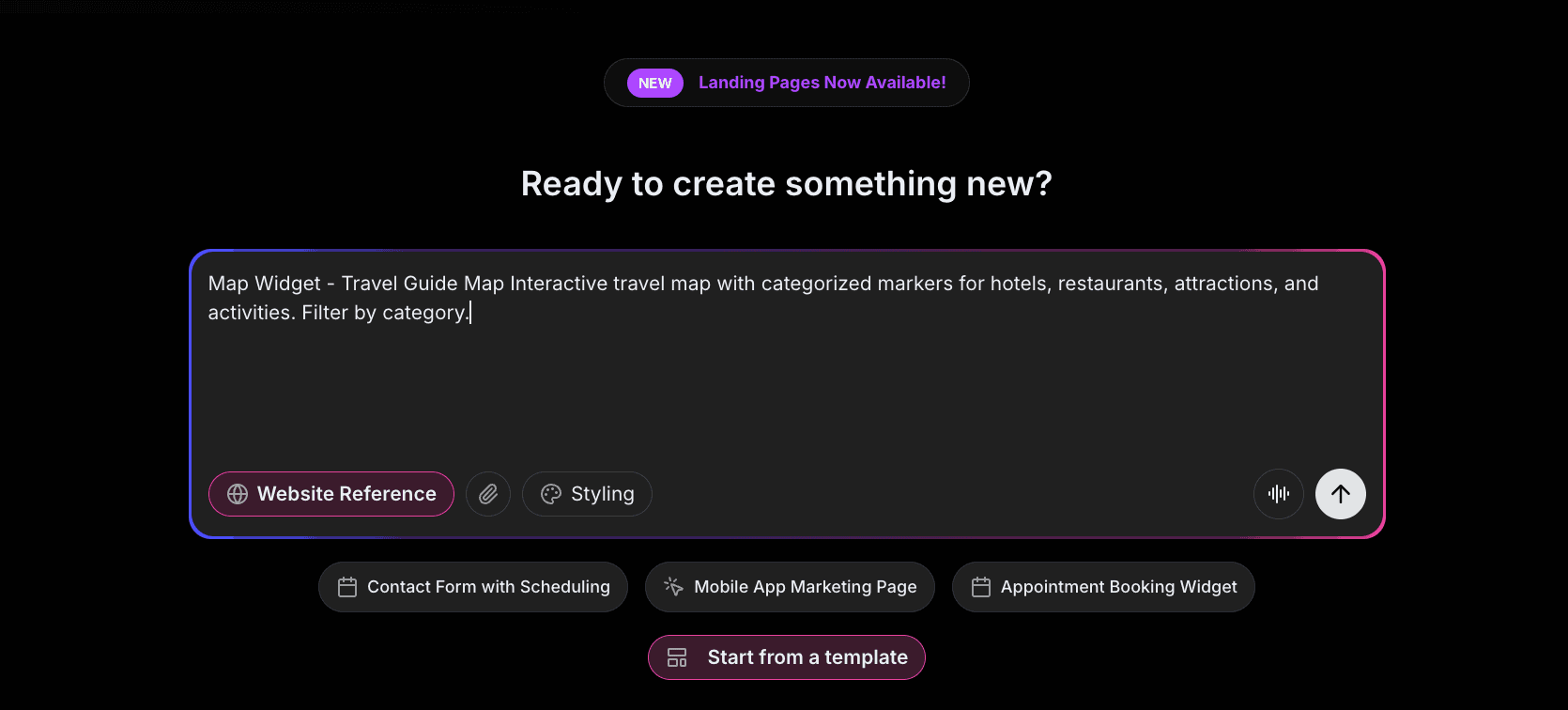
Open Embeddable and describe your map in natural language. Here's the exact prompt we'll use:
Create a Travel Guide Map Interactive travel map with categorized markers for hotels, restaurants, attractions, and activities. Filter by category.
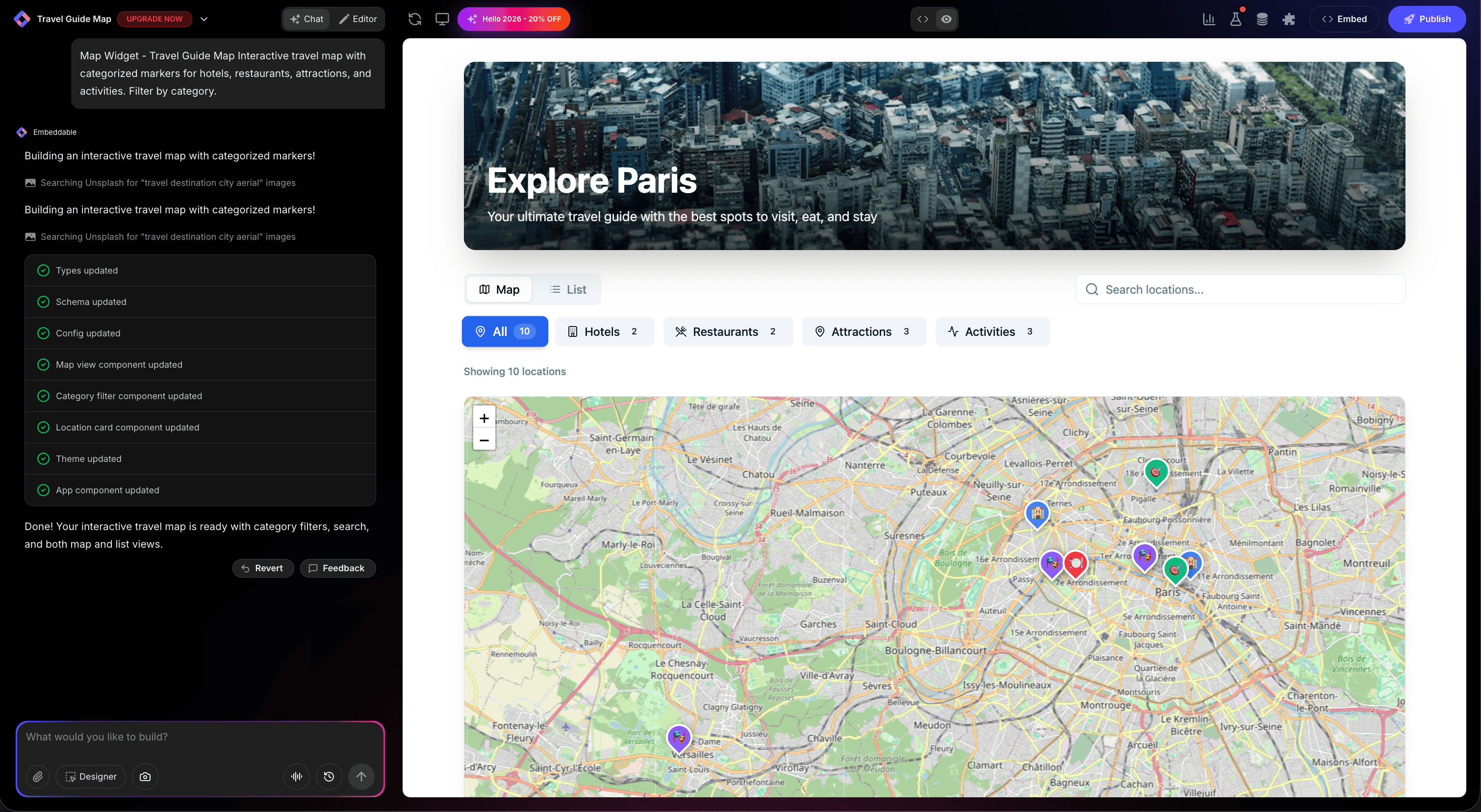
The AI understands what you want and builds a complete map widget with:
- Interactive map with custom markers
- Sidebar navigation with all locations listed
- Click-to-pan functionality between sidebar and map
- Rich popovers with contact details and hours
- Search/filter functionality
- Responsive design that works on all devices
- CMS integration for easy location management
- Professional styling that looks polished
Step 3: Provide Your Website URL for Design Analysis
This is where Embeddable's AI shines. Give it your website URL, and the AI will:
- Match your brand colors to map markers, buttons, and UI elements
- Adapt fonts for location names and details to match your typography
- Style the sidebar, search bar, and popovers to feel native
- Design hover states and interactions that fit your design system
- Ensure the map integrates seamlessly with your existing pages
The result? A map that looks like it was custom-designed by your team, not a generic embedded widget.
Step 4: Refine Your Map
Once the AI generates your map, refine it through conversation:
- "Add a cluster feature when markers are too close together"
- "Include a photo for each location in the popover"
- "Add category filters (e.g., flagship stores, outlets, service centers)"
- "Change the map style to a dark theme"
- "Add a 'Currently Open' indicator for stores open now"
- "Include distance from user's location if they allow geolocation"
- "Add click-to-call functionality for phone numbers"
- "Show a route preview when clicking Get Directions"
Each refinement happens instantly. Watch your map update in real-time as you perfect every detail.
You can also use Embeddable's visual editor to make adjustments yourself - modify colors, adjust marker icons, reorder sidebar items, or tweak the layout.
Step 5: Test Your Map and Configure Locations
Before embedding, test your map thoroughly:
- Interact with Markers: Click each marker to verify popovers display correctly
- Test Sidebar Navigation: Click sidebar items and confirm map pans to each location
- Check Search/Filter: Test the search functionality with different queries
- Verify Directions Links: Make sure Get Directions opens the correct location in maps
- Test Responsiveness: Check the map on desktop, tablet, and mobile
- Add Real Locations: Use the CMS to add your actual store locations
- Test Geolocation: If enabled, verify distance calculations work
The CMS editor makes it easy to manage all your locations, add new stores, update hours, and keep information current without touching any code.
Embedding Your Map on Any Website
Your custom map works everywhere. Once you're satisfied, you'll get a simple embed code that works on:
- WordPress: Add to any page, post, or contact page
- Shopify: Display on store locator or contact pages
- Wix / Squarespace: Embed in any section or page
- Custom websites: Add to any HTML page
- Landing Pages: Integrate into location-based landing pages
The process is the same everywhere:
- Get Your Embed Code: Click "Publish" and copy the code snippet
- Paste Into Your Website: Add where you want the map to appear
- Publish Your Page: The map goes live immediately
Your map automatically:
- Scales perfectly on all screen sizes
- Loads fast with optimized rendering
- Works in all major browsers
- Updates instantly when you change locations
- Handles interactions smoothly
- Works on touch devices
Types of Maps You Can Build
The same AI-powered process works for any map type:
Store Locators
- Retail store finders with search by zip code
- Restaurant location maps with menu links
- Service center maps with appointment booking
- Dealer/distributor locators
- ATM and branch finders
Business Location Maps
- Corporate office locations worldwide
- Regional office maps with team info
- Headquarters campus maps
- Co-working space locations
- Franchise location displays
Real Estate Maps
- Property listing maps with price and details
- Open house location maps with dates
- Neighborhood guides with amenities
- Development project maps
- Commercial property portfolios
Travel & Tourism Maps
- City guides with points of interest
- Hotel and accommodation maps
- Tour route maps with stops
- Attraction and landmark guides
- Restaurant and nightlife maps
Service Coverage Maps
- Delivery zone maps
- Service area displays
- Coverage region maps
- Territory visualization
- Shipping zone indicators
Event & Venue Maps
- Conference venue maps with room layouts
- Festival grounds maps with stages
- Wedding venue location maps
- Sports facility maps
- Campus and building maps
Start with a Template or Build from Scratch
Not sure where to start? Embeddable offers free map widget templates you can customize:
- Store Locator with Sidebar - Full-featured location finder with list navigation
- Multi-Location Map with Tooltips - Quick-view markers with hover information
- Map with Rich Popovers - Detailed location cards with images and actions
- Travel Guide Map - Points of interest with categories and descriptions
- Office Locations Map - Corporate presence display with contact details
Choose a template close to your needs, then customize it with AI to match your exact requirements and branding.
Why Custom Map Widgets Drive Engagement
Well-designed maps increase visitor engagement and conversions:
They Reduce Friction: Visitors can find locations instantly instead of searching through text. Visual maps are easier to understand than address lists.
They Build Confidence: Seeing your physical presence on a map builds trust. Customers feel more confident visiting or contacting real locations.
They Enable Discovery: Interactive maps let visitors explore nearby options. They might discover a location closer to them they didn't know about.
They Drive Action: Integrated "Get Directions" and "Call" buttons convert browsing into action. One click takes them to navigation or dials your number.
They Showcase Scale: A map with multiple locations demonstrates business growth and coverage. It positions you as an established, trustworthy company.
Making Your Maps More Powerful
Take your maps to the next level with these enhancements:
Add Rich Location Details
- High-quality photos of each location
- Virtual tour links or embedded 360° views
- Staff profiles and contact information
- Customer reviews and ratings
- Special offers or promotions per location
Enable Smart Filtering
- Filter by location type (stores, offices, partners)
- Show only currently open locations
- Filter by services offered
- Search by zip code or city
- Filter by distance from user
Include User Location Features
- Detect user location with permission
- Show distance to each location
- Find nearest location automatically
- Sort by proximity
- Provide walking/driving time estimates
Add Real-Time Information
- Current wait times
- Inventory availability
- Appointment availability
- Special events or closures
- Live occupancy data
Enable Actions
- Click-to-call phone numbers
- One-click directions to any mapping app
- Book appointments directly
- Reserve tables or services
- Request quotes or information
Customize Map Appearance
- Custom marker icons matching your brand
- Multiple map styles (street, satellite, terrain, dark)
- Clustering for many locations
- Custom map colors and theming
- Animated markers and transitions
Embeddable supports integrations with Google Maps, Mapbox, and can connect to your CRM or inventory systems via webhooks.
Best Practices for Map Widget Design
Follow these principles for maximum effectiveness:
Keep It Focused
- Don't overcrowd maps with too many markers
- Use clustering when displaying many locations
- Consider regional or filtered views for large datasets
- Highlight the most important locations
Provide Clear Information
- Display essential details in popovers (address, phone, hours)
- Make "Get Directions" prominently visible
- Include clear call-to-action buttons
- Show if locations are currently open
Enable Easy Navigation
- Make sidebar items clearly clickable
- Provide smooth transitions when panning
- Include zoom controls for detail exploration
- Support both click and touch interactions
Optimize for Mobile
- Collapse sidebar to a drawer on mobile
- Make markers large enough to tap
- Test touch interactions thoroughly
- Ensure popovers don't overflow screens
Match Your Brand
- Use your brand colors for markers and UI elements
- Choose map styles that complement your design
- Maintain typography consistency
- Keep overall look professional
Keep Information Current
- Update hours for holidays and special events
- Remove closed locations promptly
- Add new locations as they open
- Review and refresh location details regularly
Make Finding Easy
- Add search functionality for larger location sets
- Include filter options when relevant
- Consider "Find Nearest" for user convenience
- Provide clear location categories
Add Useful Context
- Include photos to help visitors recognize locations
- Add parking information where relevant
- Note accessibility features
- Mention public transit options
Ready to Build Your Custom Map?
That's it! No map APIs to configure, no JavaScript to write, no coding required. Just describe what you want and AI builds your custom map in minutes.
Your map will:
- Match your website's design perfectly
- Include rich location information
- Work on every platform and device
- Enable search, filtering, and navigation
- Load fast and interact smoothly
Ready to get started?
Option 1: Start with a Template Browse free map widget templates and customize one to your needs.
Option 2: Build Custom with AI Head to Embeddable and describe your map - the AI will build it in minutes.
Need More Widget Ideas?
More Tutorials:
Build Any Widget with AI in Seconds
Forms, calculators, quizzes, popups & any custom widget — describe it and AI builds it.
Try It FreeFree tier · No credit card