How to Build an Events Calendar for Your Website in 2026

Want to showcase upcoming events on your website? Whether it's webinars, conferences, classes, or community gatherings, I'll show you how to build a custom events calendar in minutes - no coding required.
Events calendars help visitors discover, track, and register for your events - all in one place.
In this guide, I'll walk you through creating custom events calendar widgets using AI. If you're new to building custom widgets, check out our complete guide on how to build custom widgets first.
Why Add Events Calendars to Your Website?
Events calendar widgets serve powerful purposes:
- Event Discovery: Visitors find relevant events easily
- Planning: Clear view of what's coming up
- Registration: Direct signup without friction
- Reminders: Add to personal calendars
- Community Building: Build anticipation for gatherings
Community organizations display events, businesses promote webinars, schools share schedules. Events calendars are essential for anyone running events.
Building Your Custom Events Calendar with Embeddable AI
Creating an events calendar with Embeddable's AI is incredibly straightforward. No coding, no complex calendar libraries - just describe what you want and the AI builds it.
Step 1: Start with Your Calendar Concept
Before you begin, think about what your events calendar needs:
- View: Monthly calendar, list view, or both?
- Events: What information for each event?
- Categories: How to organize different event types?
- Registration: Collect signups or just display?
- Filters: Let visitors filter by category or date?
For our example, we're building an events calendar with monthly view, category filters, and event registration.
Step 2: Describe Your Events Calendar to the AI
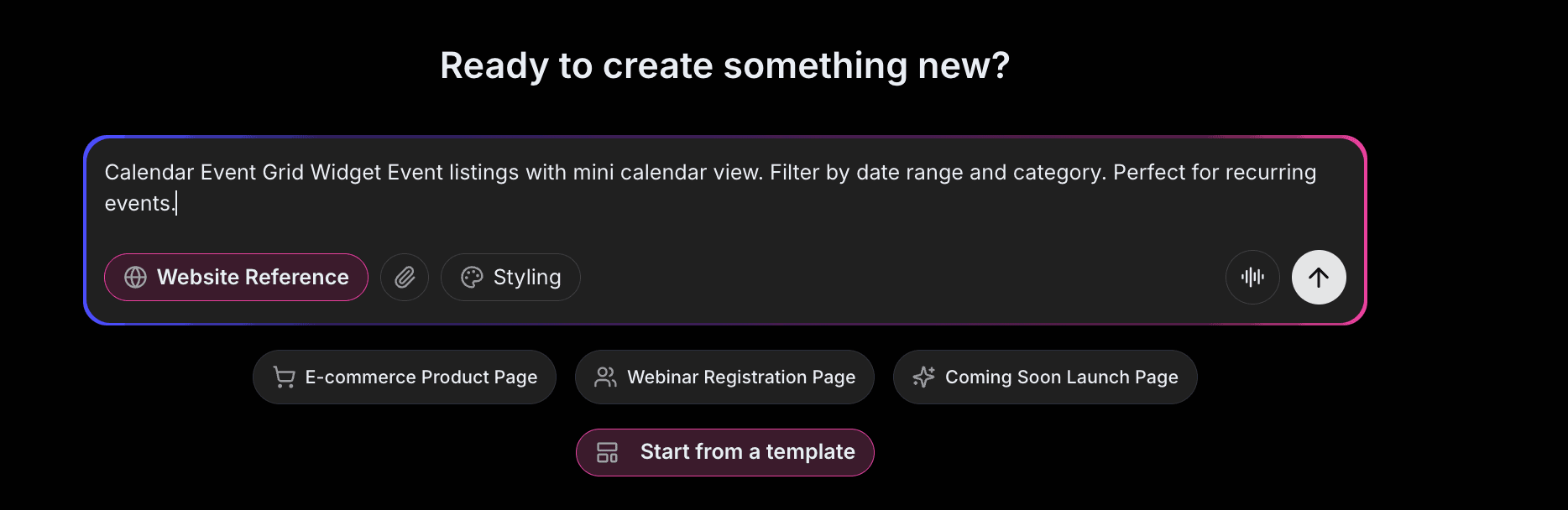
Open Embeddable and describe your calendar in natural language. Here's the exact prompt we'll use:
Build an events calendar widget showing upcoming events for a community center. Display events in both monthly calendar view and list view (user can toggle). Each event shows title, date, time, and category. Clicking an event opens a popup with full details and a "Register" button. Include filters for event categories like "Classes", "Workshops", "Social Events".
That's it! The AI understands what you want and builds the complete events calendar with:
- Monthly calendar and list view toggle
- Event cards with key details
- Category filtering
- Event detail popup
- Registration functionality
Step 3: Provide Your Website URL for Design Analysis
Here's where the magic happens. Give Embeddable your website URL, and the AI will:
- Analyze your brand colors and apply them to the calendar
- Match your website's fonts and typography
- Style event cards to feel native to your site
- Ensure the calendar integrates seamlessly
The result? An events calendar that looks like it was built by your design team, not a third-party widget.
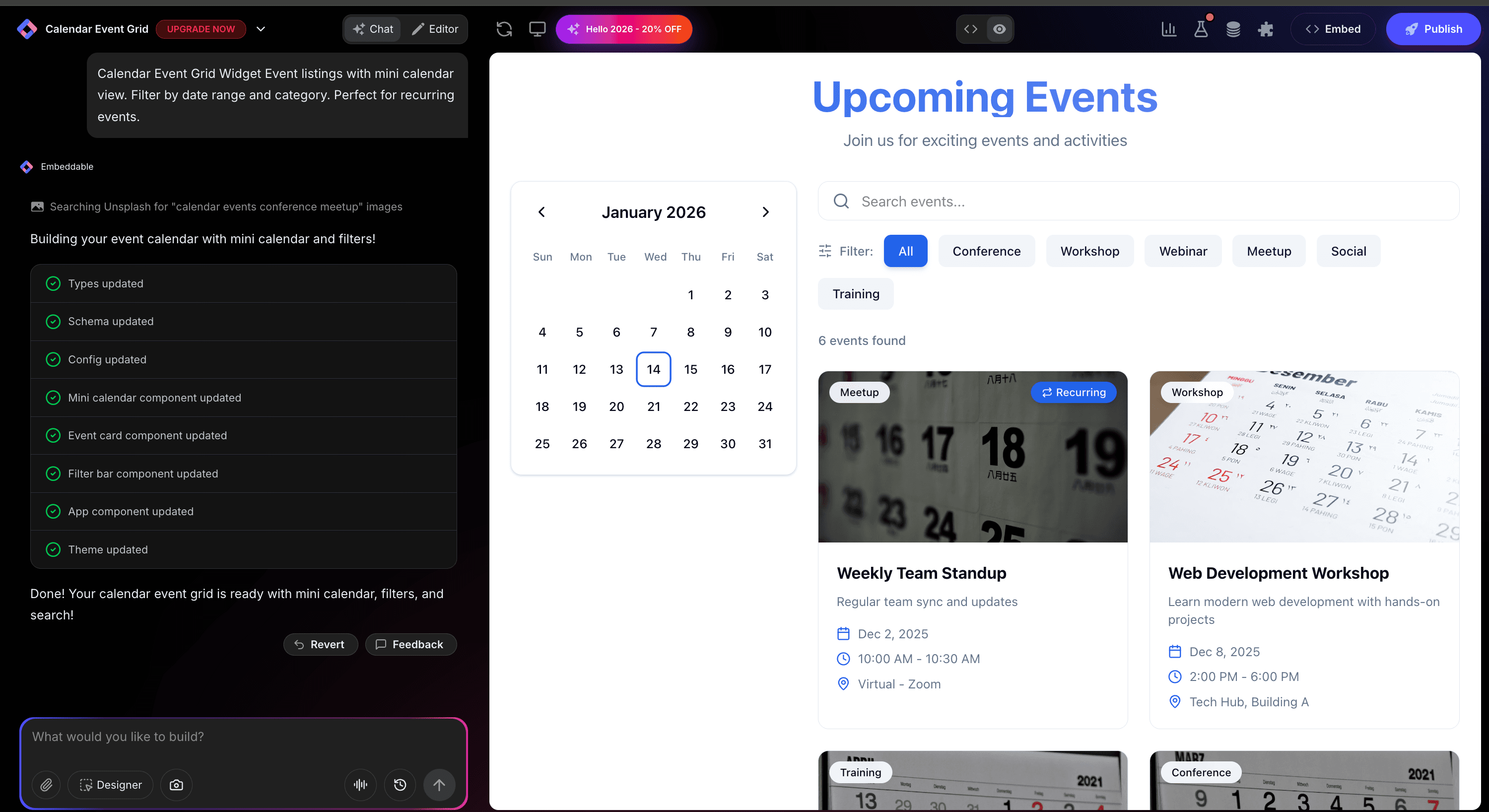
Step 4: Refine Your Events Calendar
Once the AI generates your calendar, you can refine it through conversation:
- "Add event images to the cards"
- "Include 'Add to Calendar' button for Google/Outlook"
- "Show remaining spots for limited events"
- "Add past events archive section"
- "Include recurring event support"
Each change happens instantly. The preview updates in real-time so you can see exactly how your calendar will look and work.
You can also use Embeddable's visual editor to make adjustments yourself - change colors, adjust spacing, modify text, or tweak the layout.
Step 5: Test Your Events Calendar
Before embedding, thoroughly test your calendar:
- Navigate Views: Switch between calendar and list
- Test Filters: Filter by different categories
- Click Events: Verify popup details display
- Test Registration: Submit test registrations
- Check Responsiveness: View on desktop, tablet, and mobile
The preview environment shows exactly how your calendar will appear on your website, so you can catch any issues before going live.
Embedding Your Events Calendar on Any Website
Your custom events calendar works everywhere. Once you're happy with it, you'll get a simple embed code that works on:
- WordPress: Paste into any page or post
- Shopify: Add to events or landing pages
- Wix / Squarespace: Embed in any section
- Custom websites: Add to any HTML page
The process is the same everywhere:
- Get Your Embed Code: Click "Publish" and copy the code snippet
- Paste Into Your Website: Add where you want the calendar to appear
- Publish Your Page: The events calendar goes live immediately
Your events calendar automatically:
- Displays events in chosen format
- Filters by category and date
- Handles registrations
- Adapts to different screen sizes (mobile, tablet, desktop)
- Updates instantly when you add events
Types of Events Calendars You Can Build
The same process works for any event display:
Community Calendars
Local events, meetups, gatherings.
Business Events
Webinars, workshops, conferences.
Class Schedules
Fitness classes, courses, training sessions.
Entertainment Calendars
Concerts, shows, performances.
Religious Calendars
Services, holidays, community events.
Start with a Template or Build from Scratch
Not sure where to start? Embeddable offers free calendar templates you can customize:
- Monthly Events Calendar - Classic calendar grid
- Event List - Chronological event listing
- Class Schedule - Weekly class timetable
- Conference Agenda - Multi-track event schedule
- Registration Calendar - Events with signup
Choose a template that's close to what you need, then customize it with AI to match your exact requirements. It's the fastest way to get a professional events calendar on your site.
Why Events Calendars Drive Engagement
Events calendars are engagement machines for several reasons:
They Centralize Information: One place to find all events.
They Encourage Discovery: Visitors find events they didn't know about.
They Remove Friction: Easy registration increases attendance.
They Build Anticipation: Seeing upcoming events creates excitement.
They Enable Planning: Visitors can plan ahead and save dates.
Making Your Events Calendar More Powerful
Take your calendar to the next level with these additions:
Calendar Integration
Add "Add to Google Calendar" and "Add to Outlook" buttons.
Registration Management
Collect attendee information and send confirmations.
Capacity Limits
Show remaining spots and close registration when full.
Recurring Events
Support weekly or monthly recurring events.
Social Sharing
Let visitors share events on social media.
Embeddable supports integrations with email marketing, calendar services, and ticketing platforms.
Best Practices for Events Calendars
For maximum effectiveness:
- Keep Current: Remove past events or archive them
- Clear Times: Show timezone for virtual events
- Mobile-Friendly: List view often works better on phones
- Easy Registration: Minimize form fields
- Send Reminders: Automated reminders increase attendance
Ready to Build Your Events Calendar?
That's it! No developers, no complex calendar coding, no design skills needed. Just describe what you want and AI builds your custom events calendar in minutes.
Your events calendar will:
- Match your website's design perfectly
- Display events in an engaging format
- Work on every platform and device
- Handle registrations smoothly
- Update easily when you add events
Ready to get started?
Option 1: Start with a Template Browse free calendar widget templates and customize one to your needs.
Option 2: Build Custom with AI Head to Embeddable and describe your events calendar - the AI will build it in minutes.
Need More Widget Ideas?
More Tutorials:
- How to Build Custom Widgets for Your Website
- How to Build an Appointment Booking Widget for Your Website
- How to Build a Countdown Timer for Your Website
Start showcasing your events with custom calendars now!
Build Any Widget with AI in Seconds
Forms, calculators, quizzes, popups & any custom widget — describe it and AI builds it.
Try It FreeFree tier · No credit card