How to Build a Custom Google Reviews Widget for Your Website in 2026


Want to show your Google Reviews on your website? Whether you're a local business, restaurant, or service provider, displaying real customer reviews builds trust and drives conversions. I'll show you how to build a custom Google Reviews widget in minutes - no coding required.
Want to skip ahead? Browse our free Google Reviews widget templates and customize one instantly - no need to start from scratch.
Google Reviews are one of the most trusted forms of social proof. Having them visible on your website can increase conversion rates by up to 270%.
In this guide, I'll walk you through creating custom Google Reviews widgets using AI. If you're new to building custom widgets, check out our complete guide on how to build custom widgets first.
Why Display Google Reviews on Your Website?
Embedding Google Reviews on your site is one of the easiest ways to build credibility:
- Build Trust Instantly: Real reviews from real customers convince visitors to buy
- Boost Conversions: Social proof removes hesitation at key decision points
- Improve SEO: Review content adds fresh, keyword-rich text to your pages
- Save Time: No need to manually collect and display testimonials
- Stay Current: Reviews sync automatically so your content is always fresh
Restaurants show food reviews, hotels display guest feedback, e-commerce stores highlight product reviews. Google Reviews work for virtually every business type.
Building Your Custom Google Reviews Widget with Embeddable AI
Creating a Google Reviews widget with Embeddable's AI is incredibly simple. No coding, no API keys to configure - just describe what you want and the AI builds it.
Step 1: Plan Your Reviews Display
Before you begin, think about how you want to show your reviews:
- Layout: Carousel slider, card grid, or compact badge?
- Information: Star ratings, author photos, review text, dates?
- Filtering: Show only 4-5 star reviews? All reviews?
- Styling: Match your brand colors? Dark or light theme?
- Placement: Hero section, sidebar, footer, or dedicated page?
For our example, we're building a Google Reviews carousel with star ratings and author photos.
Step 2: Describe Your Reviews Widget to the AI
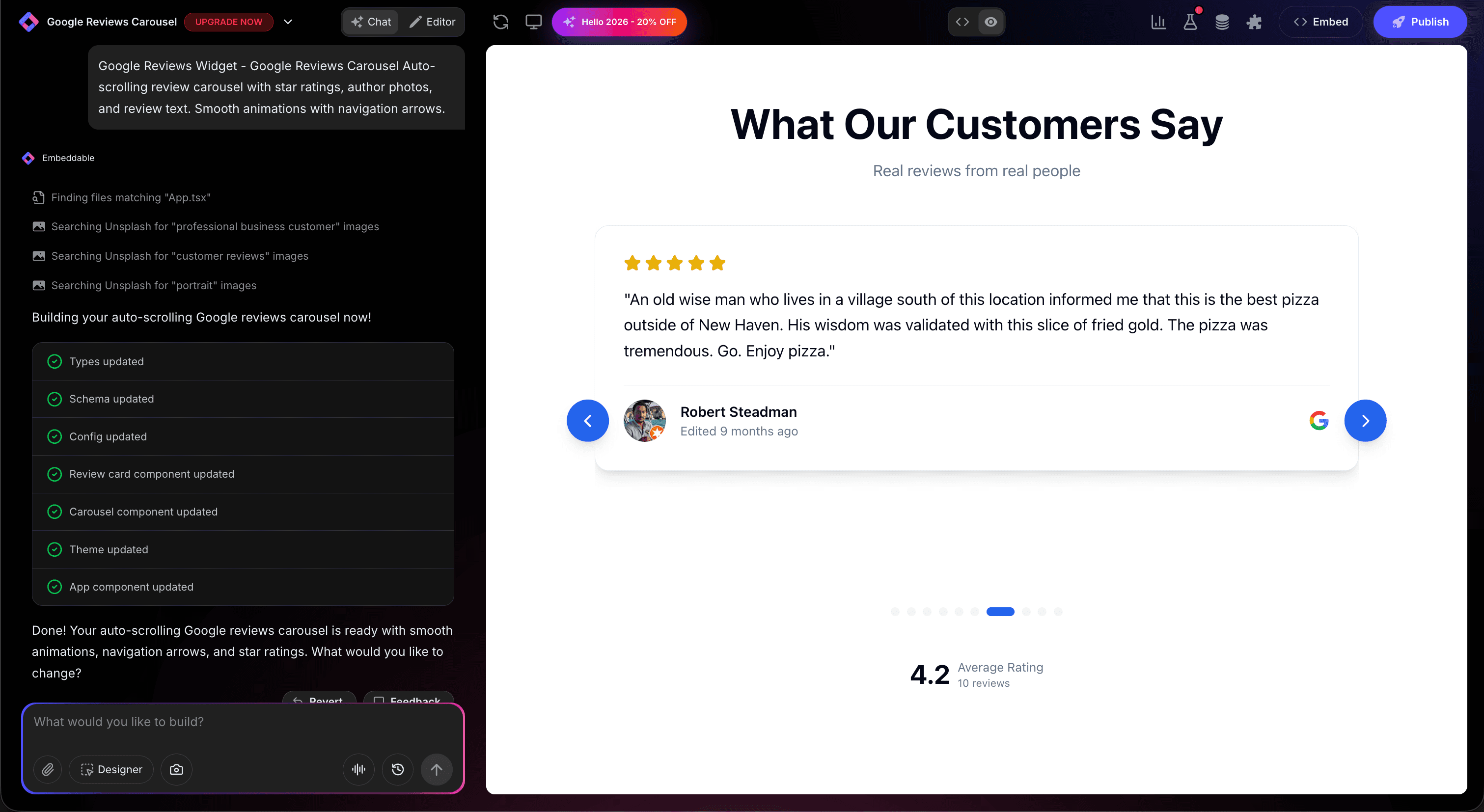
Open Embeddable and describe your Google Reviews widget in natural language. Here's the exact prompt we'll use:
Build a Google Reviews carousel widget that displays customer reviews with star ratings, author names, profile photos, and review text. Include smooth auto-scrolling with navigation arrows, and show the overall rating and total review count at the top. Style it with a clean, modern look.
That's it! The AI understands what you want and builds the complete widget with:
- Auto-scrolling review carousel
- Star rating display
- Author photos and names
- Overall rating summary
- Smooth navigation controls
Step 3: Connect Your Google Reviews Source
Here's what makes Embeddable's reviews widgets special. After the AI builds your widget, a Reviews panel appears in the CMS editor. This is where you connect your actual Google Reviews:
- Open the Reviews panel in the Content tab of the editor
- Click "Add Source" and select Google as the source
- Enter your Google Place ID - this is the unique identifier for your business on Google Maps
- Click Save - Embeddable will automatically sync your reviews
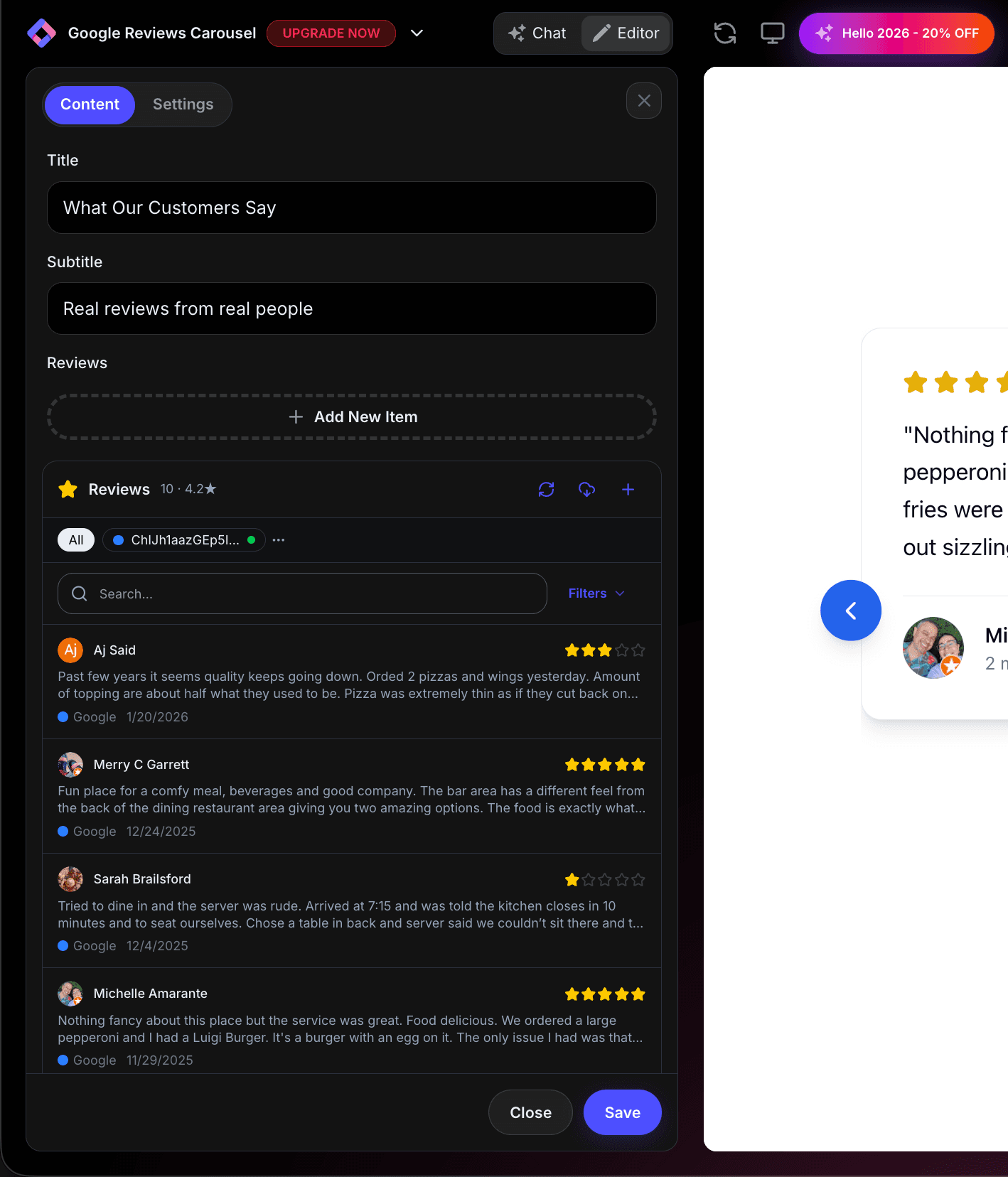
Your real Google Reviews will populate the widget instantly. No manual copy-pasting, no outdated screenshots - live reviews pulled directly from Google.
How to find your Google Place ID: Search for your business on Google's Place ID Finder, or look for it in your Google Business Profile URL.
Step 4: Provide Your Website URL for Design Analysis
Give Embeddable your website URL, and the AI will:
- Analyze your brand colors and apply them to the reviews widget
- Match your website's fonts and typography
- Style the review cards to feel native to your site
- Ensure the widget integrates seamlessly
The result? A Google Reviews widget that looks like it was built by your design team, not a third-party plugin.
Step 5: Refine Your Widget
Once the AI generates your widget, you can refine it through conversation:
- "Only show reviews with 4 stars or higher"
- "Add a 'Leave a Review' button that links to Google"
- "Show the rating distribution as a bar chart"
- "Make the carousel auto-play every 5 seconds"
- "Add a subtle Google logo to each review card"
Each change happens instantly. The preview updates in real-time so you can see exactly how your reviews will look.
You can also use Embeddable's visual editor to make adjustments yourself - change colors, adjust card sizes, modify spacing, or tweak the layout.
Step 6: Test Your Widget
Before embedding, thoroughly test your reviews widget:
- Test Navigation: Click through carousel arrows and dots
- Check Auto-Play: Verify smooth auto-scrolling
- Verify Content: Ensure reviews are displaying correctly
- Check Star Ratings: Confirm ratings match your Google listing
- Test Responsiveness: View on desktop, tablet, and mobile
The preview environment shows exactly how your widget will appear on your website.
Embedding Your Google Reviews on Any Website
Your custom Google Reviews widget works everywhere. Once you're happy with it, you'll get a simple embed code that works on:
- WordPress: Paste into any page or post
- Shopify: Add to product pages, homepage, or footer
- Wix / Squarespace: Embed in any section
- Custom websites: Add to any HTML page
The process is the same everywhere:
- Get Your Embed Code: Click "Publish" and copy the code snippet
- Paste Into Your Website: Add where you want the reviews to appear
- Publish Your Page: The reviews go live immediately
Your Google Reviews widget automatically:
- Syncs new reviews when you trigger a refresh
- Displays star ratings and review text
- Adapts to different screen sizes (mobile, tablet, desktop)
- Loads fast without slowing down your page
- Matches your website's design
Types of Google Reviews Widgets You Can Build
The same process works for any display style:
Reviews Carousel
Auto-scrolling slider showing one or multiple reviews at a time. Great for hero sections and landing pages.
Reviews Grid
Card grid layout displaying many reviews at once. Perfect for dedicated testimonial pages.
Trust Box
Compact summary showing your overall rating, star count, and total reviews. Ideal for headers and sidebars.
Reviews Badge
Small floating or inline badge with your Google rating. Perfect for footers, checkout pages, and near CTAs.
Reviews Wall
Full-page masonry layout with all reviews displayed. Great for social proof landing pages.
Start with a Template or Build from Scratch
Not sure where to start? Embeddable offers free Google Reviews templates you can customize:
- Reviews Carousel - Auto-scrolling slider with navigation
- Reviews Grid - Clean card grid with filtering
- Trust Box - Compact rating summary
- Reviews Badge - Minimal inline rating display
Choose a template that's close to what you need, then customize it with AI to match your exact requirements. It's the fastest way to get professional Google Reviews on your site.
Why Google Reviews Boost Your Business
Google Reviews on your website are powerful for several reasons:
They Build Instant Trust: 93% of consumers say online reviews impact their purchasing decisions.
They're Authentic: Visitors know Google Reviews can't be faked easily.
They're Free Content: Fresh review text adds SEO value to your pages.
They Drive Action: Seeing positive reviews encourages visitors to convert.
They Reduce Bounce: Engaged visitors stay longer when they see social proof.
Making Your Reviews Widget More Effective
Take your Google Reviews widget to the next level:
Filter by Rating
Show only 4-5 star reviews to put your best foot forward.
Add a CTA
Include a "Leave a Review" button to encourage more reviews.
Show Response
Display your replies to reviews to show you care.
Highlight Recent
Prioritize recent reviews to show your business is active.
Multiple Locations
If you have multiple locations, display reviews for each separately or combined.
Best Practices for Google Reviews Widgets
For maximum impact:
- Place Above the Fold: Put reviews where visitors see them immediately
- Keep It Fresh: Sync reviews regularly to show recent feedback
- Show Real Photos: Author profile images add authenticity
- Don't Cherry-Pick Too Aggressively: A mix of ratings looks more genuine than all 5-stars
- Include Review Count: "4.8 stars from 234 reviews" is more convincing than "4.8 stars"
- Match Your Design: The widget should feel native, not like an afterthought
Ready to Build Your Google Reviews Widget?
That's it! No developers, no API configurations, no design skills needed. Just describe what you want and AI builds your custom Google Reviews widget in minutes.
Your widget will:
- Display real reviews synced from Google
- Match your website's design perfectly
- Work on every platform and device
- Build trust and boost conversions
- Update easily when new reviews come in
Ready to get started?
Option 1: Start with a Template Browse free Google Reviews templates and customize one to your needs.
Option 2: Build Custom with AI Head to Embeddable and describe your reviews widget - the AI will build it in minutes.
Need More Widget Ideas?
More Tutorials:
- How to Build Custom Widgets for Your Website
- How to Build a Custom Trustpilot Reviews Widget
- How to Build a Custom TripAdvisor Reviews Widget
Start showcasing your Google Reviews and converting more visitors today!
Build Any Widget with AI in Seconds
Forms, calculators, quizzes, popups & any custom widget — describe it and AI builds it.
Try It FreeFree tier · No credit card