How to Build an Image Hotspot Widget for Your Website in 2026

Want to make your images interactive? Whether it's product feature callouts, floor plan details, team photo introductions, or infographic annotations, I'll show you how to build custom image hotspots in minutes - no coding required.
Image hotspots add clickable points to any image that reveal additional information - perfect for product tours, educational content, and interactive experiences.
In this guide, I'll walk you through creating custom image hotspot widgets using AI. If you're new to building custom widgets, check out our complete guide on how to build custom widgets first.
Why Add Image Hotspots to Your Website?
Image hotspot widgets serve powerful purposes:
- Pack Information Density: Show details without cluttering the image
- Increase Engagement: Interactive images keep visitors exploring
- Improve Education: Visual learning with contextual information
- Showcase Products: Highlight features directly on product images
- Reduce Bounce Rate: Interactive content keeps visitors on your site
E-commerce sites use product hotspots, real estate shows floor plan details, educational sites annotate diagrams. Image hotspots make visual content informative and engaging.
Building Your Custom Image Hotspots with Embeddable AI
Creating image hotspots with Embeddable's AI is incredibly straightforward. No coding, no complex positioning calculations - just describe what you want and the AI builds it.
Step 1: Start with Your Hotspot Concept
Before you begin, think about what your image hotspots need:
- Image: What image will you annotate?
- Hotspot Count: How many clickable points?
- Content: What information does each hotspot reveal?
- Interaction: Click to show? Hover? Both?
- Links: Should hotspots link anywhere?
For our example, we're building a product image with 5 feature callout hotspots.
Step 2: Describe Your Image Hotspots to the AI
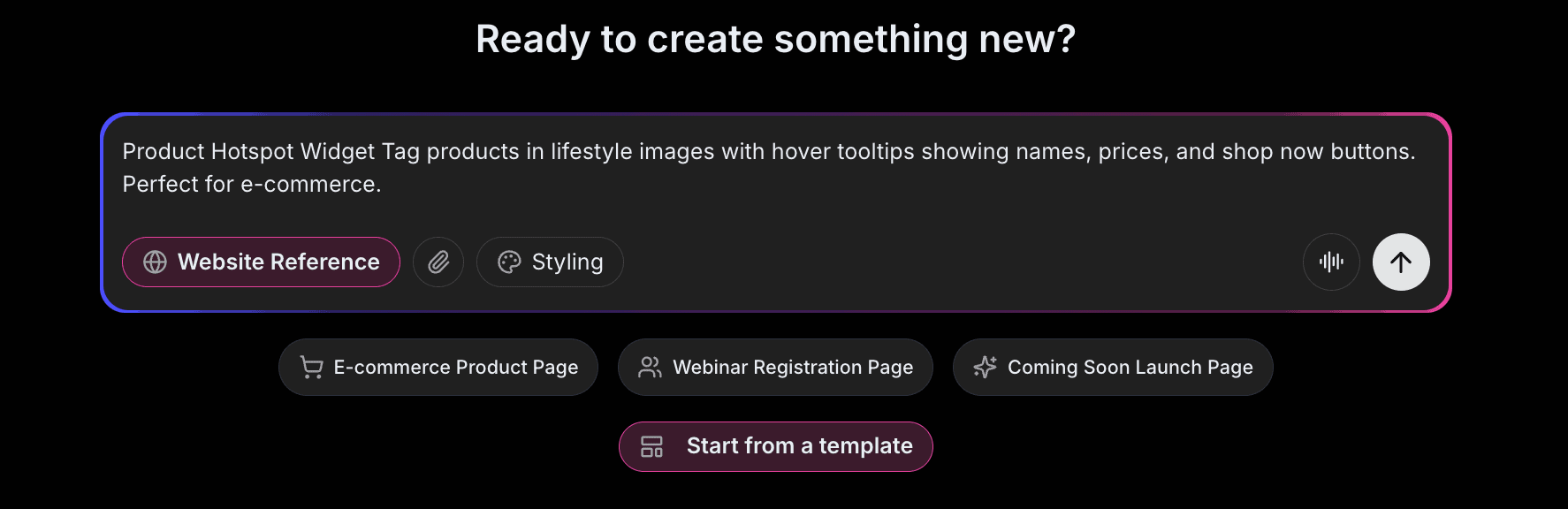
Open Embeddable and describe your hotspots in natural language. Here's the exact prompt we'll use:
Build an interactive image hotspot widget. I'll upload a product photo and want to add 5 clickable hotspot markers. Each hotspot should show a tooltip on hover with a title, description, and optional link to learn more. Use pulsing dot markers to draw attention. Make it mobile-friendly with tap support.
That's it! The AI understands what you want and builds the complete hotspot widget with:
- Pulsing dot markers at specified positions
- Tooltip popups with title and description
- Optional links for each hotspot
- Mobile tap support
- Smooth animations
Step 3: Provide Your Website URL for Design Analysis
Here's where the magic happens. Give Embeddable your website URL, and the AI will:
- Analyze your brand colors and apply them to hotspot markers
- Match your website's fonts for tooltip text
- Style the popups to feel native to your site
- Ensure the hotspots integrate seamlessly
The result? Image hotspots that look like they were built by your design team, not a third-party widget.
Step 4: Refine Your Image Hotspots
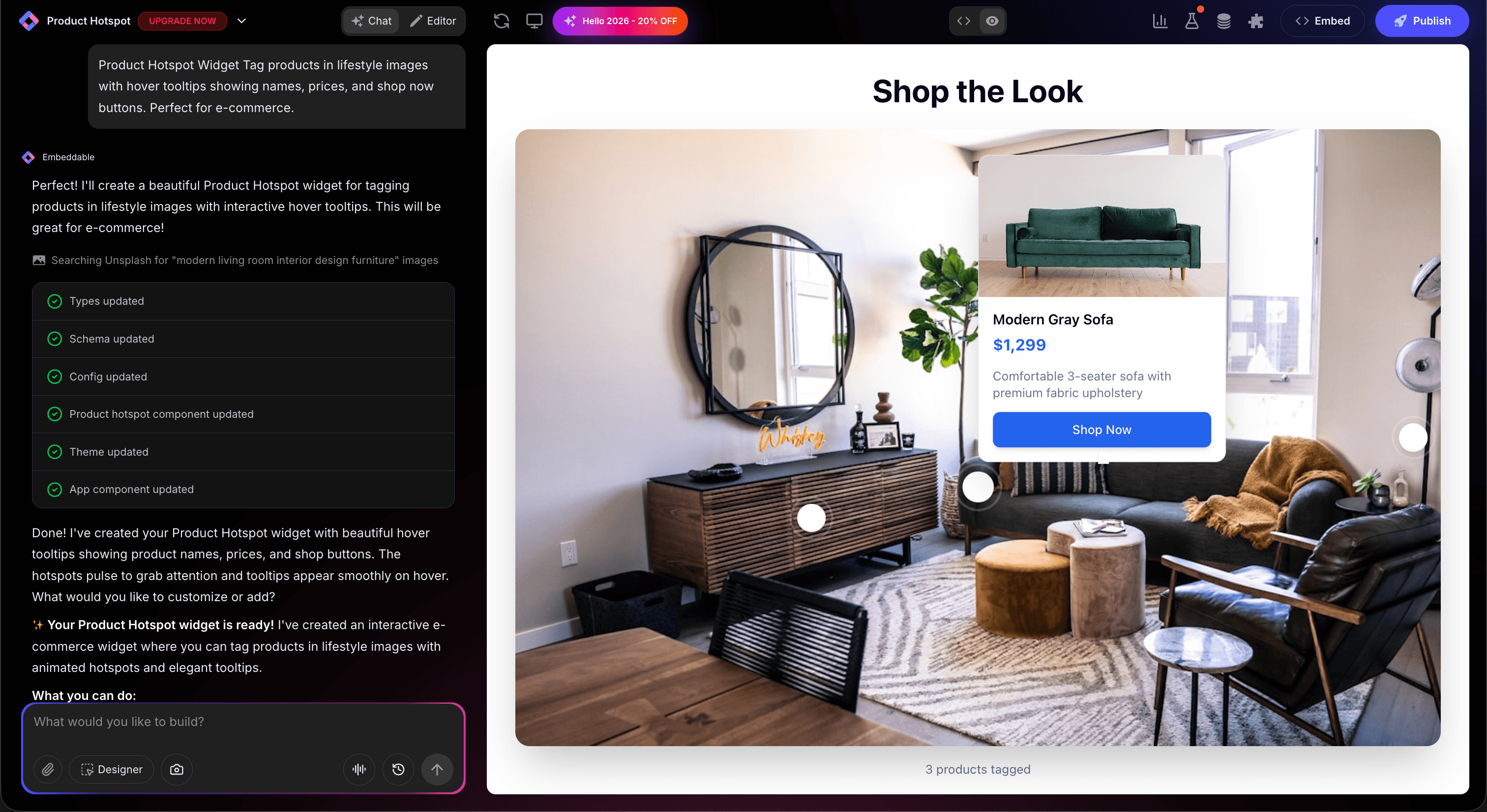
Once the AI generates your hotspots, you can refine them through conversation:
- "Change markers to numbered circles for a guided tour"
- "Add images inside the tooltips"
- "Include 'Shop Now' buttons in product hotspots"
- "Use different colors for different feature categories"
- "Make the first hotspot expand automatically"
Each change happens instantly. The preview updates in real-time so you can see exactly how your hotspots will look and work.
You can also use Embeddable's visual editor to make adjustments yourself - reposition markers, change colors, modify text, or tweak the layout.
Step 5: Test Your Image Hotspots
Before embedding, thoroughly test your hotspots:
- Test Clicks/Hovers: Verify all tooltips appear correctly
- Check Mobile: Test tap interactions on phones
- Verify Positions: Ensure markers are in the right spots
- Check Responsiveness: View on desktop, tablet, and mobile
- Validate Links: Ensure any links work correctly
The preview environment shows exactly how your hotspots will appear on your website, so you can catch any issues before going live.
Embedding Your Image Hotspots on Any Website
Your custom image hotspots work everywhere. Once you're happy with them, you'll get a simple embed code that works on:
- WordPress: Paste into any page or post
- Shopify: Add to product pages or landing pages
- Wix / Squarespace: Embed in any section
- Custom websites: Add to any HTML page
The process is the same everywhere:
- Get Your Embed Code: Click "Publish" and copy the code snippet
- Paste Into Your Website: Add where you want the hotspots to appear
- Publish Your Page: The interactive image goes live immediately
Your image hotspots automatically:
- Position markers correctly at any screen size
- Handle both click and hover interactions
- Adapt to mobile with touch support
- Load fast without slowing down your page
- Update instantly if you make changes
Types of Image Hotspots You Can Build
The same process works for any annotated image:
E-commerce Product Hotspots
- Feature callouts on product images
- Material and size details
- "Shop the look" interactive images
- Component breakdowns
Real Estate & Architecture
- Floor plan room details
- Property feature highlights
- Neighborhood amenity maps
- Building specification callouts
Education & Training
- Anatomy diagram annotations
- Scientific illustration labels
- Historical photo explanations
- Process step highlights
Travel & Hospitality
- Hotel room amenity tours
- Restaurant menu displays
- Destination point-of-interest maps
- Resort facility guides
Start with a Template or Build from Scratch
Not sure where to start? Embeddable offers free image hotspot templates you can customize:
- Product Hotspots - E-commerce feature callouts
- Floor Plan Annotations - Room and space details
- Team Photo Intros - Click to meet the team
- Infographic Labels - Data point explanations
- Guided Tour - Numbered step-by-step hotspots
Choose a template that's close to what you need, then customize it with AI to match your exact requirements. It's the fastest way to get professional image hotspots on your site.
Why Image Hotspots Boost Engagement
Image hotspots are engagement machines for several reasons:
They're Interactive: Visitors explore and discover, creating active engagement.
They're Space Efficient: Pack details into an image without visual clutter.
They're Educational: Visual learning with contextual information is highly effective.
They're Memorable: Interactive content creates stronger impressions.
They Reduce Friction: Information appears exactly where visitors need it.
Making Your Hotspots More Powerful
Take your image hotspots to the next level with these additions:
Multimedia Tooltips
Add images, videos, or GIFs inside tooltips for richer information.
Guided Tours
Number your hotspots and guide visitors through a specific order.
Shoppable Images
Add "Add to Cart" or "Buy Now" buttons directly in hotspots.
Analytics Tracking
Track which hotspots get clicked most to understand visitor interest.
Connected Content
Link hotspots to product pages, documentation, or related content.
Embeddable supports integrations to connect your hotspots with e-commerce, analytics, and CRM tools.
Best Practices for Image Hotspots
For maximum effectiveness:
- Don't Overcrowd: 3-7 hotspots per image is ideal
- Clear Markers: Make hotspots visible but not obstructive
- Useful Content: Each hotspot should provide value, not obvious info
- Consistent Styling: Use the same marker style across your site
- Mobile-Friendly: Test on phones - touch targets should be large enough
Ready to Build Your Image Hotspots?
That's it! No developers, no positioning calculations, no design skills needed. Just describe what you want and AI builds your custom image hotspots in minutes.
Your hotspots will:
- Match your website's design perfectly
- Make images interactive and engaging
- Work on every platform and device
- Provide contextual information efficiently
- Update easily when you need changes
Ready to get started?
Option 1: Start with a Template Browse free image hotspot templates and customize to your needs.
Option 2: Build Custom with AI Head to Embeddable and describe your image hotspots - the AI will build them in minutes.
Need More Widget Ideas?
More Tutorials:
- How to Build Custom Widgets for Your Website
- How to Build a Custom Map Widget for Your Website
- How to Build an Image Carousel for Your Website
Start making your images interactive with custom hotspots now!
Build Any Widget with AI in Seconds
Forms, calculators, quizzes, popups & any custom widget — describe it and AI builds it.
Try It FreeFree tier · No credit card